top of page

Taking online orders

Wix Restaurants: Setting up Contactless Dine-In

Important:

Allow your customers to view your menu, place orders online, pay, and get their food delivered to their table without interacting closely with the restaurant staff.
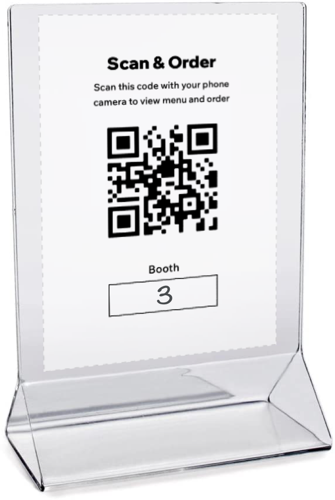
A screenshot of the contactless dine-in QR code for your customers to view your menu and place their orders.

In this article, learn more about:

Setting up contactless dine-in for your restaurant

Provide your customers with instructions for ordering via contactless dine-in, and print the QR code and place it on the tables.
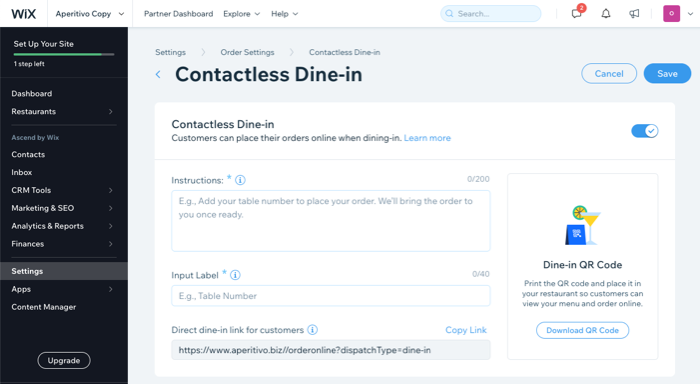
A screenshot of setting up contactless dine-in.

Important:

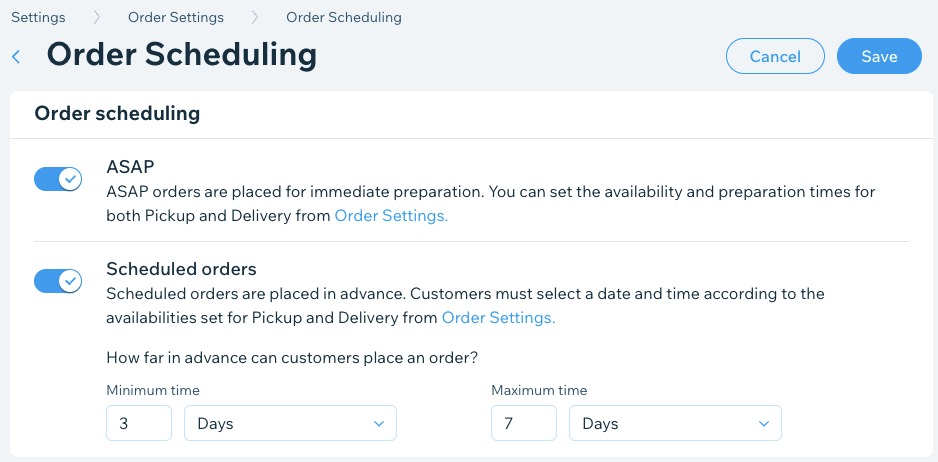
For contactless dine-in to work, you have to enable Pickup. You also have to enable the ASAP toggle in Order scheduling.A screenshot of having ASAP orders turned on in order scheduling to allow contactless dine in.
  1. Go to Order Settings in your site's dashboard.

  2. Click the Contactless Dine-in tab.

  3. Click the Contactless Dine-in toggle to enable it.

  4. Enter the information that you want your customers to see when placing their orders:Instructions: Add instructions for your customers (e.g. "Welcome! Fill in your table number and choose your dishes. We'll bring your order right to you when it's ready.").
    Input Label: Add a field for table or booth numbers. Customers are asked to fill this out while placing their order.
    (Optional) Direct dine-in link for customers: Click Copy Link to share a direct link with your customers for contactless dine-in.

  5. Click Download QR Code to download your code. You can print your QR code and place it in on the tables of your restaurant so that customers can scan it, view your menu and place an order online.

  6. Click Save.

Viewing your contactless dine-in orders

You can see your contactless dine-in orders in My Orders tab marked as Dine-in.
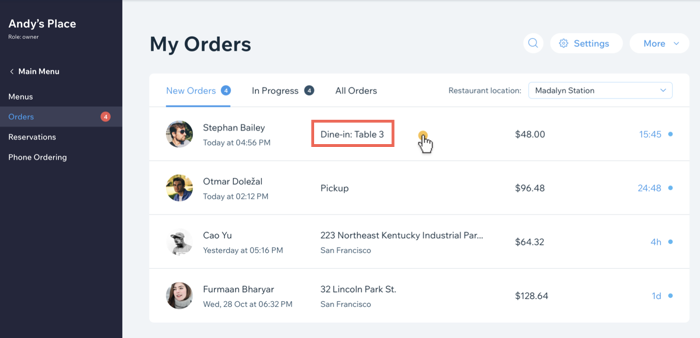
A screenshot of your contactless dine-in orders.

How customers make dine-in orders using QR code

When customers arrive at your restaurant, all they have to do is scan the QR code with their mobile phones to access your menu and place an order. During the checkout process, dine-in is automatically the delivery method and customers have to input their location in the restaurant (e.g. booth or table number).
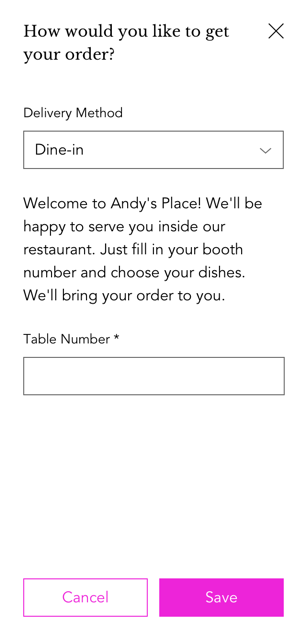
A screenshot of how customers place dine-in orders using qr codes.

Need A Professional Website?
Contact Us 
Today!

Google Workspace Error Message: "Your subscription has been suspended by your reseller"

Google Workspace Error Message: Service Is Temporarily Suspended until Your Customer Accepts the New Terms of Service

Google Workspace Error Message: "You already have a Google Workspace business email account. You can manage it from the Google Admin Console"

Google Workspace: Data Migration from an External Email to Your Google Workspace

Google Workspace: Revoking Admin Status to Delete a Workspace Account

Google Workspace: Connecting Your Business Email to a Mail Client Using IMAP and SMTP

Google Workspace: Changing the Language of Your Business Email

Google Workspace: Emails Missing from Your Business Email

Google Workspace: Allowing Access for ‘Less Secure Apps’ in Your Business Email

Google Workspace: Adding Google Workspace MX Records to Your Wix Account

Google Workspace: Setting Up a Domain Alias

Google Workspace: Manually Verifying Your Domain with Google

Google Workspace: Connecting a Business Email for a Domain Pointing to Wix

Google Workspace: Setting Up an Email Alias for an Existing Workspace User Email Address

Google Workspace: Resetting a Workspace User's Password

Google Workspace: Renaming a Workspace User

Google Workspace: Accessing Your Additional Workspace Users

Google Workspace: Purchasing Additional Business Emails from Wix

Google Workspace: Setting Up Business Email Users

Gemini for Google Workspace: An Overview

Google Workspace: Upgrading a Workspace Plan

Google Workspace: Choosing a Plan

Google Workspace: Business Email Sending Limits

Google Workspace: Forwarding Emails From Your Business Email to Another Email Address

Google Workspace: Resetting Your Admin Password

Google Workspace: Accessing Your Admin Console

Google Workspace: Identifying Your Admin Workspace User

Google Workspace: Setting Up Your Business Email on Mobile Devices

Google Workspace: Username and Password Guidelines

Google Workspace: Accessing your Business Email Through Your Wix Account

wix experts
Graphic2Traffic web design
©
bottom of page