Taking online orders
Wix Restaurants: Printing an Order
Important:
This article is about the original Restaurants Orders app.
We've released a new online ordering app. Learn how to add and set up the new Wix Restaurants Orders (New) app.
Print incoming, current, and past orders from your dashboard. You can set up a network/Wi-Fi ready printer to receive email notifications for incoming orders and print them for your convenience.
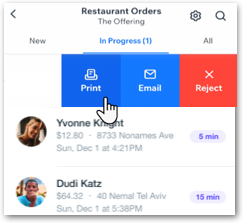
You can also print restaurant orders from the Wix app and keep track of your receipts from wherever you are. Once you've connected a printer, swipe left on an order in the app to quickly print a receipt or send the receipt in an email to print later. You can also automatically print new orders when you have the app open.
Notes:
With the Wix app, you can print receipt-sized orders using Star Micronics TSP143, Star Micronics TSP654II, or Epson TM30ii Bluetooth printers. The Star Micronics TSP143IIIW printer connects only via Wi-Fi and is not supported.
Classic printers are not supported.
Orders are printed on A4 paper by default. However, you can resize the paper according to you preferences in the printer dialog box.
In this article, learn how to:
Printing your orders from the dashboard
You can print your restaurant's orders directly from the Orders tab in your dashboard.
To print an order from the dashboard:
Go to the Orders tab of your dashboard.
Choose the tab for the order you want to print:New Orders: Orders that have not yet been accepted.
In Progress: Orders that have been accepted, but have not been delivered.
All Orders: All orders, you can find delivered orders here.
Click the order that you want to print.
Click Print at the top right.
Setting up automatic printing using your printer's email address
You can set automatic printing with Network/Wi-Fi ready printers that have their own email addresses. Every time a new order comes in, the system sends a notification to the printer's email which then prints out the order on A4 paper.
To set up automatic printing:
Go to the Orders tab of your dashboard.
Click Settings at the top right.
Click Notifications.
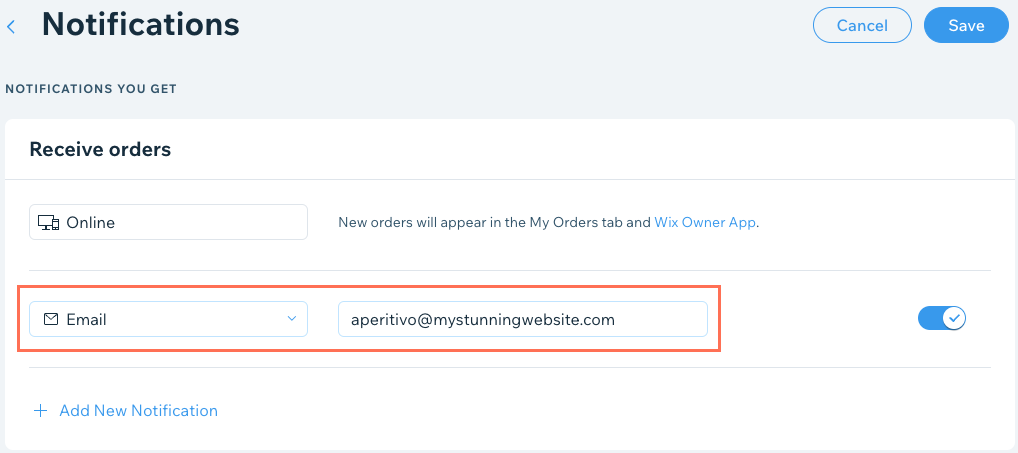
Click + Add New Notification under Receive Orders.
Make sure the Email drop-down is selected.
Enter your printer's email address.
Note: You can find out your printer's email address through your printer manufacturer. Each manufacturer has its own instructions. To assist you, we've included common manufacturer links at the bottom of this article.
Click Save.
Common manufacturer links for printer email setup:
Note:
The next time you receive an order, your printer gets an email notification and prints the order automatically. You can also set up auto print notifications about unhandled orders. Click + Add New Notification under Unhandled Orders to begin.
Printing your orders from the Wix app
Connect a printer to the Wix app and print restaurant orders from wherever you are. Once you've connected a printer, you can swipe left on an order in the app to quickly print a receipt or send the receipt in an email to print later. You can also automatically print new orders when you have the app open.
You can print orders from the Wix app using:
Network printers (printers connected to Wi-Fi)
Star Micronics TSP143, Star Micronics TSP654II or Epson TM30ii bluetooth printers
AirPrint (iOS devices)
IPP (Android devices)
If you have any issues with pairing, please contact the printer support. If you're having trouble connecting a printer, follow these troubleshooting steps.
Connecting a printer in the Wix app
Connect your printer to your phone via Bluetooth or Wi-Fi according to the instructions in your printer's user guide. Once you've connected a printer, you can select it as default whenever you print an order receipt in the app.
To connect a printer in the Wix app:
Go to your site in the Wix app.
Tap Manage at the bottom right.
Tap Restaurant Orders.
Tap the Settings
 icon at the top right.
Tap Print Settings.
Tap the Select Printer drop-down and choose your connected printer from the list.
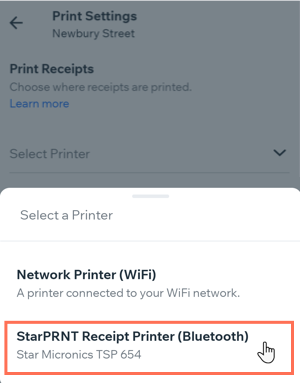
(Optional) Tap the Automatically print new orders toggle to automatically print new orders with the selected printer when you have the app open.
Printing restaurant orders in the Wix app
Print incoming and past orders right from your device with the Wix app. Select any order to view more information before printing, or you can swipe left on the order in the main Orders screen to quickly print it.
To print an order in the Wix app:
Go to your site in the Wix app.
Tap Manage at the bottom right.
Tap Restaurant Orders.
Tap the order you want to print.
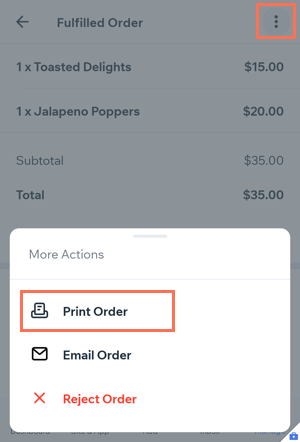
Tap the More Actions icon
 at the top right.
Tap Print Order.
Select a printer.
Choose from the printing options.
Tap Print.
Tip:
You can also quickly print an order from the Restaurant Orders screen by swiping left on the order and tapping Print.