


Taking online orders
Wix Restaurants: Limiting the Number of Orders Placed
Important:
This article is about the original Restaurants Orders app.
We've released a new online ordering app that currently does not support limiting the number of orders placed. Learn more about the differences between the old and new online ordering apps.
Increase your fulfillment time using order pacing to ensure smooth service during your peak hours.
Set the number of orders your restaurant can fulfill every 15 minutes and when it should apply. Once you've hit the limit, customers placing their orders will see longer fulfillment times.
In this article, learn more about:
Setting up order pacing
Set the maximum number of orders your restaurant can fulfill every 15 minutes and your peak hours. You can also include contactless dine-in orders.
Important:
Order pacing is available only for ASAP orders.
To set up order pacing:
Go to Order Settings in your site's dashboard.
Click Advanced.
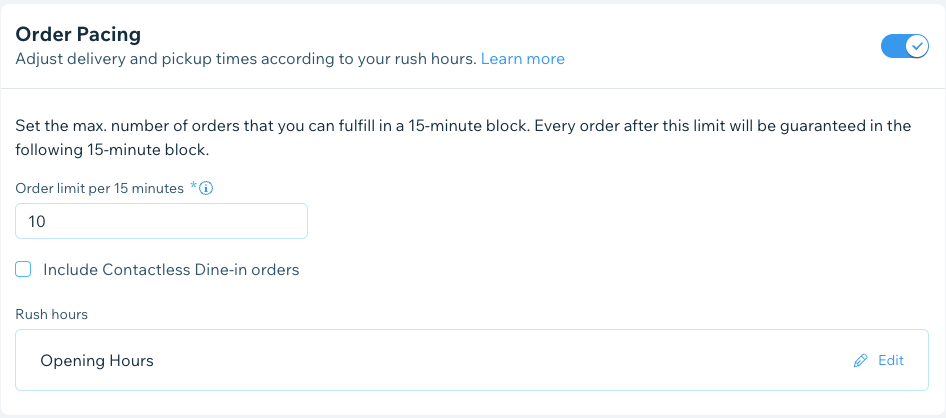
Click the Order Pacing toggle:
Enabled: Limit the number of orders placed according to your rush hours:Order limit per 15 minutes: Enter the number of orders you can fulfill every 15 minutes.
Include Contactless Dine-in orders: Select the checkbox to include contactless dine-in orders.
Rush hours: Set the days of week and times of day to apply the order limit to and click Apply.
Disabled: Customers can place orders on your site without any limitations.
Click Save.
FAQs
Click a question below to learn more about order pacing.
How does order pacing work?
You can turn order pacing on or off. If you have it on, you can set the maximum number of orders your restaurant can fulfill every 15 minutes and when it should apply. This means that once you've hit your limit, customers placing their orders will see longer fulfillment times when they place their orders.
What orders are included in order pacing?
Order pacing is automatically applied to online orders for delivery and pickup. You can also include contactless dine-in orders by enabling the Include Contactless Dine-in Orders toggle.
Can I set up order pacing in the Wix app?
You can turn order pacing on or off in the Wix app, but you can't set your rush hours from the app. To update your rush hours, you need to do it from your desktop (see below).
Can I set order pacing for my peak hours?
If you have specific peak hours (rush hours), you can set the order pacing to apply for only those times. You set the days of the week and times of day to apply the order limit to.
You can't set your rush hours from the Wix app, you need to do it from your desktop. To update the times, go to Advanced under Order Settings in your site's dashboard.