top of page

Creating your Wix Restaurants menu

Wix Restaurants: Designing and Printing Your Menu

Important:

This article is about the original Wix Restaurants Menus App. Try out our new, improved menu app. Learn how to add and set up Wix Restaurants Menus (New) app.

Choose one of our designed templates and customize a printable menu for your restaurant. You can set the font style and colors, add your restaurant logo and a scannable QR code for your customers to scan and order online. Once you're done, click Download Menu to download your menu in PDF format.
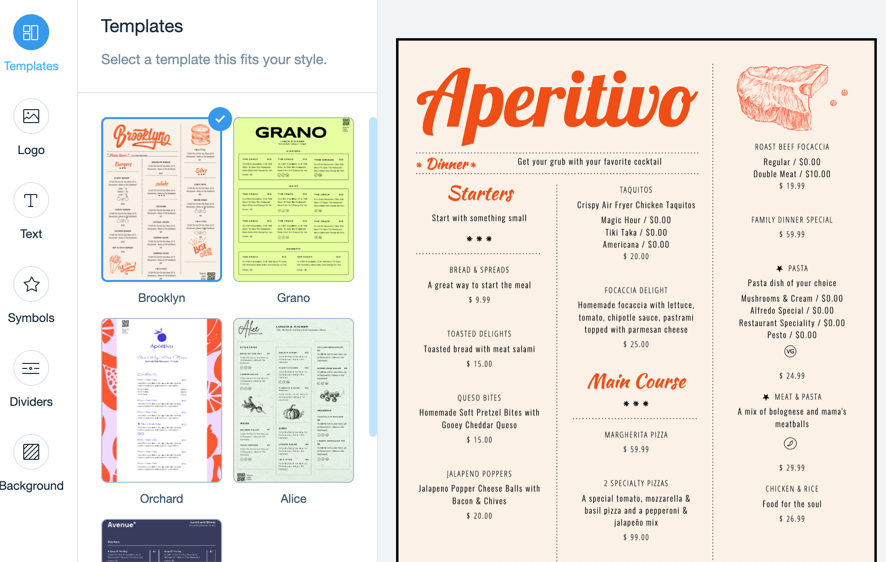
Screenshot of setting the template for your printable menu

To design and print your menu:

  1. Go to Menus in your site's dashboard.

  2. Hover over the menu you want to customize and click the Print icon Print icon in Menu screen.

  3. Customize your printable menu:Templates: Click on a template that suits your restaurant.

    Logo: Add your restaurant's logo and QR code for online orders:Click Upload to upload your restaurant's logo from your computer.
    You can also click Create a Logo to create one with the Wix Logo Maker.
    Enable the QR Code toggle to include a scannable QR code on your menu for customers to scan and order online.

    Text: Hover over the relevant text style and click Customize to set the styles for text on your menu (menu, section and dishes):Dish description: Click the toggle to show or hide descriptions of dishes in your menu.
    Font: Click Change Font and choose a font for your menu.
    Text style: Click to bold, italicize or underline the text.
    Alignment: Choose to align the text to the left, center or right.
    Text color: Choose a color for the text or enter a hex code.
    Size (px): Set a size for the text or drag the slider.
    Symbols: Select a set of symbols and set their colors.
    Dividers: Use dividers to separate the different sections on your menu.
    Background: Choose a background color for your menu. You can also enter a hex code.
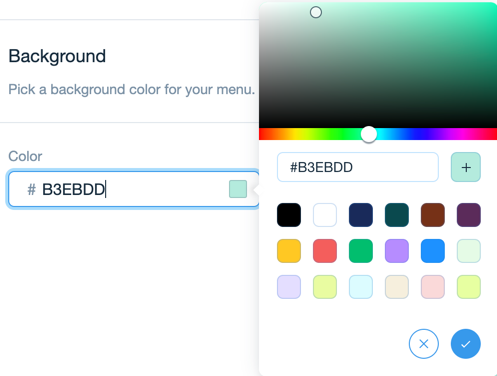
Background color picker with hex code option and color palette

  1. Click Download Menu to download your menu in PDF format.

Need A Professional Website?
Contact Us 
Today!

Connecting FIBONATIX as a Payment Provider

Connecting izipay as a Payment Provider

Connecting FasterPay as a Payment Provider

Connecting Kashier Payment Solutions as a Payment Provider

Disabling 2Checkout's Unfinished Payments Feature to Avoid Failed Transactions

Requiring a Customer Phone Number When Checking Out with PayPal

Disabling PayPal Encryption Messages

Connecting Smartphone Payment as a Payment Method (through KOMOJU)

Connecting Bankful as a Payment Provider for Cryptocurrency, Wallet and Credit Card Payments

Connecting Paymentwall as a Payment Provider

Connecting ACH by Choice as a Payment Provider

Connecting Vipps as a Payment Provider

Connecting Mollie as a Payment Provider

Connecting MONEI as a Payment Provider

Connecting payabl. as a Payment Provider

Connecting PayPlus as a Payment Provider

Connecting Tilopay as a Payment Provider

Connecting SumUp as a Payment Provider

Connecting YooKassa (YooMoney) as a Payment Provider

Connecting Square as a Payment Provider

Connecting Stripe as a Payment Provider

Connecting Online Bank Transfer by Klarna as a Payment Method (Through Stripe)

Connecting PayPal as a Payment Provider

Connecting Pay-Easy or Convenience Stores as a Payment Method (Through GMO)

Connecting PagueloFacil as a Payment Provider

Connecting PagSeguro as a Payment Provider

Connecting Mercado Pago as a Payment Provider

Connecting Max as a Payment Provider

Connecting bit (Provided by Isracard powered by PayMe) as a Payment Method

Connecting Evergreen Payments Northwest as a Payment Provider

wix experts
Graphic2Traffic web design
©
bottom of page