top of page

Creating your Wix Restaurants menu

Wix Restaurants: Creating a Combo Meal

Important:

This article is about the original Wix Restaurants Menus App. Try out our new menu app. Learn how to add and set up Wix Restaurants Menus (New) app.

You can offer a combo meal on your menu when you want to sell two or more dishes for a special price. For example, you may offer a special family dinner combo with multiple dishes, or a lunch special that includes a starter, main course and a beverage.

Before you begin:

Make sure that the dishes you want to add to the combo meal are available on your menu. Learn how to add dishes to your menu.

To create a combo meal:

  1. Go to Menus in your site's dashboard.

  2. Navigate to the relevant menu section.

  3. Click Add Dish.

  4. Enter the combo meal details:Name: Enter a name for the combo meal.
    Price: Enter a price for the combo meal.
    Tax: Enter taxes for the combo meal, if applicable.
    Description: Enter a description for the combo meal.
    Dish Labels: Add relevant labels to your combo meal (Special, Vegan, Vegetarian, Gluten Free, Organic and Spicy levels).
    Visibility: Select to show this combo meal to customers in the menu.
    Image: Click to add an image to the combo meal.
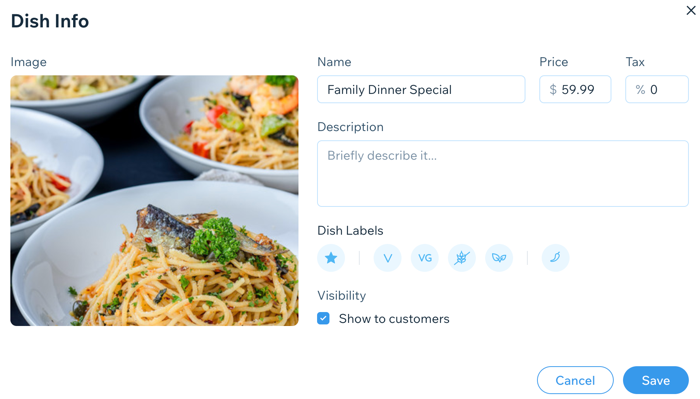
A screenshot of adding details to dish info.

  1. Click Save.

  2. Click + New Option and then New Option.

  3. Click New Choice at the top right and then Select Existing.

  4. Hover over and select the existing dishes you'd like to add to the combo meal.

  5. Click Add.
    Note: The dishes are added with their dish options. To remove the dish options, click Use without.

  6. Click Add.

Need A Professional Website?
Contact Us 
Today!

Third-Party Apps: Marketing Apps

Third Party App: Gifted by Gifted

Third-Party App: Melhor Envio by Melhor Envio

Third-Party App: Etsy Integration by Webkul

Third-Party App: Product Auction by Webkul

Third-Party App: POSTA by TORAB

Third-Party App: Uploadly - File Upload by Inspon

Redeeming Your Smile: Points & Rewards Promo Code

Third Party App: Smile Points & Rewards by Smile

Third-Party App: skuIQ Real-Time Inventory Sync by skuIQ

Third-Party App: Shippo by Shippo

Third-Party App: QuickBooks Connector By Intuit

Third-Party App: Printify by Printify

Third-Party App: Online Store by Ecwid Inc.

Third-Party App: NetSuite Sync by Webgility

Third-Party App: Modalyst - Dropshipping by Modalyst

Offering Gift Cards with the Gifted App

Third-Party App: Barcode Man Label Printing by Gookit

Third-Party Apps: E-commerce Apps

Claiming My Free Apps

Refunds for Third-Party App Upgrades

Canceling an App Subscription

Using an Existing App Subscription for an App on Your Site

Upgrading an App from the Wix App Market

Managing Your Wix Apps from the 'My Business' Panel

Creating a Third-Party App for the Wix App Market

Troubleshooting: Unable to Open App Settings Panel

App Disappearing from Page with Hidden Footer

Reasons an App Review Was Removed

Adding a Pending App in Your Editor

wix experts
Graphic2Traffic web design
©
bottom of page