top of page

Taking online orders

Wix Restaurants: Adding a Service Fee to Online Orders

Important:

Add a service fee to online orders in your Wix Restaurant site to help you cover operational costs and state regulation fees.

You can add the service fee as a percentage or fixed amount of the total order, and add sales tax if applicable. You can also set the service fee to apply to orders above a certain amount and based on how you fulfill that order.

Customers will see the service fee as a separate line item and a price breakdown in their order summary during checkout.
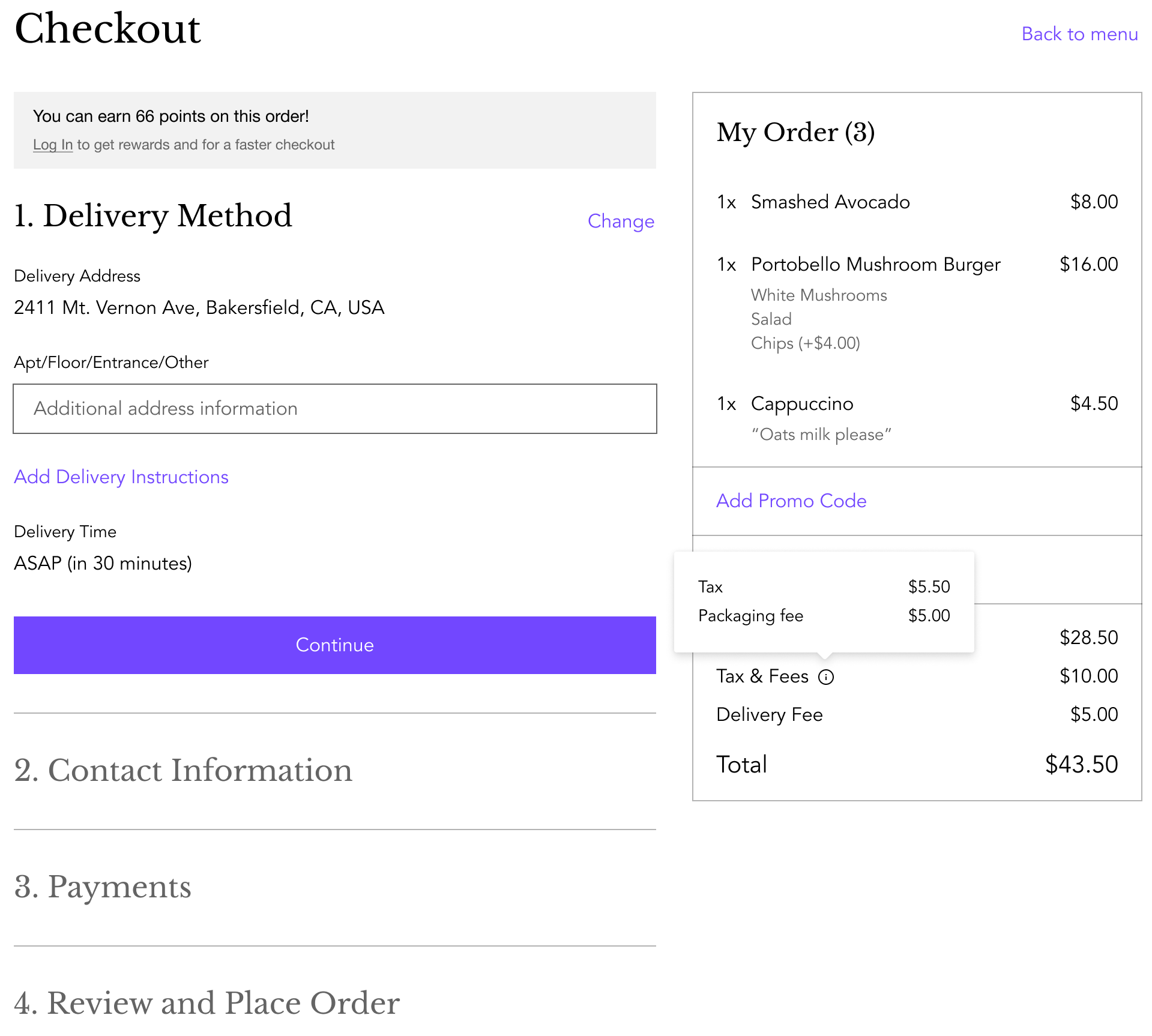
A screenshot of the checkout page with the service fee and price breakdown.

To add a service fee:

  1. Go to Order Settings in your site's dashboard.

  2. Click Advanced.

  3. Scroll down to Service fees and click + New Service Fee.

  4. Add your service fee details and set the conditions:Service name: Add a name for your service fee.
    Amount: Enter your service fee. It can be a fixed amount ($) or a percentage (%).
    Note: Customers will see the service fee and amount during checkout.
    (Optional) Add sales tax: Click the checkbox to add sales tax to this service fee and enter the percentage to add.
    Note: Adding sales tax is only available in US and Canada. Customers will see the breakdown of the tax charged during checkout.

    Apply based on subtotal amount: Choose what orders to apply the service fee to:All orders: All orders will be charged the service fee.
    Orders above: Orders placed above the amount you set will be charged this service fee.
    Orders between: Orders between a minimum and maximum amount will be charged this service fee.
    Apply based on fulfillment type: Choose the fulfillment type to apply the service fee to (Pickup / Curbside Pickup / Delivery / Contactless Dine-in).
    Click Create.

  5. Click Save.

  6. (Optional) Repeat steps 3-5 to add another service fee.

Need A Professional Website?
Contact Us 
Today!

Google Workspace Error Message: "Your subscription has been suspended by your reseller"

Google Workspace Error Message: Service Is Temporarily Suspended until Your Customer Accepts the New Terms of Service

Google Workspace Error Message: "You already have a Google Workspace business email account. You can manage it from the Google Admin Console"

Google Workspace: Data Migration from an External Email to Your Google Workspace

Google Workspace: Revoking Admin Status to Delete a Workspace Account

Google Workspace: Connecting Your Business Email to a Mail Client Using IMAP and SMTP

Google Workspace: Changing the Language of Your Business Email

Google Workspace: Emails Missing from Your Business Email

Google Workspace: Allowing Access for ‘Less Secure Apps’ in Your Business Email

Google Workspace: Adding Google Workspace MX Records to Your Wix Account

Google Workspace: Setting Up a Domain Alias

Google Workspace: Manually Verifying Your Domain with Google

Google Workspace: Connecting a Business Email for a Domain Pointing to Wix

Google Workspace: Setting Up an Email Alias for an Existing Workspace User Email Address

Google Workspace: Resetting a Workspace User's Password

Google Workspace: Renaming a Workspace User

Google Workspace: Accessing Your Additional Workspace Users

Google Workspace: Purchasing Additional Business Emails from Wix

Google Workspace: Setting Up Business Email Users

Gemini for Google Workspace: An Overview

Google Workspace: Upgrading a Workspace Plan

Google Workspace: Choosing a Plan

Google Workspace: Business Email Sending Limits

Google Workspace: Forwarding Emails From Your Business Email to Another Email Address

Google Workspace: Resetting Your Admin Password

Google Workspace: Accessing Your Admin Console

Google Workspace: Identifying Your Admin Workspace User

Google Workspace: Setting Up Your Business Email on Mobile Devices

Google Workspace: Username and Password Guidelines

Google Workspace: Accessing your Business Email Through Your Wix Account

wix experts
Graphic2Traffic web design
©
bottom of page