


Wix Portfolio
Wix Portfolio: Translating Your Portfolio with Wix Multilingual
With Wix Multilingual, visitors across the world can enjoy your portfolio in their native language.
Showcasing your work to a global audience allows you to connect with potential clients and collaborators no matter where they are. This makes it easier for international clients to understand your work and reach out for potential projects.
You can manually translate or auto-translate your portfolio's content.
What portfolio content can I translate?
Project titles
Collection titles
Descriptions
Project page optional text items such as Work, Client Name, Location etc.
'Next' and 'Previous' arrow button text
In this article, learn more about:
Translating your portfolio
Translate the content of Portfolio collections, projects and items from the Translation Manager. Make sure to translate the new changes each time you make an update to your portfolio,
To translate your portfolio:
Go to the Translation Manager in your site's dashboard.
(If necessary) Click the Language drop-down on the left and select the relevant language.
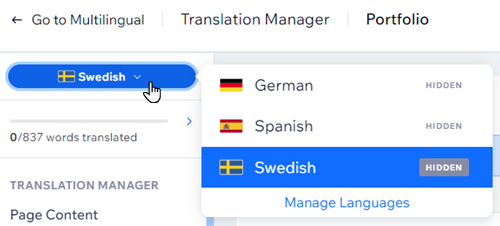
Click the Portfolio drop-down on the left and select the page you want to translate: Portfolio collections, Portfolio project items or Portfolio projects.
Enter your translation in the translation fields or click Auto-translate
 to automatically translate the content.
Click Done to move to the next item.
Save and publish your site.

Tip:
Learn more about working with the Translation Manager.
FAQs
Click a question below to learn more about translating your portfolio.
Why can't I see my portfolio translation in the Editor?
Your portfolio translations are not visible in the Editor. To see your translations in action, view your site in Preview mode, or publish and view your live site.
Is auto-translation initiated automatically for newly added languages?
No. If you add new languages after auto-translating your site, the auto-translation won't automatically apply. You'll need to go into your editor and follow the steps again to auto-translate the new language version of your site.
Will newly added elements / pages be auto-translated?
No. New elements and pages that you add do not get automatically translated. To auto-translate a new page or element, access it in your editor and repeat the steps above.
Can I give my project a title?
Currently, it's not possible to give your project a title. Projects are automatically titled in chronological order, e.g., Project 1, Project 2, etc.