


Wix Portfolio
Wix Portfolio: SEO for Your Portfolio
Wix adds SEO settings to your site so search engines and social networks can index and display your portfolio in search results. Adding alt text and a description to your portfolio images, as well as working with your site's SEO Settings for your portfolio can help it rank higher in search engine results and drive traffic to your site.
In this article, learn more about:
Adding alt text and descriptions to project images
Alt text is a type of descriptive text you can add to images. Add alt text to your project images manually or with the help of AI so that search engine bots can read it to understand what the images are about.
You can also add a description to your images, which allows you to add more context to them. It can also help your portfolio's SEO. Make sure your alt text and description describe the image accurately while integrating your site’s keywords.
Editing the SEO settings for your portfolio
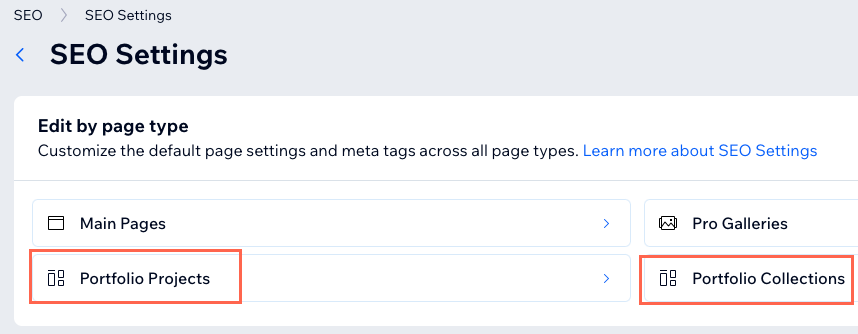
Use your site's SEO Settings to apply the same SEO logic to all of your project and collections pages at the same time. This allows you to create an SEO strategy for all of your portfolio pages much more quickly.
To edit the SEO settings for your portfolio:
Select Go to SEO Settings under Tools and settings.
Click Portfolio Projects or Portfolio Collections to customize the SEO settings of your project or collections pages.
FAQs
Click a question below to learn more about SEO for your portfolio.
What happens if I don't add alt text to my project items?
If you don't add alt text to a project item, the alt text is automatically taken from the Title field. If your project item does not have a title, the alt text is automatically taken from the Description field.
Can I change the URL of an individual image?
The URLs of individual images in project pages are generated automatically. It is not possible to change them.
Can I customize the URL of my portfolio page?
Yes, you can customize the url slug for each project. This is the final section of a projects URL. Currently it is not possible to customize any other sections of the portfolio page URLs.