


Wix Podcast Player
Wix Podcast Player: Adding and Setting Up the Wix Podcast Player
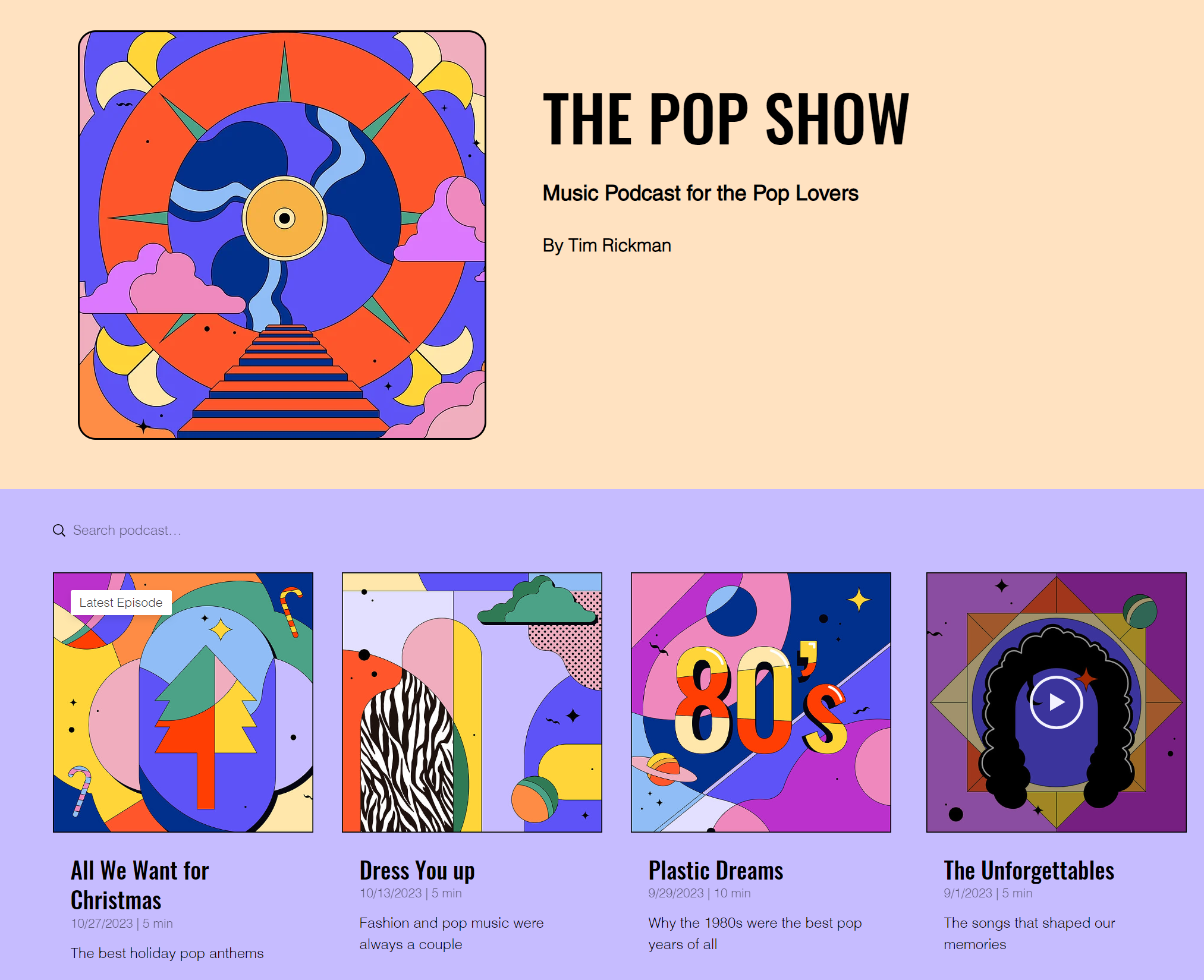
Showcase your podcast episodes directly on your website with the Wix Podcast Player.
By connecting your RSS feed with the app, a built in Podcast Overview page displaying all your episodes in one place, and a dedicated Episodes Page for individual episodes and their information are automatically generated. This means that new episode pages are created automatically as you add episodes to your hosting platform- freeing you up to focus on your content.
You can also customize the app's design and layout so that it best compliments your site's existing look and feel.
Step 1 | Add the Wix Podcast Player
The first step is to add the Wix Podcast Player to your site. After you've added the app, you can then look at connecting to your host platform and customizing the app's layout and design.
Wix Editor
Studio Editor
Dashboard
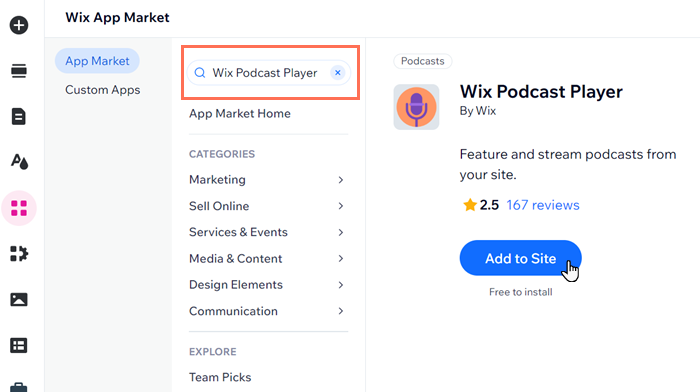
Click Add Apps
 on the left side of the editor.
Search for the Wix Podcast Player app in the search bar.
Click Add to Site.
Step 2 | Connect your RSS feed
Next, connect the app to your RSS feed link. You can find your RSS feed link on your host platform, for example (SoundCloud, Libsyn etc.). Your RSS feed automatically includes and updates information like titles, cover images, dates and more.
To connect your RSS feed:
Click the Wix Podcast Player.
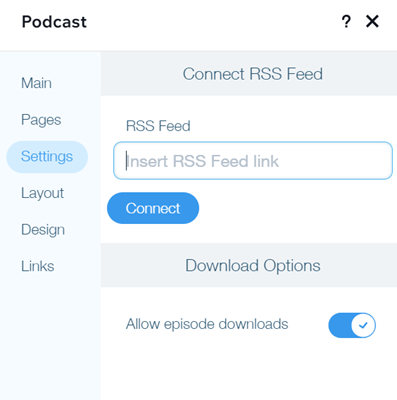
Click Settings.
Click the Settings tab.
Click Insert RSS Feed link.
Paste in the RSS feed link.
Click Connect.
Click the Allow episode downloads toggle to allow listeners to download your podcast.
Step 3 | Customize your podcast layout
Now it's time to adjust the Podcast Overview page layout to compliment your site's existing design. You can adjust the page's feed and header.
To customize your podcast layout:
Click the Wix Podcast Player in your editor.
Click Pages.
Click Podcast Overview.
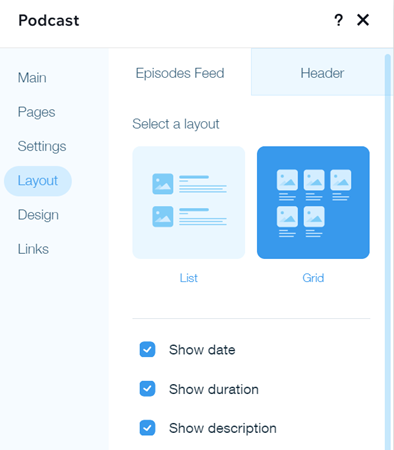
Click Layout.
Choose what you want to customize:
Episodes Feed
This is your episode list. Every episode contained in the connected RSS feed appears here. Choose a layout (List or Grid) and customize the following:
List:Show image: Display or hide the episode's cover image.
Show date: Display or hide the episode's release date.
Show duration: Display or hide the episode's run-time.
Show description: Display or hide the episode's description.
Number of episodes to show: Adjust how many episodes appear in the Podcast Overview.
Grid:Show date: Display or hide the episode's release date.
Show duration: Display or hide the episode's run-time.
Show description: Display or hide the episode's description.
Show text: Choose to display an episode's text under its image or on top of it.
Text Alignment: Choose how your text is aligned: Left, Center or Right.
Number of rows to show: Adjust the number of rows displayed in the podcast overview.
Header
Click the Show header toggle to show it on your Podcast Overview page. Choose a layout and select whether to include a description and the host's name on the page.
Step 4 | Design your podcast
Lastly, you can adjust the design of the Podcast Overview page and the dynamic Episode Page to ensure both rhyme in with your site's current style.
To customize your podcast design:
Click the Wix Podcast Player in your editor.
Click Pages.
Click the page you want to customize: Podcast Overview or Episode Page.
Click Design.
Choose what you want to customize:
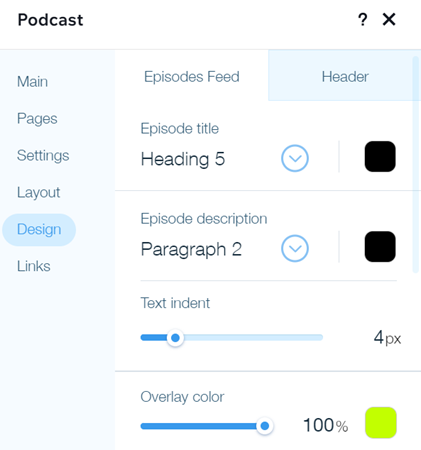
Podcast Overview: Episodes Feed
This is your episode list. Every episode contained in the connected RSS feed appears here. You can customize the following:
Episode Title: Choose a font and adjust its color and size.
Episode Description: Choose a font and adjust its color and size.
Text Indent: Adjust how far to the right or left your text is positioned.
Overlay color: Choose a color for the overlay and adjust its opacity.
Border Width: Adjust the width of the empty space around your episode list.
Border Opacity and Color: Choose a color for the border and adjust its opacity.
Button and Link Color: Choose a color for the feed's buttons and links.
Background color: Choose a color that appears behind your episode descriptions.
Feed Background: Change the color and opacity of the feed's background.
Text color: Choose a color for your podcast's search bar.
Podcast Overview: Header
This is the header that appears at the top of the Podcast Overview page. It contains the name of your podcast and host. You can adjust the header to suit your site's design by applying matching fonts and customizing their sizes and colors.
Episode Page
This is the page of an individual episode. The Episode Page is a dynamic page, meaning that the customizations you make apply to all episodes. This maintains a consistent design and user experience across your site. You can customize the following:
Episode Header:Title: Choose a font and adjust its color and size.
Podcast Name: Choose a font and adjust its color and size.
Header Background: Choose a color for the background and adjust its opacity.
Button text color: Choose a color for your button text.
Button background color: Choose a background color for your button.
Player Controls Color: Choose a color for the player controls (play button, download icon etc.)
Drop Image Shadow: Click to show or hide the shadow around the episode's cover image.
Episode Content:Description: Change the color and font of the description.
Feed Background: Change the color and opacity of the feed's background.
Troubleshooting issues with the Wix Podcast Player
Click an issue below to learn how to resolve it:
Unable to connect my podcast to the Wix Podcast Player
Make sure you are using the RSS feed URL and not a link to iTunes or another podcast player.
Note: The Wix Podcast Player is an RSS reader. Wix does not host your podcast. Ensure that your permissions are set correctly with your host platform.
Missing podcast episodes
If podcast episodes are missing on the Wix Podcast Player, check the following:
The episodes have been successfully added to the Episode Page.
Your RSS feed is properly set up on the host's side to display the episodes.
All episodes are working correctly on your host's platform.
Unable to play audio in the Wix Podcast Player
You can test your RSS feed link by checking that your audio plays correctly in other free RSS readers e.g. feedly.com.
Still need help?
If the problem persists, contact us and we will be happy to help. Please include the following information:
A detailed description of the issue you are experiencing.
The site and page where your Wix Podcast Player is located.
The RSS feed URL.
Include what happened and what you've already tried.
FAQs
Click a question below to learn more about adding and setting up your podcast:
Can I add more than one podcast to my site?
Yes. You can add multiple podcasts to your site.
To add another podcast:
Click the podcast in your editor.
Click Settings.
Click Add another podcast.

Can I add links to additional podcast services like Spotify?
Yes. In addition to an RSS feed, you can add links to well-known podcast services like Spotify or SoundCloud.
To add links to podcast services:
Click the podcast in your editor.
Click Settings.
Click Links.
Hover over the relevant service and click the Activate icon
 .
.Paste your link and click Add.
