top of page

Setting up Photo Albums

Wix Photo Albums: Publishing Your Album

Once you're finished creating and editing your photo album, go ahead and publish it to make it live. Make sure to review your album name before publishing. The name is used in your album's URL which is a subdomain of your site's domain.

In this article, learn more about:

Publishing your photo album

Ready to go live with your latest photo album? You can publish the album directly from your album editor.

To publish your photo album:

  1. Go to Photo Albums in your site's dashboard.

  2. Click Edit next to the relevant album.

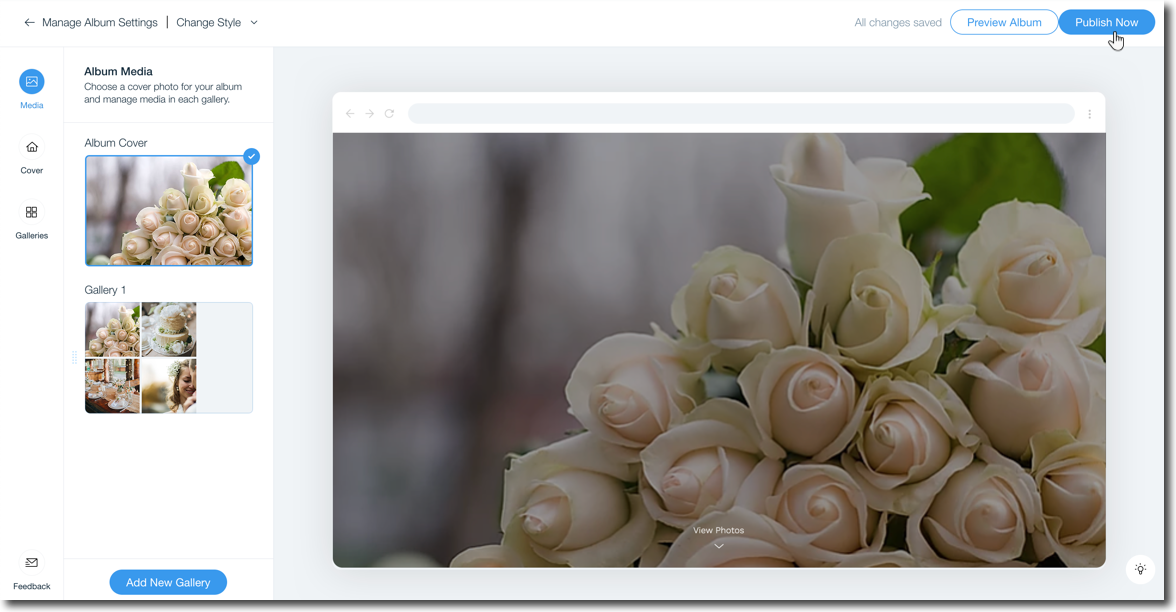
  3. Click Publish Now at the top right.

A screenshot showing the option to publish your album in the album editor.

FAQs

Click a question below to learn more about publishing your photo album.

What blockers might I face when trying to publish my album?

You cannot publish your album if:

  • You have not made any changes since the last time you published.

  • You did not upload any of your own photos.

  • You are not the owner of the site (if you are a site collaborator).

Can I unpublish an album I no longer need?

No, it is not possible to unpublish a photo album. You can only hide or delete the album.

I made changes to my URL, does it take long to update?

It can take up to 24 hours for the live URL to update to include your domain.

My domain is connected to Wix via Pointing, can I connect a subdomain?

Subdomains cannot be connected to a domain that is connected to Wix via Pointing. Learn how to switch your domain connection method.

Why do I have a Wix Promo banner on my album?

Photo Albums published to free sites without a custom domain or premium plan will display a Wix promo banner at the top similar to other site pages

Need A Professional Website?
Contact Us 
Today!

Wix Stores: SEO for Product Pages

Wix Stores: Product Gallery Images Appear Cropped on Mobile Devices

Wix Stores: Adding Info Sections to Products

Wix Stores: Adding Images, GIFs, and Videos to Products

Wix Stores: Adding and Customizing Product Options

Wix Stores: Creating a Digital Product

Wix Stores: Creating a Physical Product

Using AI to Create an Online Store

Wix Stores: Deleting Wix Stores

Wix Stores: Limits & Recommended Guidelines

Wix Stores: Importing iZettle Products to Your Store

Wix Stores: Migrating from Other eCommerce Platforms to Wix Stores

Wix Stores: Transferring Your Store to Another Wix Account

Wix Stores: Impact of EU Directive Concerning Online Businesses

Wix Stores: Tracking Sales Using Your Thank You Page URL

Wix Stores: Creating Restricted Store Pages

Wix Stores: Displaying Tax and Shipping Info with Product Prices

Wix Stores: Tracking Sales with a Meta Conversion Pixel

Wix Stores: Setting Up a 301 Redirect to a Specific Product Page

Wix Stores: Changing Your Currency

Wix Stores: Changing the Language of Your Storefront or Dashboard

Wix Stores: About Your Basic Site Info

Wix Stores: Upgrading Your Site's Plan

Wix Stores: About Your Storefront

Wix Stores: The 10 Essential Steps to Creating Your Online Store

Wix Stores: Translating Your Store

Wix Stores: An Overview of Store Features

Wix Stores: Adding Wix Stores

Wix Stores: About Wix Stores

Fit by Wix: Setting Fit by Wix as Your Default Member App

wix experts
Graphic2Traffic web design
©
bottom of page