


Setting up Photo Albums
Wix Photo Albums: Deleting Photo Albums
You can delete a photo album at any time if you no longer need it. It's also possible to remove the Photo Albums app entirely from your site.
In this article learn more about:
Note:
When you delete an album, its images remain within your Photo Albums Media Manager (in case you'd like to add them to alternative albums).
To free up storage space, access your Photo Albums Media Manager to delete photos you don't need.
Deleting a photo album
You may no longer wish to display a photo album on your site. Perhaps the photos are old or outdated or you want to make room for more relevant albums. You can delete a photo album at any time from your dashboard.
Note:
There is no way to recover a deleted album. If you delete an album in error, you'll have to re-upload your images to a new album.
To delete a photo album:
Go to Photo Albums in your site's dashboard.
Click the More Actions icon
 next to the relevant album.
Select Delete.
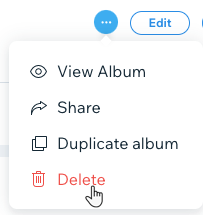
Click Delete Album.
Removing the Photo Albums app from your site
If you no longer wish to display any photos or albums, you can delete the Photo Albums app entirely from your site. Your Photo Albums will still be available for you to manage and edit in your site's dashboard.
Wix Editor
Studio Editor
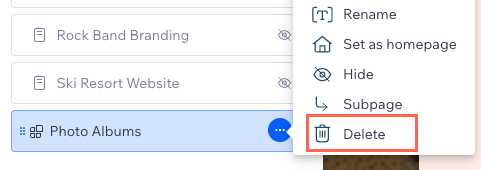
Go to the Photo Albums page.Click Pages and Menu
 on the left side of the editor.
Click Photo Albums.
Click the More Actions icon
 next to the Photo Albums page.
Click Delete.
Click Delete to confirm.
Deleting media to free up storage
Deleting an album will remove the album from your site but its media will remain in the Photo Albums Media Manager until deleted.
To delete album media you don't need and free up storage space, it's necessary to delete it within your Photo Albums Media Manager and then delete it again in Trash within your Photo Albums Media Manager.
To delete media in your Photo Albums Media Manager:
Go to Photo Albums in your site's dashboard.
Click Edit on the relevant album.
Hover over the relevant gallery and click Manage Media.
Click the Import Photos icon
 at the top right. The album's Media Manager will open and you'll see all of the app's media.

Select and delete the files you don't need.
Access the Trash folder and delete the same files again.
Download or delete Photo Albums files in bulk:
You can do this by going to the Manage Storage page in your site's dashboard. If you use the Location filter to show Wix Photo Albums, make sure to select the right option to locate the relevant files:
Old Photo Albums: Includes media uploaded to Photo Albums prior to 2020.
Photo Albums/Art Store: Includes media uploaded to Photo Albums or Art Store.

FAQs
Click a question below to learn more about deleting Photo Albums from your site.
Can I re-add the app after I deleted it?
No, as of April 2024, it is no longer possible to add the Wix Photo Albums app to your site. Once you delete it from your site, you cannot re-add it later.
Tip: If you want to sell digital prints, we recommend adding Wix Stores. If you want to display your images, add a Wix Pro Gallery to your site.
Are my photos saved if I delete the app and then re-add it?
Yes, re-adding the app will restore the Photo Albums page along with any albums and media items you previously created.
However, if you delete an album from the app, it is permanently removed along with all the album's items.
I want to be able to access my Photo Albums, but hide them from visitors to my site. Is this possible?
Yes, if you do not want to show the default Photo Albums page on your site, you can hide it from your site's menu. All existing albums are visible in your dashboard.