


Working with Wix Payments
Wix Payments: Understanding Your Payments Table
Your payments table displays the financial transactions in your account according to the Order Date. Payments go through transaction cycles in which the status in the table will update accordingly.
Note:
The table is updated several times a day.
Example of a typical transaction cycle
When the customer places an order and it is approved, the payment appears on the payments dashboard in Status as: Pending. Once the customers’s card issuer pays the funds to Wix the status of the payment changes to Successful.
Should the customer ask for a refund, and the refund request is sent to Wix Payments, the payment appears in the payments dashboard in Status as: Pending Refund. Once the funds are returned to the card owner the status of the payment changes to Refunded.
Should the customer ask the card issuer to chargeback a payment, and the request is sent by the bank to Wix Payments, the payment appears in the payments dashboard in Status as: Action Needed. Once the funds are settled to the card issuer, the status of the payment changes to Chargeback.
Should the merchant (you) dispute a chargeback and the bank accepts the dispute, the payment appears in the payments dashboard in Status as: Chargeback In Dispute. Once the card issuer pays the funds back to Wix the status of the payment changes to Chargeback Won, which means the chargeback was reversed.
Payment Table Fields
The table has the following fields:
Order Date: The date in which the order was placed.
Customer: The name of the customer who placed the order.
Product/Service: A description of the product / service in the order placed.
Payment Method: The payment method used for the order (e.g. credit card / manual payment...etc.)
Status: The current state of the payment. See below for details.
Amount: The amount that the customer paid.
Note:
Only approved transactions appear in the table. You will not see transactions that were declined.

In addition to the information displayed in your payments dashboard, the following information is included when you download the detailed table (CSV file).
Payment Date: The date on which the payment was made.
Provider Payment ID: A unique reference ID for the payable (payment due).
Wix Payments Transaction ID: The unique transaction identifier assigned to the original transaction by Wix Payments. This ID may be associated to several payables.
Cashier Transaction ID: A unique transaction ID used by Wix's payment system.
Payout ID: The transaction ID for the payout of the funds from your Wix Payments account to your bank account. All transactions paid out in the same day have the same Payout ID. A Payout ID is only assigned once the funds are transferred to your bank account.
Customer Name: The name on card used to make the order.
Payout Date: The date on which the payout was processed by Wix Payments.
Note:
A single payment can have multiple movements for the corresponding payables. For example, an order will have a payable for the sale, and if it gets returned (refunded) it will have a separate payable.
Transaction Types
There are a few different types of transactions which can occur in your account. The following is a list of possible transaction types:
Pending: Funds coming into your account for a sale.
Refund: Funds leaving your account due to a sale being refunded.
Chargeback: A customer has disputed your charge with his card provider or bank. The funds have been returned to the customer's account.
Note: Chargebacks are decided by the credit card provider / bank, and not by Wix.Funds Transfer: If your account has a negative balance, Wix may claim back those funds once they become available. Or, if for any reason, Wix needs to make a positive adjustment in your account, these funds will be transferred to you.

Transaction Statuses
Depending on the type of transaction, the transaction may have one of the following statuses:
Pending: The transaction was approved, but the funds are not yet available for payout.
Successful: The transaction was approved and the funds are available for payout.
Pending Refund: The debit transaction (e.g. refund / chargeback) was approved, but the funds have not been debited from your account.
Refunded: The debit transaction (e.g. refund / chargeback) was approved and funds were debited from your account.
Paid Out: The transaction was included in a previous payout to your bank account.
Payout Reversed: The transaction is part of a payout that was returned by your bank. The funds are available in your Wix Payments account.
Failed: The transaction has failed.
Authorized: The payment is approved by the customer’s payment method and the payment sum is held in their account, in readiness to be captured (paid) later.
Void: The authorized payment is cancelled and the hold on the payment is released from your customer's account.
Suspicious: There is a high probability that the order has been made without the cardholder’s knowledge or permission. Consider refunding the payment and holding off on fulfilling the order.
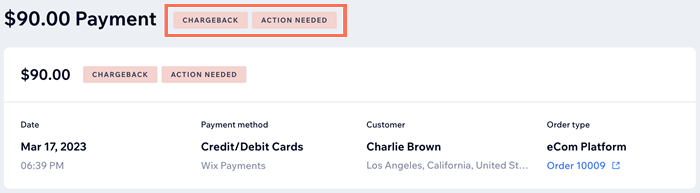
Action needed: You received a chargeback and can choose whether to accept it or dispute it. You're still within the timeframe to submit the dispute.
Expires in "X" days: You received a chargeback and can choose whether to accept it or dispute it. You have the indicated number of days to submit the dispute.
Expired: The time frame for filing a dispute has passed. The chargeback's status is now final and cannot be changed.
Final: You received a chargeback but cannot dispute it. This status cannot be changed.
Accepted: You received a chargeback and accepted the claim. The funds remain with your customer.
Disputed: You received a chargeback and filed a dispute against it. It is now in review by the relevant credit card issuer.
Lost: The bank and the credit card issuer have reviewed your dispute and found your evidence insufficient to prove the charge is legitimate. The funds will remain with the customer, and you will not be able to dispute the decision through Wix Payments.
Won: The bank and the credit card issuer have reviewed your dispute and decided to recognize the payment as a legitimate charge. The funds will return to your Wix Payments account along with the chargeback fee.
Note:
The Payment ID visible in your payments table is a reference for your Wix Payments account only. It's not linked, nor can be referenced, to processors such as Affirm, Afterpay and Klarna.