top of page

3rd-Party POS Solutions

Wix Mobile POS: Setting Up a Point of Sale with SumUp

Important:

This article is about mobile POS with SumUp as your payment provider.

  • For information on Wix's own Wix Mobile POS, click here.

  • For info on the Wix Retail POS tablet solution for brick & mortar stores, click here.

Connect to the SumUp payment provider to turn your phone into a point of sale (POS). After setup, you can collect cash or credit card payments wherever you go.

POS with SumUp is available in Austria, Belgium, Bulgaria, Cyprus, France, Germany, Ireland, Italy, Latvia, Luxembourg, Malta, Netherlands, Norway, Poland, Slovakia, Slovenia, Spain, Switzerland, and the UK.

Tell me about other POS solutions

You can accept payment through the following methods:

  • Wix Mobile POS: Wix offers an integrated POS solution. Learn more

  • Square: Sell at a point of sale with the Square payment provider. Square is available in the US, Canada, UK, Australia, and Japan. Learn more

  • Cash: You can accept cash payment at a POS after downloading the Wix mobile app. No further setup is needed.

Step 1 | Download the Wix app

  1. Go to the Apple App Store (on iPhone) or Google Play (on Android).

  2. Type 'Wix' in the Search field.

  3. Click Get or Install to download the app.

Tip:

If you are accessing this article on your phone, you can click to download:

You are now ready to accept cash payments on your mobile device. Learn how

Step 2 | Set up SumUp as your payment provider

Go to Accept Payments in your site's dashboard and connect SumUp as your payment provider.

Note:

You can set up SumUp without an upgrade, but to start collecting payments, you'll need a Premium plan or Studio plan that supports payments.

Step 3 | Order a SumUp card reader

To accept credit card payments, you need one of SumUp's credit card readers.

SumUp card readers connect to your smartphone or tablet via Bluetooth. They can be used to swipe, tap or insert debit/credit cards.
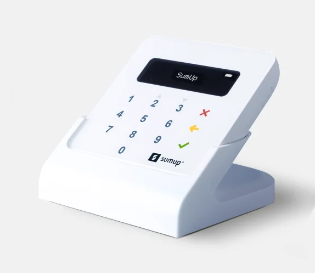
The SumUp card reader

Need A Professional Website?
Contact Us 
Today!

Google Workspace Error Message: "Your subscription has been suspended by your reseller"

Google Workspace Error Message: Service Is Temporarily Suspended until Your Customer Accepts the New Terms of Service

Google Workspace Error Message: "You already have a Google Workspace business email account. You can manage it from the Google Admin Console"

Google Workspace: Data Migration from an External Email to Your Google Workspace

Google Workspace: Revoking Admin Status to Delete a Workspace Account

Google Workspace: Connecting Your Business Email to a Mail Client Using IMAP and SMTP

Google Workspace: Changing the Language of Your Business Email

Google Workspace: Emails Missing from Your Business Email

Google Workspace: Allowing Access for ‘Less Secure Apps’ in Your Business Email

Google Workspace: Adding Google Workspace MX Records to Your Wix Account

Google Workspace: Setting Up a Domain Alias

Google Workspace: Manually Verifying Your Domain with Google

Google Workspace: Connecting a Business Email for a Domain Pointing to Wix

Google Workspace: Setting Up an Email Alias for an Existing Workspace User Email Address

Google Workspace: Resetting a Workspace User's Password

Google Workspace: Renaming a Workspace User

Google Workspace: Accessing Your Additional Workspace Users

Google Workspace: Purchasing Additional Business Emails from Wix

Google Workspace: Setting Up Business Email Users

Gemini for Google Workspace: An Overview

Google Workspace: Upgrading a Workspace Plan

Google Workspace: Choosing a Plan

Google Workspace: Business Email Sending Limits

Google Workspace: Forwarding Emails From Your Business Email to Another Email Address

Google Workspace: Resetting Your Admin Password

Google Workspace: Accessing Your Admin Console

Google Workspace: Identifying Your Admin Workspace User

Google Workspace: Setting Up Your Business Email on Mobile Devices

Google Workspace: Username and Password Guidelines

Google Workspace: Accessing your Business Email Through Your Wix Account

wix experts
Graphic2Traffic web design
©
bottom of page