


Wix Inbox FAQ
Wix Inbox: Working with Site Collaborators
As site owner, you can invite collaborators to work on different aspects of your site. Share the responsibility of managing your inbox by assigning inbox permissions to your collaborators, allowing them to view and answer messages.
Collaborators with inbox permissions can enable notifications so they're alerted to all incoming messages. They can also set up personal profiles so that outgoing messages include their individual signatures.
Note:
Anyone you've assigned the Admin or Back Office Manager role has access to your inbox, as well as some roles for integrated Wix apps (e.g. Customer Relations Manager, Front Desk Staff), and custom roles with added Wix Inbox permissions. Learn more about roles and permissions.
Inviting collaborators to work in your inbox
Invite collaborators to view and respond to messages in your inbox. Each collaborator will be able to create a personal profile, giving communications a personal touch. Customers will receive messages with a name and personalized signature attached.
To invite collaborators:
Go to Inbox in your site's dashboard.
Click the Settings drop-down at the top right.
Click Profile & collaborators.
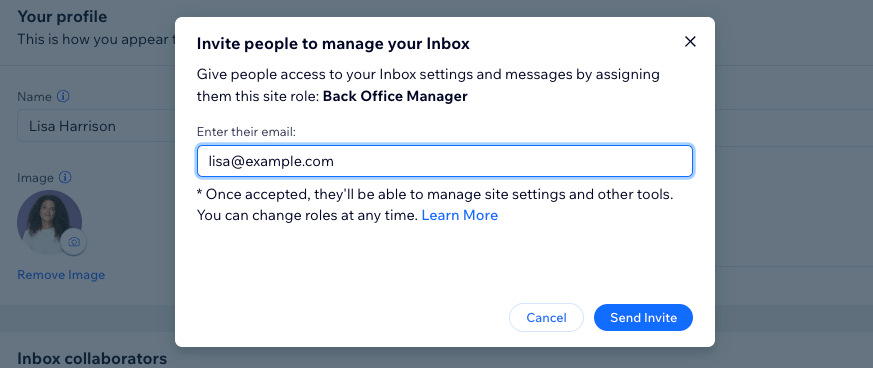
Click + Invite People next to Inbox collaborators.
Enter the email address of a person you'd like to add.
Note: This will assign them the role of Back Office Manager by default. You can edit their role after you add them.Click Send Invite.
Click Done.
(Optional) Repeat these steps for any other team members you'd like to add.
What's next?
Each team member you've added will be able to edit their profile in the Profile & collaborators tab when they log in.
Enabling email notifications for collaborators
If you'd like collaborators to be automatically notified of all incoming messages, enable email notifications. You can enable or disable email notifications separately for each individual.
If notifications are enabled for a collaborator, this collaborator will have the ability to manage their own notification settings (including disabling notifications).
To enable email notifications:
Go to Inbox in your site's dashboard.
Click the Settings drop-down at the top right.
Click Profile & collaborators.
Under Inbox collaborators, click the Email notifications toggle next to a collaborator to enable email notifications.
Note: If you don't see the relevant collaborator on this list, it means they don't have Wix Inbox permissions. Go to Roles & Permissions to manage your roles.(Optional) Click Set Permissions to edit the team member's role.

Click Save Changes at the top right.
Note:
The Inbox collaborators section is only visible to site owners.
FAQs
Click a question below to learn more about working with site collaborators:
What can my site collaborators do?
Your collaborators can access and work in different parts of your site depending on the roles and permissions you've granted them.
For example, you could have a collaborator working on your site design who has no need to access your inbox, and a collaborator working in your inbox who has no need to access your site pages.
Learn more about roles and permissions.
What if I want a collaborator to work in my inbox but I don't want to assign the Back Office Manager role?
The Back Office Manager role is assigned by default if you add a collaborator to your inbox. You can remove this role and create a custom role if you'd like a collaborator to be able to carry out specific activities in specific parts of your site.
Follow these steps to create a custom role. Make sure you select Message via Inbox & Chat (under Customer Management) if you'd like to include these permissions.

How do I ensure my collaborators have set up their inbox profiles?
Each collaborator has access to their own inbox profile. As site owner, you do not have access to these individual profiles.
Share any email signature guidance necessary and advise each team member that they will be able to edit their profile when they log in.