


Wix Inbox FAQ
Wix Inbox: Managing Your Inbox
Save new contacts, mark messages as unread, star conversations, and more. Filter your inbox by assignee for an instant view of the messages your team members are managing.
Managing your messages
Keep your inbox organized by managing your messages individually or performing bulk actions (for example, archiving ten messages at once).
To manage your messages:
Go to Inbox in your site's dashboard.
Hover over the relevant message and click the More Actions icon
 .
.
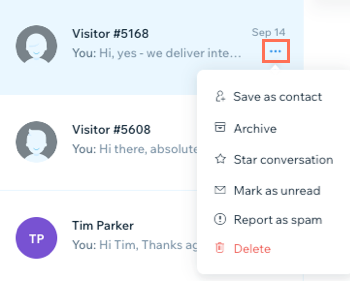
Choose what you want to do:
Save as contact
Note: This option will only appear if the message is from an anonymous visitor.
If you receive a message from an anonymous visitor, you can edit the contact information you have saved for them.
Click Save as contact.
Enter contact details and choose to add a label or assignee.
Click Save.
Archive a message
Click Archive.
Notes:
You can restore archived messages at any time.
To view and manage archived messages, click All conversations at the top left of your inbox and select Archive.
Star a conversation
Star conversations in your inbox to help you highlight important conversations.
Click Star conversation to mark the message as starred.
Notes:
To view and manage all starred messages, click All conversations at the top left of your inbox and select Starred.
You can also star conversations in the Wix app. Swipe right on a conversation or tap the More Actions icon
 next to the relevant conversation and then tap Star Conversation.
Mark a message as unread
Click Mark as unread.
Report as spam
Important: Reporting a message as spam will result in the conversation being deleted. Deleted conversations cannot be restored.
Click Report as spam.
Click Report & Delete.

Tip: If you're getting spam from your site's form submissions, you can reduce it significantly by adding a reCAPTCHA field.
Note: If you have a Business Phone Number, you also have the option to block a phone number. You do this from your inbox.
Delete a message
Important: Deleted messages cannot be restored. If you're unsure, archive the message instead.
Click Delete.
Click Delete in the pop-up to confirm.

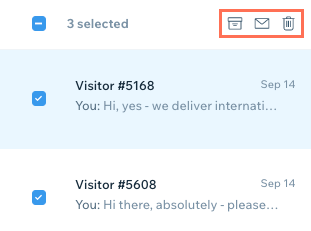
Want to perform the same action on multiple messages?
Hover over the messages you want to select and click the checkboxes to the left of each messages. Click the Archive icon  , Mark as Unread icon
  or Delete icon
  .
.
Filtering your inbox by assignee
Important:
This feature is not yet available to all users.
Assign contacts to your site collaborators. Messages from these contacts are automatically assigned to the collaborator you've selected, so they can personally manage the relationship. Filter your messages by assignee to see each collaborator's messages.
To filter your inbox by assignee:
Go to Inbox in your site's dashboard.
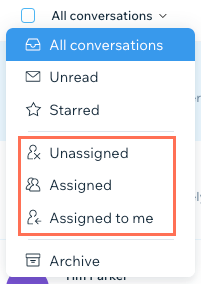
Click All conversations at the top left.
Filter your messages by selecting an option from the drop-down menu:Unassigned: Conversations with visitors or contacts who aren't assigned to anyone.
Assigned: Conversations with contacts assigned to you or a collaborator.
Assigned to me: Conversations with contacts who are assigned to you.
Tip:
You can filter your inbox by assignee in the Wix app as well.
Tips to manage your inbox effectively:
Click the Search icon
 above the message list to search Wix Inbox for specific content within a message as well as searching by contact name.
Click Hide menu above your conversation list to minimize your left dashboard panel and maximize your inbox view.