


Wix Inbox FAQ
Wix Inbox: About Wix Inbox Channels
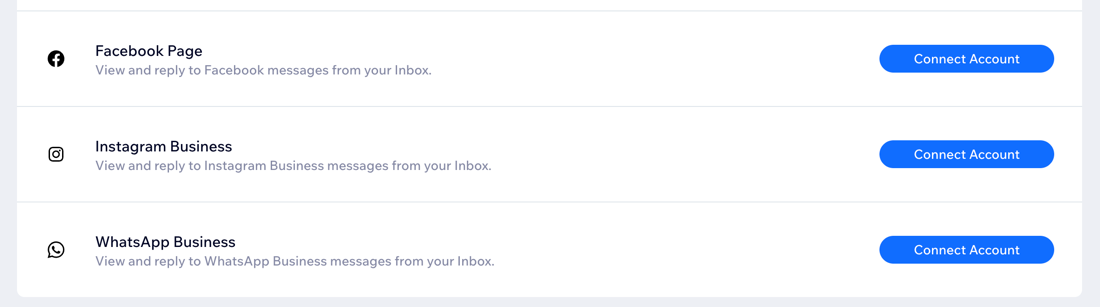
Connect a channel to Wix Inbox to automatically route all of its incoming messages to your Wix Inbox. For example, if you connect the Facebook channel, all messages your customers send you via your Facebook page appear in your Wix Inbox.
Using one interface to view and reply to messages makes your communications process more efficient. It keeps your customer interactions organized and easier to manage, and prevents you from having to switch between platforms.
Ready to get started?
Access your Wix Inbox Settings to connect new channels.
Manage all of your messages in one place
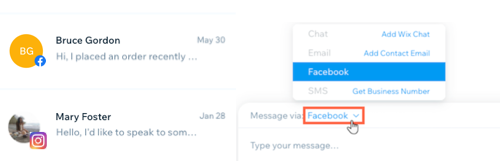
When you access Wix Inbox, you see your messages from all connected channels. When you reply to a message or compose a new message, you choose your channel.
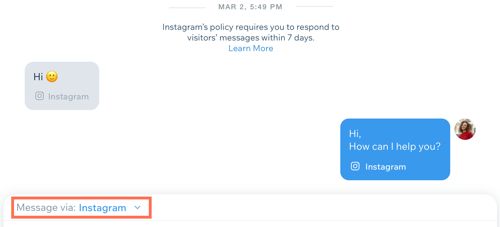
For example, if your customer got in touch via Instagram, choose to send your reply to their Instagram Messenger account. If you're sending an important file, consider changing the channel to email.
Learn how to connect:
Your Business Phone Number. This is a separate purchase and is only available in the U.S. and Canada.
You can disconnect and reconnect channels at any time.
Looking for more Wix Inbox integrations?
Adding Wix Chat to your site automatically routes messages to your inbox too. You can also set up an automation to have Wix Forms send a notification to your inbox when a submission comes through.
Contact us to request integrations with apps such as Viber, Apple Business Chat and Yelp.
Speed up your response time
Accessing all of your messages through one interface makes searching for information quick and straightforward. Easily reference previous messages to copy and paste text, and use saved replies to respond to common queries.
Save time by not having to switch between sites, and minimize the risk of visitor interactions being missed.
Understand where your contacts are coming from
Within Wix Inbox, you have the full picture of where your messages are coming from. Use this to inform your communications. For example, add shipping information to your Facebook page if this is something your customers are often enquiring about via Facebook.
Share the responsibility of managing your inbox
Having all messages in one place makes it easier to delegate inbox responsibilities. Set up profiles for site collaborators so they can send personal replies to messages. You can also enable notifications so they are alerted to all incoming messages.