


Wix Functions
Wix Functions: Creating a Custom Loyalty Program Reward
Before you begin:
This article refers to Wix Functions. Functions allow you to incorporate custom logic into Wix apps (e.g. Wix Loyalty Program) using a no-code builder. Learn more about Wix Functions.
Make sure you have set up your loyalty program and added the loyalty checkout widget to your site before building a custom rewards function.
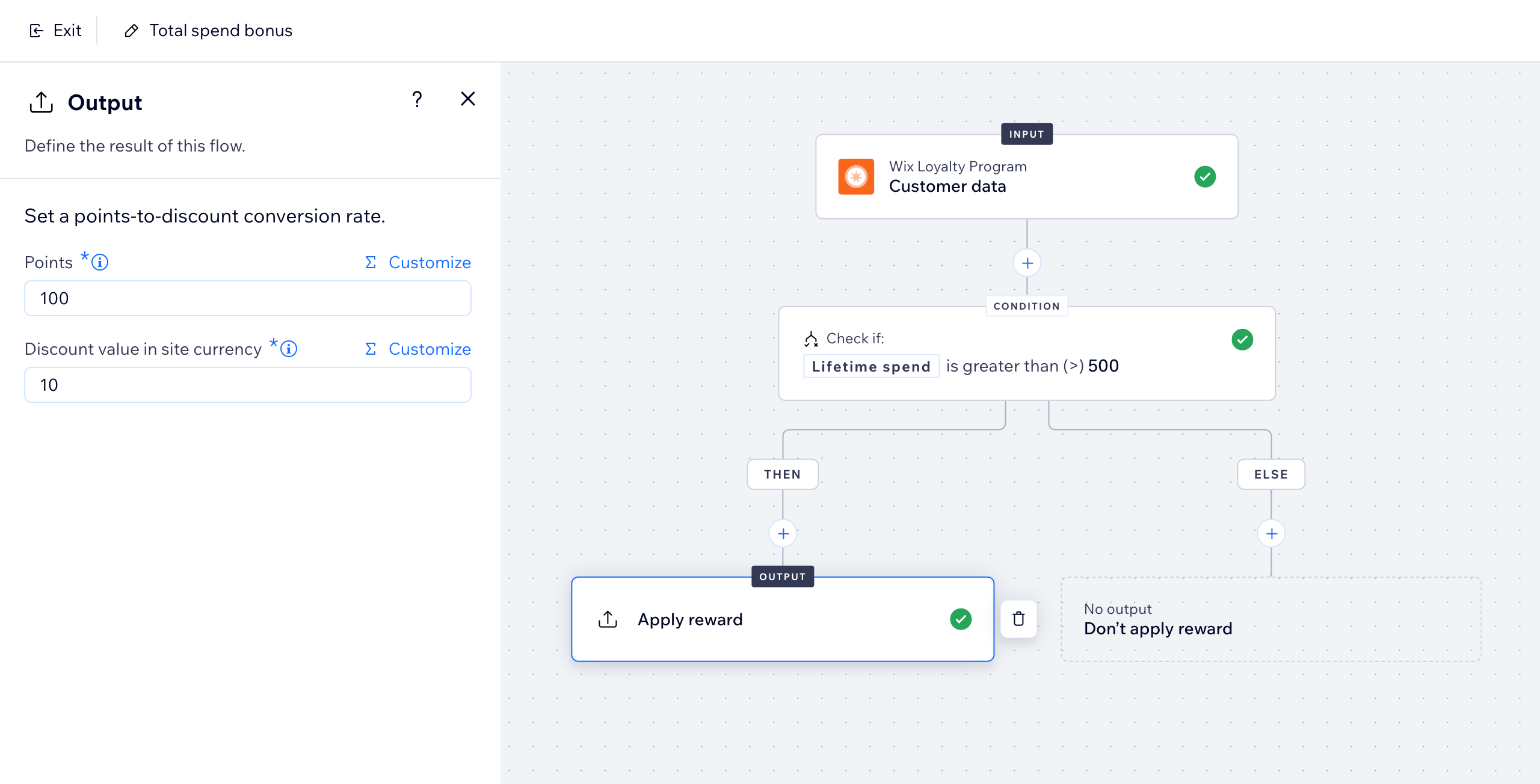
Enhance your loyalty program by building custom rewards with Wix Functions. Functions allows you to set up personalized points-to-discount conversion rates for loyalty members who meet specific criteria.
For example, create a 'Total spend bonus' reward that allows members who have spent at least $500 on your site to convert 100 loyalty points into a $10 discount on their next purchase. You can update the values to meet your business needs.
Creating a loyalty rewards function
Start by picking a template, or build a function from scratch. The Wix Loyalty Program templates include:
Frequent buyer perk: Allow members who made at least '2' orders in the last 30 days to convert their loyalty points into a discount.
Total spend bonus: Allow members who have spent at least '500' (in the site's currency) on your site to convert their loyalty points into a discount.
Note:
In the function builder, you can adjust the values of the templates so they match your business needs. For example, change '2' orders to '5' orders, or decrease '500' total spend to '250'.
To create a loyalty rewards function:
Go to Loyalty Program in your site's dashboard.
Click Manage Program at the top right.
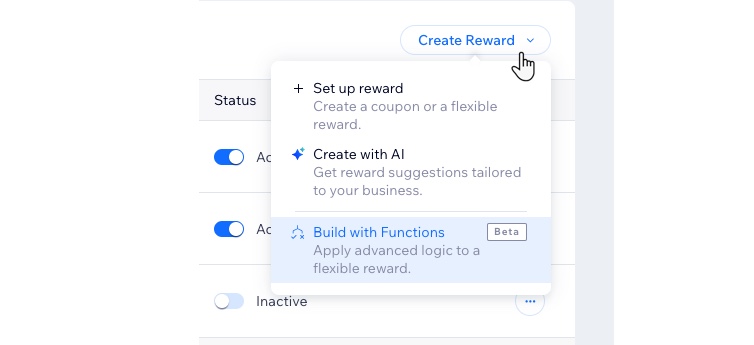
Scroll down to Rewards and click the Create Reward drop-down.
Select Build with Functions.
Choose how to create your function:Use a function template: Click Use Template next to the relevant template.
Create your own function: Click Start from Scratch at the bottom left to build your own custom reward.
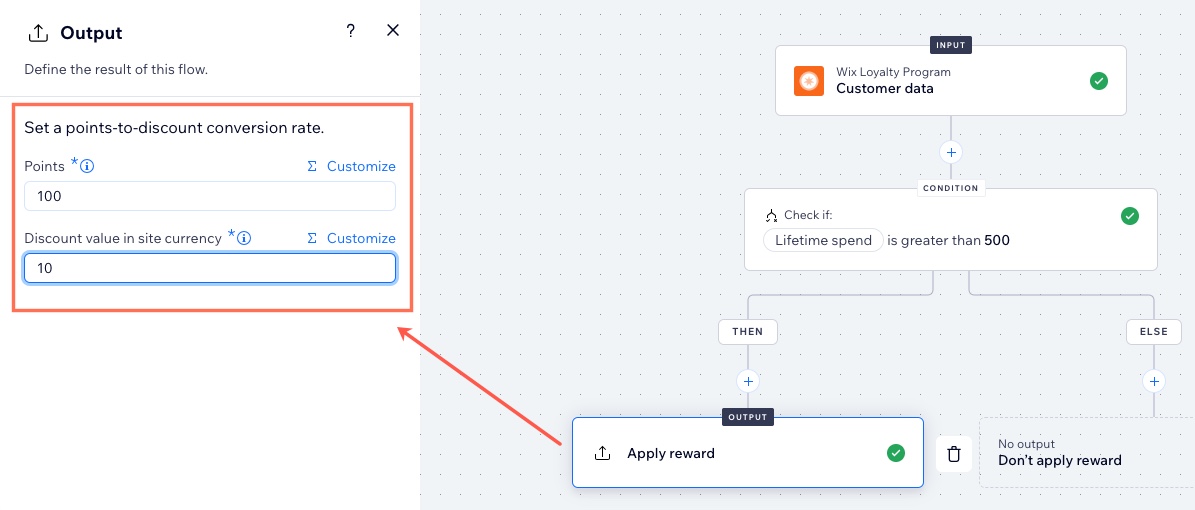
(In the Functions Builder) Click the Output to choose how the award is applied.
Tip: The output is the result you want to occur at the end of the function flow.Set a points-to-discount conversion rate.Points: Set the number of points for the conversion rate (e.g., 20 points = $2 discount).
Discount value in site currency: Set how much the points are worth when converting them into a discount at checkout (e.g., 20 points = $2 discount).
Tip:
You can also click Customize above a field to build more complex logic into the output or condition.
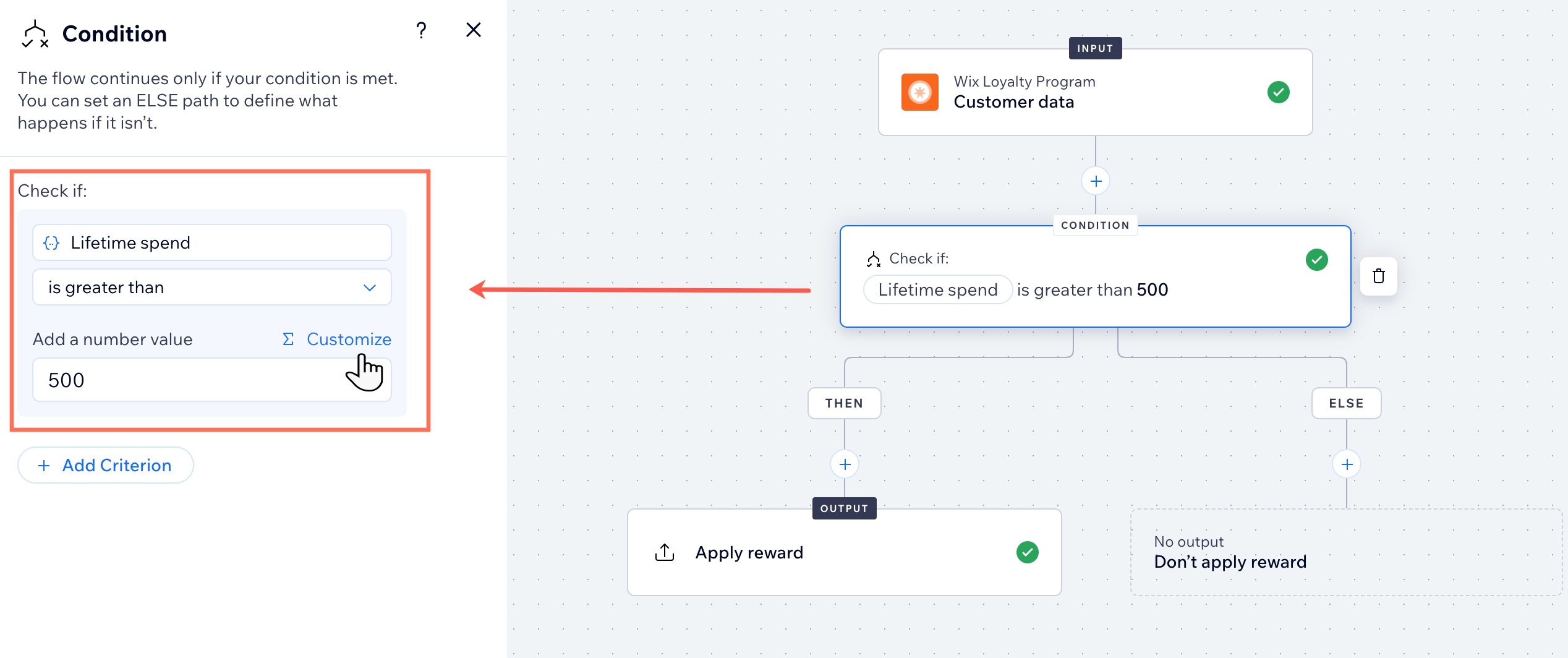
(Optional) If you are using a template, you can click the existing Condition step to update it to match your needs. For example, if you're using the 'Total spend bonus' template, you might want to change the total spend required for members to be eligible for the reward.
Name the new reward you're creating:Click the More Actions icon
 at the top right.
Select Function configuration.
Enter a reward name and description.
Tip: Loyalty members will see this name on the main Loyalty page as well as the My Rewards page.
Click Save.
Click Activate at the top right.
What's next?
Once your function is activated, loyalty program members who have met the relevant criteria can exchange loyalty points for a discount. The amount of points / discount depends on what you entered as the output.
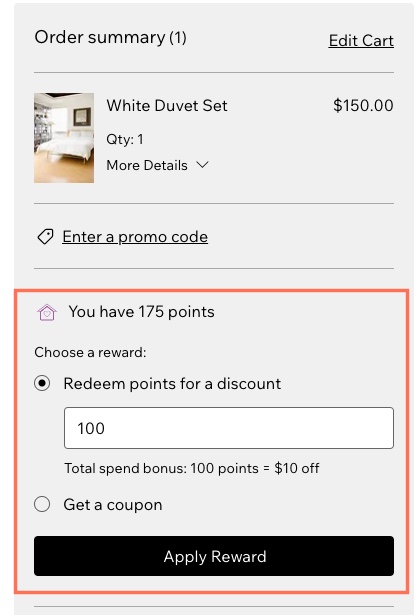
In the below image, the 'Total spend bonus' reward was set as '100 points' in exchange for a '$10' discount.
FAQs
Click a question below to learn more about building custom rewards for your loyalty program.
What is a function?
Functions enable you to incorporate custom logic into Wix apps (e.g. Wix Stores and Wix Loyalty Program) to better tailor them to your business.
The Functions builder is a no-code interface where you set up custom outcomes for different business scenarios using conditions, formulas, and dynamic values. The builder helps you see your logic in a visual flow where you can create multiple branches.
You can create a function from scratch or customize a premade template built for a specific Wix app.
Learn more about Wix Functions.
Where can my program members view the custom reward?
Loyalty program members view custom rewards on the My Rewards page in their account on your site. These rewards are redeemed at checkout and only visible during purchase, unlike coupon rewards.

They can also view the custom reward from the main Loyalty page.
Can I add other conditions and actions to a function template?
Yes. Wix Functions allows you to build custom logic into Wix apps. You can adjust the templates and create more complex flows by adding additional conditions and actions in the function builder.
Any field with Customize above it is a formula field. Formula fields allow you to add more advanced logic into your function.

You can also create a function from scratch. Click Start from scratch when you first create a function and define its condition and output. Keep in mind that the function input remains the same, as it's a read-only step.
How do I view the custom rewards I built with Wix Functions?
Go to Loyalty Program in your site's dashboard.
Click Manage Program at the top right.
Scroll down to Rewards.
View your custom rewards in the Built with Functions section.
Tip: From here, you can edit the reward or click the toggle to deactivate it.

What is the difference between Wix Functions and Wix Automations?
Wix Automations is designed to help you perform specific actions (e.g. send an email, create a task) in response to pre-defined triggers. Automations are useful when setting up repetitive, predefined tasks such as sending invoices for multiple customer orders. Automations operate independently, meaning no other business processes rely on their outcome.
Functions enables you to build custom logic within Wix apps. You can extend and modify the standard processes in the Wix app (e.g. Wix Stores) according to your unique needs. In a function, the Wix app waits for the function response before proceeding with the rest of the workflow. The function's output directly influences how the Wix app behaves.
Using Wix Automations with your loyalty program, you can create custom ways for members to earn points (e.g., the trigger 'Order placed' can have the action 'Customer earns points'). Custom loyalty rewards can only be created with Wix Functions.