


Wix Forms FAQ
Wix Forms: Creating Automated Email Responses for Form Submissions
Create automations for each form submission on your site. When a visitor submits a form, it can be helpful to automatically send an email to thank them, or an email to inform your team about it.
For example, welcome new site subscribers by sending them a "thank you" email, or send a "next steps" email when a job application form has been submitted.
Tip:
Wix Forms automatically comes with recommended automations you can activate or customize to fit your needs. For example, instead of sending an email you can create a new task for yourself or a team member, send a chat message and much more.
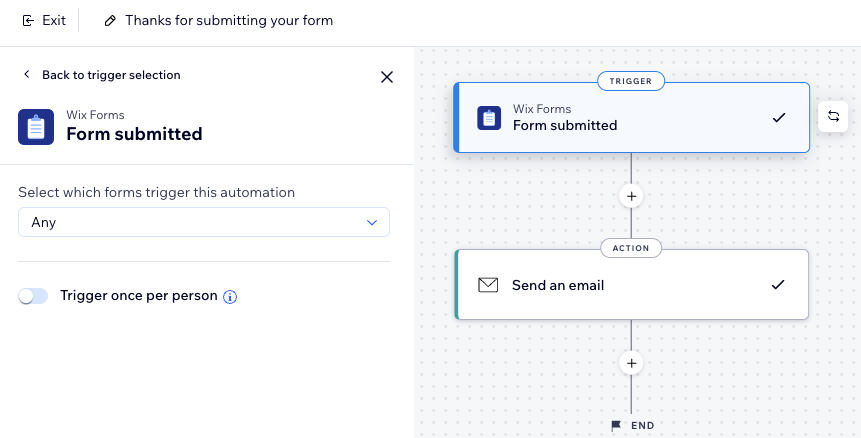
Sending an automated email after form submission
Send automated emails whenever a visitor submits a form on your site. Streamline your communication and ensure that your visitors and team members are promptly notified without manual effort.
To send an automated email:
Go to Automations in your site's dashboard.
Click + New Automation at the top right.
Click + Start from Scratch.
Give your automation a title.
Select Forms submitted as your trigger.
Note: When creating or editing an automation, you'll have two options for Wix Forms triggers. The blue icon sets a trigger for new Wix Forms and the red icon for old Wix Forms. Learn about old and new Wix Forms

Click the drop-down menu to select which forms trigger this automation:Any: Any form submitted will trigger this automation.
Specific: Select a specific form that will trigger this automation when submitted.
(Optional) Enable the Trigger once per person toggle to limit trigger frequency:Select the person from the trigger data: Decide how often the automation can be triggered for the same person (e.g. Contact ID, Post Author Contact ID, Visitor ID etc.).
Tip: This option is useful for triggers that might occur repeatedly.
Trigger once per person every: Select this checkbox if you want to set a specific amount of time that should pass before the automation can be triggered again for the same person.
Click Apply at the bottom.
(Optional) Click + to add to your automation:A delay between a trigger and its action, to have the action occur after a certain amount of time passes.
A condition to make the automation occur when certain conditions are met.
Set up the automated email:Click + to add a step.
Click Action.
Select Send an email and choose who you want to send the email to:
Your form submitters
Under Set recipients, make sure Emails from trigger is selected to send an automated to each form submitter.
Continue customizing your action:Under Sender details, click Edit to edit your sender details.
Under Create an email, select Edit, Create with AI, or More Actions to adjust your email for your needs.
Under Set email type, select Promotional, Business transactional, or Business critical as the type for your email.
Click Activate.
You or your site collaborators
Under Set recipients, make sure to select Collaborator roles and remove Emails from trigger to send automated emails to you or your site collaborators.
Under Create an email, click More Actions to switch the email template.
Tip: We recommend using the email template '${formName} got a new submission' as it works perfectly for this type of notification.Continue customizing your action:Under Sender details, click Edit to edit your sender details.
Under Set email type, select Promotional, Business transactional, or Business critical as the type for your email.
Click Activate.
Tip:
Continue editing the email content to include personalized content (e.g. form name, email, submission date and time etc.)
Frequently asked questions (FAQs)
Click a question below to learn more about this.
Can I email both my form submitters and my site collaborators in the same automation?
Yes, just make sure to add 2 separate actions of 'Send an email'. Configure each 'Send an email' action properly to send to the right recipients.
What else can I automate when someone submits a form?
There are many actions you can choose from when creating an automation triggered by someone submitting a form. For example, add a label to the contact, send a chat message, assign loyalty points, and much more.
Can I access automations directly from my form's settings?
Yes, scroll down to Notifications and automations section in the settings of your form. This section will show all automations that are linked to this form. You can edit a specific automation or go to the automations dashboard.
What is personalized content?
Also known as dynamic values or variables, personalized content are pieces of code that display different information to each user based on their data. It can show your contacts personalized text (e.g. their name) or information related to your business relationship (e.g. price quote number).
If you select Wix Forms as your trigger, make sure you also choose the specific form that the personalized content should be pulled from. That way when you add content to your email, the correct options are displayed.