Wix FAQ App
Wix FAQ App: Using the Wix App to Display FAQs in Your Preferred Member Apps
Use the Wix app to display your Wix FAQ app questions and answers in your preferred members app. This allows you to address customer questions on the go. For example, if you're receiving repeat questions from customers, you can create an answer and share it with them.
Before you begin:
You must add the Wix FAQ app to your site from a desktop computer before you can display FAQs in your member apps.
Step 1 | Add a new screen for your FAQs
To get started, set up a new screen to show your FAQs.
To add a new screen:
Go to your site in the Wix app.
Tap Manage
 at the bottom.
Tap Mobile App.
Tap Edit under the name of your app.
Tap Screens.
Tap Add New Screen.
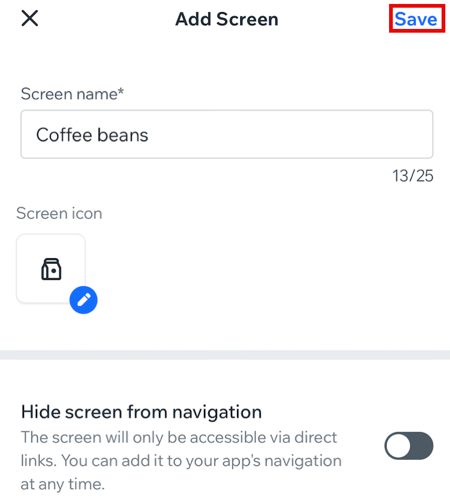
Type the screen name.
Tap Save.
Step 2 | Customize your FAQ display
Next, choose what you want to display in your FAQs.
To customize the display:
Tap the FAQ screen.
Tap + Add Element.
Scroll through the top menu and tap FAQs.
Tap the FAQs element.
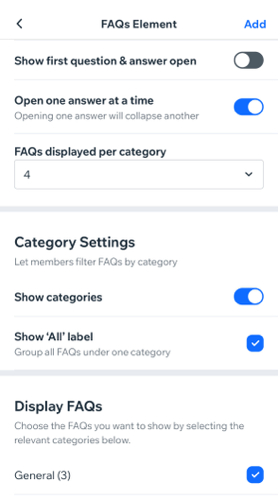
Tap the toggles to enable or disable the following options:Show search bar: Add a search bar to your FAQ's to let your site visitors search for a specific FAQ.
Show first question and answer: If you have more than one FAQ, the first question and answer is shown. To view the additional FAQs tap the "View All" button.
Open one answer at a time: Shows only one answer at a time and collapses the other answers.
FAQs displayed per category: Choose how many FAQs you want to display.
Decide whether or not to show categories for your FAQs:
Note: To edit your FAQ categories, log in to your Wix account from a desktop computer.Show categories: Display the category the question is from. You can filter your questions based on the category.
Show "All" label: Display all your FAQs and group them under one category.
Display FAQs: Select the specific FAQ categories to show in this element.
(Optional) Enable the Show element title toggle to display a title above your FAQs.
(Optional) Click the drop-down under Visibility to select the devices you want to show this element on: Android, iOS or All.
Tap Add at the top right.