top of page

Promoting your event

Wix Events: Using Wix Automations to Promote an Event

The right action at the right time can convince a guest to purchase tickets or join your next RSVP event.

Using Wix Automations, you can select an action (such as the sending of a email) that occurs automatically when a trigger takes place (such as when someone becomes a site member or finishes an event).

Step 1 | Select a trigger

The trigger is the action that causes the automation to take place. For example, you can automatically send an email to guests when an event ends. In this case, the end of the event is the trigger.

To select a trigger:

  1. Go to Automations in your site's dashboard.

  2. Click + New Automation.

  3. Click Start from Scratch.

  4. Enter a automation name.
    Tip: Your guests won't see his name.
  1. Select Wix Events.

  2. Choose an event trigger:Guest purchases ticket
    Guest RSVPs
    Guest is added to waitlist
    Event ends
    Note: The event is considered ended when a guest is checked in.

  3. Select an option from the Select which event triggers this automation drop-down:All events on site: This automation works for all your events.
    Choose specific events: Select the events that work with this trigger.

Step 2 | Select an action

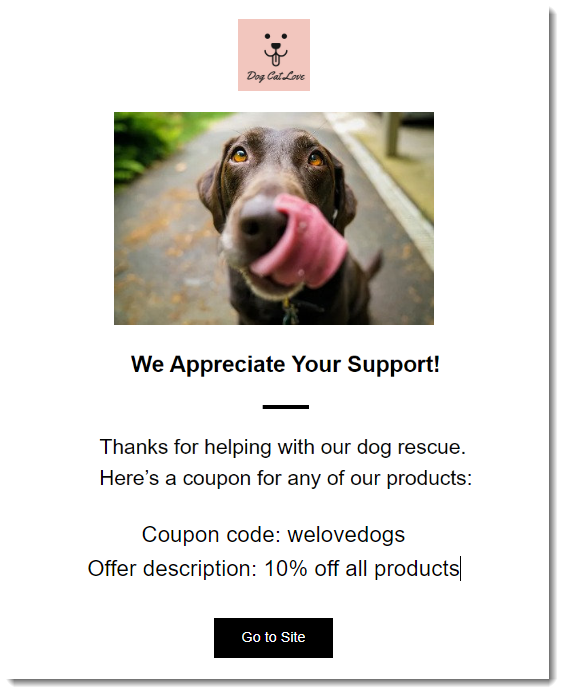
Now you can select what happens when the trigger has occurred. For example, you can send an email that contains a discount coupon for a future events.
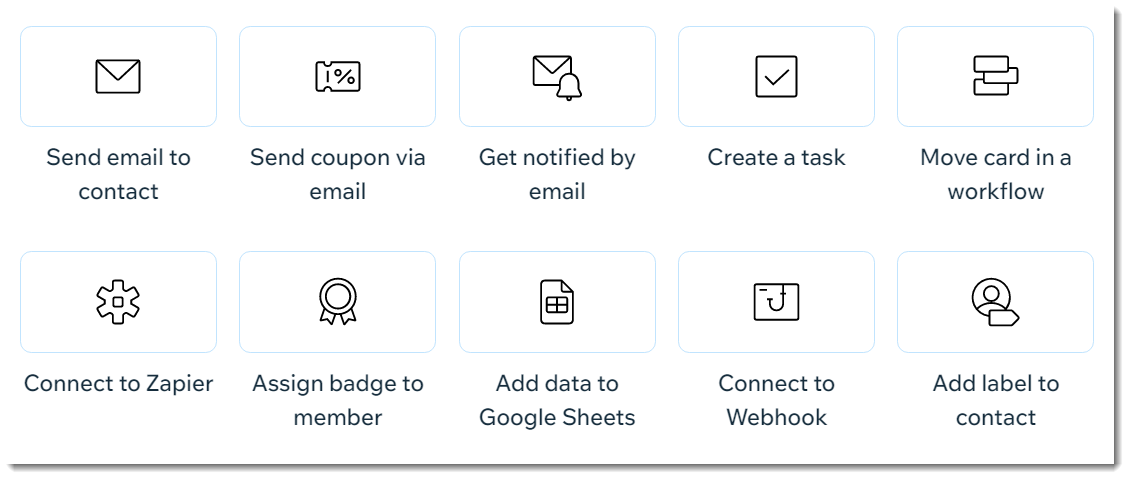
To select an action:

  1. Click to select one of the available actions.

  2. Enter the required information.
    Note: This varies depending on the action you selected.
Step 3 | Set the timing and activate the automation

All that's left for you now is to choose when the action you selected occurs and whether it occurs more than once.

To set the timing & activate the automation:

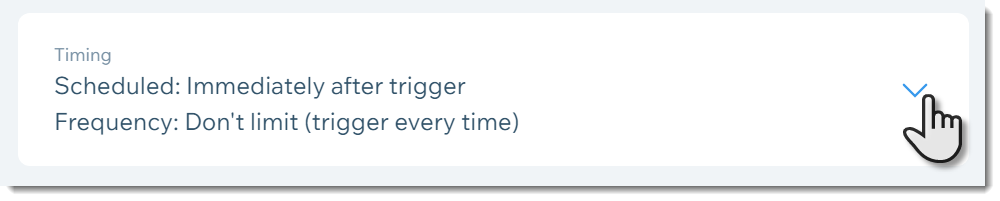
  1. Click the arrow next to Timing.

  1. Click the drop-down under Choose a time to send this action and select an option:Immediately: The action is performed as soon as the trigger occurs.
    Set custom time: Click the up and down arrows to set the number and click the drop-down to choose between days or hours.
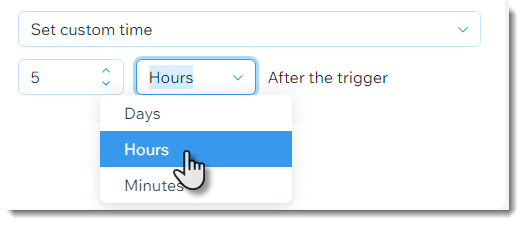
  1. Click Activate to save activate the automation.

Need A Professional Website?
Contact Us 
Today!

Google Workspace Error Message: "Your subscription has been suspended by your reseller"

Google Workspace Error Message: Service Is Temporarily Suspended until Your Customer Accepts the New Terms of Service

Google Workspace Error Message: "You already have a Google Workspace business email account. You can manage it from the Google Admin Console"

Google Workspace: Data Migration from an External Email to Your Google Workspace

Google Workspace: Revoking Admin Status to Delete a Workspace Account

Google Workspace: Connecting Your Business Email to a Mail Client Using IMAP and SMTP

Google Workspace: Changing the Language of Your Business Email

Google Workspace: Emails Missing from Your Business Email

Google Workspace: Allowing Access for ‘Less Secure Apps’ in Your Business Email

Google Workspace: Adding Google Workspace MX Records to Your Wix Account

Google Workspace: Setting Up a Domain Alias

Google Workspace: Manually Verifying Your Domain with Google

Google Workspace: Connecting a Business Email for a Domain Pointing to Wix

Google Workspace: Setting Up an Email Alias for an Existing Workspace User Email Address

Google Workspace: Resetting a Workspace User's Password

Google Workspace: Renaming a Workspace User

Google Workspace: Accessing Your Additional Workspace Users

Google Workspace: Purchasing Additional Business Emails from Wix

Google Workspace: Setting Up Business Email Users

Gemini for Google Workspace: An Overview

Google Workspace: Upgrading a Workspace Plan

Google Workspace: Choosing a Plan

Google Workspace: Business Email Sending Limits

Google Workspace: Forwarding Emails From Your Business Email to Another Email Address

Google Workspace: Resetting Your Admin Password

Google Workspace: Accessing Your Admin Console

Google Workspace: Identifying Your Admin Workspace User

Google Workspace: Setting Up Your Business Email on Mobile Devices

Google Workspace: Username and Password Guidelines

Google Workspace: Accessing your Business Email Through Your Wix Account

wix experts
Graphic2Traffic web design
©
bottom of page