top of page

Designing Wix Events

Wix Events: Setting Up Your Event Schedule Page

After creating an event schedule, you can customize the colors, fonts, and text on the Schedule Page to match your site's design.
Before you begin:

Create an event schedule. Learn How

Step 1 | Access the Event Schedule

Access the schedule customization settings in the Editor.

Wix Editor | Show me how

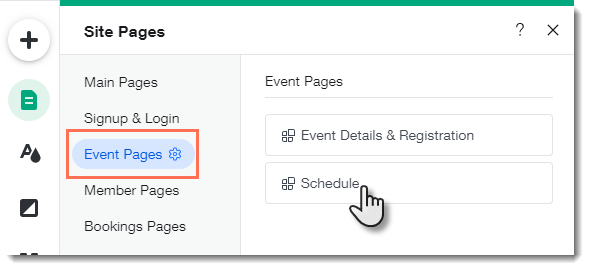
  1. Click Pageson the left side of the Editor.

  2. Click Event Pages.

  3. Select Schedule.

Editor X | Show me how

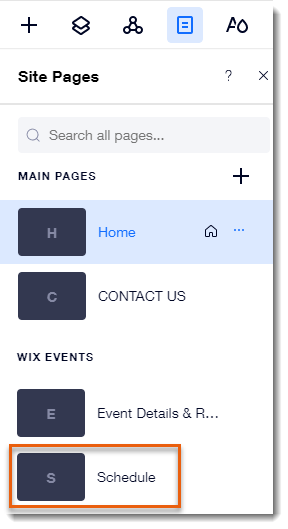
  1. Click the Pages icon   at the top bar of Editor X.

  2. Scroll down and select Schedule.

Step 2 | Customize the Schedule Design

Customize the schedule using the available options.

Show me how

  1. Click the Schedule page in the Editor.

  2. Click Settings.

  3. Click any of the tabs on the left to customize the schedule:Display: Click the toggles to show or hide elements on the Schedule page.
    Layout: Align the header text left, right, or center.
    Text: Edit any of the available text.

    Design: Customize the look of the Schedule page:Text Design: Select text fonts and colors.
    Button Design: Design the look of the "Get Tickets" button.
    Tag: If you created tags, they appear at the top of the schedule. You can customize the tag colors.
    Date Design: Customize the date and divider line.
    Background: Customize the background color and divider width

Step 3 | (Optional) Add the Schedule Page to your Site's Menu

Let potential event-goers easily access the list of sessions by adding the schedule to your site's menu.

Show me how

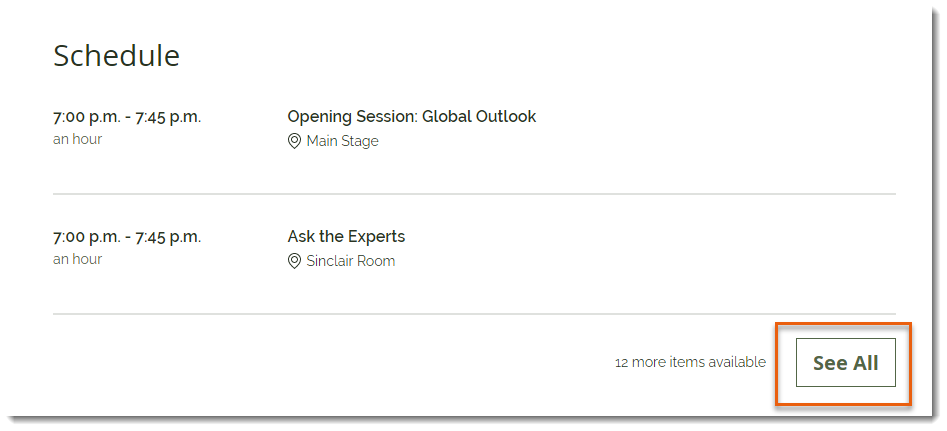
  1. Go to the schedule section of the Event Details page in your live site.

  2. Click See All.

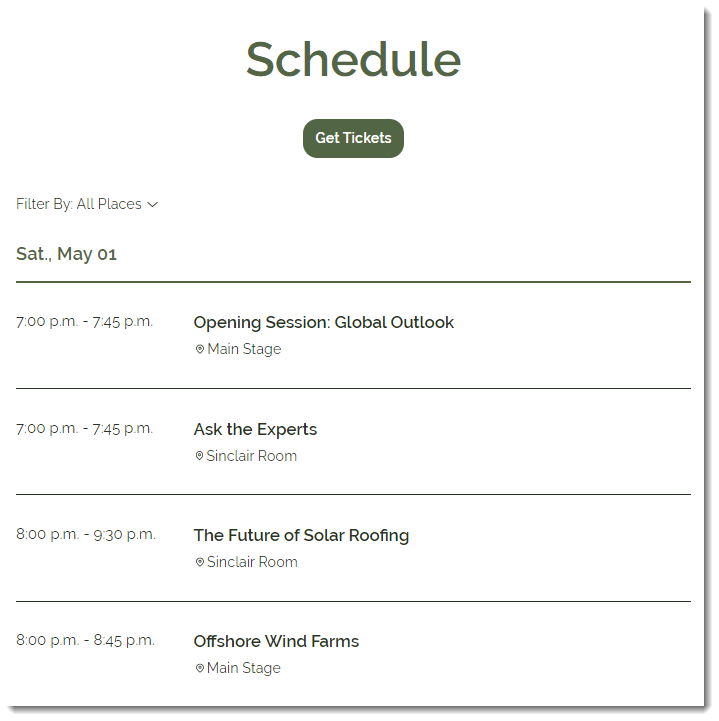
  3. Copy the URL of the full Schedule page. (e.g. ww.mywebsite.com/schedule/KDS-conference).

  4. Go back to the Editor.

  5. Click your site's menu.

  6. Select Manage Menu.

  7. Click +Add Menu Item.

  8. Select Link.

  9. Under What's the web address? enter the URL you copied in step 3.

  10. Select an option:New window: Schedule link open in a new tab.
    Current window: Schedule link opens in the same tab.

  11. Click Done.

  12. Enter the link name (e.g. Schedule) and click Done.

  13. (Optional) Drag the new menu item up.

  14. Publish to display the results on your live site.

Need A Professional Website?
Contact Us 
Today!

Google Workspace Error Message: "Your subscription has been suspended by your reseller"

Google Workspace Error Message: Service Is Temporarily Suspended until Your Customer Accepts the New Terms of Service

Google Workspace Error Message: "You already have a Google Workspace business email account. You can manage it from the Google Admin Console"

Google Workspace: Data Migration from an External Email to Your Google Workspace

Google Workspace: Revoking Admin Status to Delete a Workspace Account

Google Workspace: Connecting Your Business Email to a Mail Client Using IMAP and SMTP

Google Workspace: Changing the Language of Your Business Email

Google Workspace: Emails Missing from Your Business Email

Google Workspace: Allowing Access for ‘Less Secure Apps’ in Your Business Email

Google Workspace: Adding Google Workspace MX Records to Your Wix Account

Google Workspace: Setting Up a Domain Alias

Google Workspace: Manually Verifying Your Domain with Google

Google Workspace: Connecting a Business Email for a Domain Pointing to Wix

Google Workspace: Setting Up an Email Alias for an Existing Workspace User Email Address

Google Workspace: Resetting a Workspace User's Password

Google Workspace: Renaming a Workspace User

Google Workspace: Accessing Your Additional Workspace Users

Google Workspace: Purchasing Additional Business Emails from Wix

Google Workspace: Setting Up Business Email Users

Gemini for Google Workspace: An Overview

Google Workspace: Upgrading a Workspace Plan

Google Workspace: Choosing a Plan

Google Workspace: Business Email Sending Limits

Google Workspace: Forwarding Emails From Your Business Email to Another Email Address

Google Workspace: Resetting Your Admin Password

Google Workspace: Accessing Your Admin Console

Google Workspace: Identifying Your Admin Workspace User

Google Workspace: Setting Up Your Business Email on Mobile Devices

Google Workspace: Username and Password Guidelines

Google Workspace: Accessing your Business Email Through Your Wix Account

wix experts
Graphic2Traffic web design
©
bottom of page