


Creating your event
Wix Events: Optimizing SEO Settings
Optimize the SEO settings for all your events to boost their visibility on search engines and social media.
In this article, learn more about:
Optimizing SEO for the Event Details & Registration page
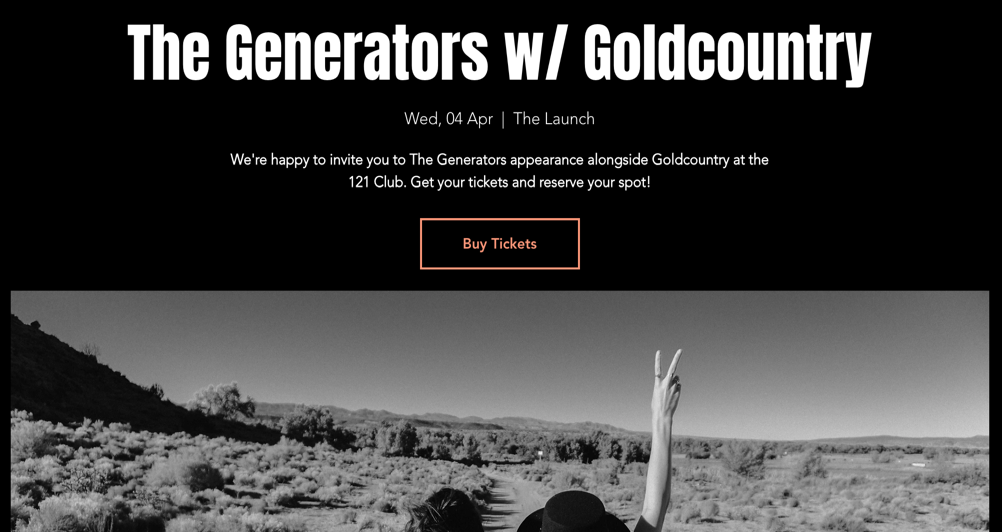
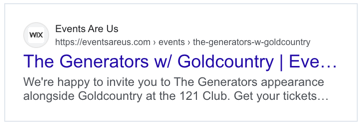
By default, the SEO title tag and URL for your Event Details & Registration page are generated from your event name and site name. The page description is automatically pulled from your event content. You can customize the title tag, meta description, and URL to better reflect your event.
So by default, this page...
...would look like this in Google search results:
To optimize the SEO for Event Details & Registration page:
Go to the Published Events tab in your site's dashboard.
Click the More Actions icon
 next to the relevant event.
Select Edit SEO Settings.
Customize the following SEO settings as needed:Title tag: Add a concise title tag that summarizes the page's topic. This is how the title will appear in search engines results.
Meta description: Write a brief meta description summarizing the event. This helps potential attendees decide if it's relevant for them.
Note: Search engines may show a different description.
URL slug: This is the last part of your page's URL. Only change the URL slug if necessary to reflect the content better. Keep it short, descriptive, and easy to read.
Note: If you update the event's URL slug, traffic from the old URL will automatically redirect to the new one.
Index status: Click the toggle to choose whether search engines can crawl and index your page:Enabled: The page will be indexed and discoverable in search results.
Disabled: The page won't be indexed preventing it from appearing in search results.
Click Save.
Tip:
You can apply changes to multiple event pages at once using your site's SEO Settings. For more detailed editing, go to the Edit by Page tab to manage URL slugs and meta tags for individual pages.
Optimizing SEO for social sharing
You can customize your Social Share Settings to optimize how your event appears when shared on social media, including the image, title, and description. You can also customize your X (Twitter) settings to display different images and text when shared.
Tip:
Check out the recommended social share image sizes.
To edit the default social share settings:
Go to the Published Events tab in your site's dashboard.
Click the More Actions icon
next to the relevant event.Select Edit SEO Settings.
Click the Social share tab.
Hover over the event image and select an option:
Edit the existing image:Click the Adjust icon to open the Photo Studio.
Edit the image and click Save.
Replace the image:Click the Change icon .
.
Select an image and click Add to Page.
Enter your title in the og:title field.
Enter your description in the og:description field.
Click X Settings to set a different image and text for X shares:Click the Change icon
to select a different image.
Choose a card size under Select card size.
Add a page title under x:title.
Add a page description under x:description.
Click Save.
Important:
If you've recently updated your social share image, we recommend entering your site URL into the Facebook debugger to ensure the most up-to-date information is displayed for your site.
For other social networks, use the following tools:
FAQs
Click on a question below to learn more about editing SEO settings for events.
How long does it take for changes to appear in search engine results?
Changes to your event’s SEO settings, such as title tags and descriptions, do not appear in search engine results right away. Google must re-crawl your page to update the content in its index.
What is the ideal length for an SEO title tag and meta description?
For title tags, it's recommended to use 55-65 characters to concisely summarize the page. For meta descriptions, aim for 155-165 characters to provide a brief and relevant description of the event.
Can I optimize SEO settings for multiple events at once?
Yes, you can apply SEO settings across multiple site pages and events at the same time. Use your site's SEO Settings to streamline the process, and view and edit all URL slugs and meta tags for multiple events at the same time. Learn more about customizing your SEO settings.
What is Open Graph (OG) data and why is it important for SEO?
Wix automatically adds default SEO meta tags and social share meta tags (also known as Open Graph or og tags) to your pages. These meta tags help search engines and social networks display your pages properly to potential visitors. You can customize these advanced settings according to your needs at any time.
What is the Advanced tab in the SEO settings of an event?
The Advanced tab in your event’s SEO settings offers additional options to improve your event's visibility on search engines. In this tab, you can access features like Structured data markup, Robots meta tag, and Additional tags, which provide search engines with more context about your event.
Note: This section is designed for advanced users. Wix Customer Care assist with changes to your site's structured data. If you encounter issues, refer to our structured data troubleshooting help article. Need help from a professional? You can hire an SEO professional from the Wix Marketplace.