


Creating your event
Wix Events: Customizing the Registration Form for Ticketed Events
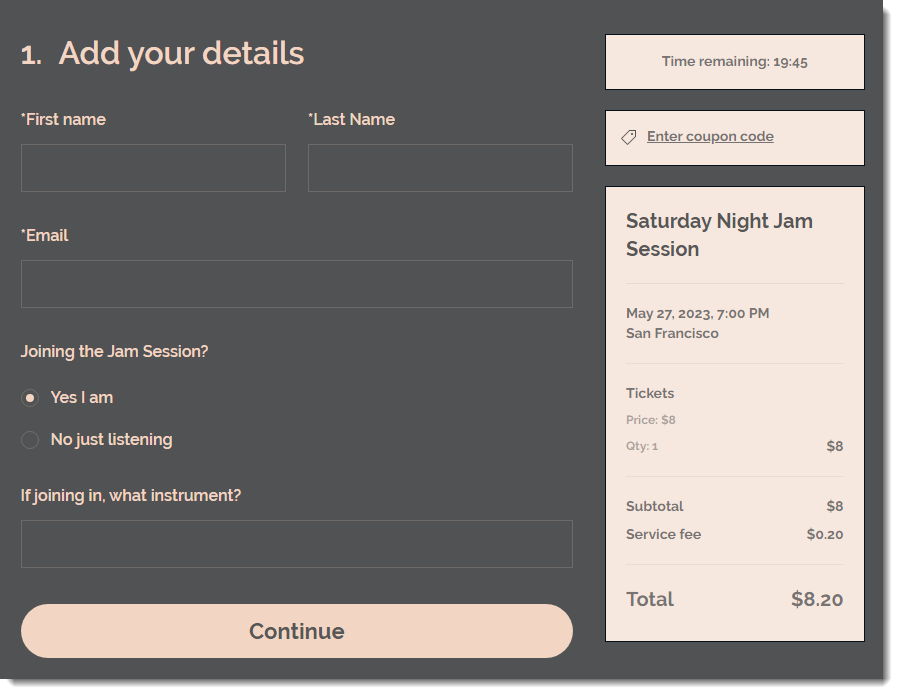
When guests purchase event tickets, they fill out a registration form. You can customize this form to gather the exact information you need from each attendee.
In this article, learn more about:
Customizing the registration form of a ticketed event
Update the fields in the registration form to get the details you need from your guests (e.g. phone numbers).
Note:
First name, last name, and email are required fields on the registration form. It is not possible to remove them.
To customize the registration form:
Go to Events in your site's dashboard.
Select the relevant event.
Click the Settings tab.
Click Edit next to Registration Form.
Choose whether to collect info per order or per ticket:Fill out 1 registration form per order: Guest fills out the registration form once, even if buying multiple tickets.
Fill out a registration form for each ticket in an order: Guest fills out a separate registration form for each ticket.
Tip: Learn more about collecting guest info for individual tickets.
Edit the form text:Hover over any the text fields and click the Edit icon
 .
.
Edit the text and click the checkmark to save.
Add additional preset fields to the form:Click + Add More Options.
Select the field you want to add: Phone number, Address, Date, Comments or Custom Question.
Edit the option using the available customizations.
Note: If you've added a custom question and selected Dropdown Menu, Multiple Choice, or Checkboxes as the response type, you can enter all the options your guests can choose from (e.g. Yes, No) by pressing Enter on your keyboard after every choice.
(Optional) Select the Make this info required checkbox.
Note: When selected, guests cannot RSVP without entering the requested information.
Click the checkmark to save.
(Optional) Edit the 'Continue' button text:Hover over Continue and click the Edit icon
 .
.
Edit the button text and click the checkmark to save.
Click Save at the top right.
FAQs
Click a question below to learn more about customizing the registration form.
How can I read responses to registration form questions?
The Guests tab is the place to view responses that individuals guests entered in the registration form. To view a table with all your guests responses, you can export the guest list.
Learn more about viewing guest responses and exporting your guest list.
How can I customize the "Tickets Unavailable" and "Registration Closed" messages?
Go to Events in your site's dashboard.
Select the relevant event.
Click the Settings tab.
Click Edit next to the message you want to customize.
Learn more about editing the "Thank You" and "Registration Closed" messages.
How can I customize the design of the registration form?
You can update the colors, font, and more to get a look that suits your site. Learn how to customize the registration form design.