top of page

Creating your event

Wix Events: Creating an Event Schedule

Let participants know what's happening at your event by creating an event schedule. Schedules are ideal for conferences, festivals, and more.

Guests can view the first 2 schedule items on the events details page and click to see the whole schedule. You can also choose to display the schedule on a separate site page.
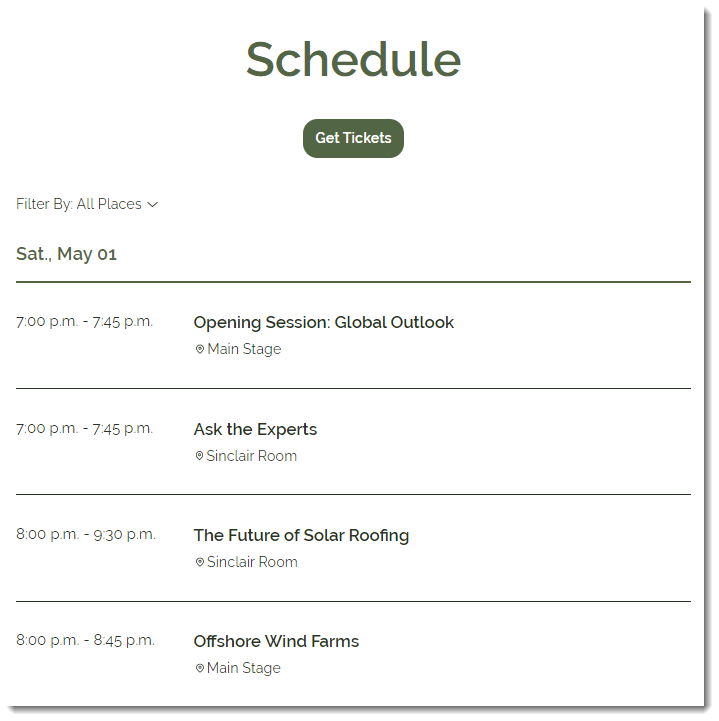
A screenshot of an event schedule.

Before you begin:

Create and save your event as a draft or published event.

To create an event schedule:

  1. Go to Events in your site's dashboard.

  2. Select the relevant draft or published event.
    Note: For recurring events, you can add a schedule to an individual occurrence of an event.

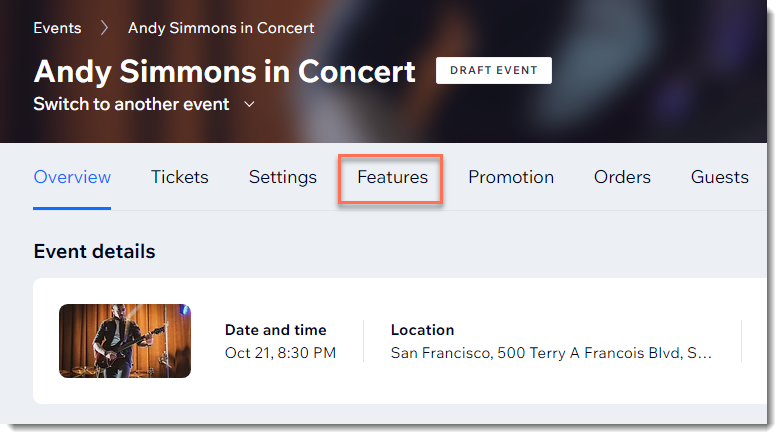
  3. Click the Features tab.

A screenshot of the features tab to add a schedule to the event.

  1. Click Schedule.

  2. Click Add Schedule Item.

  3. Add the details for the first schedule item:Enter the item name (e.g. Opening Session)
    Set the start and end dates and times.
    Note: The minimum time limit for a scheduled item is 10 minutes.
    Enter the location (e.g. Main Stage).
    (Optional) Enter a tag and press Enter on your keyboard.
    Note: Tags can be used to classify event sessions. For example, a renewable energy conference might create tags for  "Solar Energy", "Wind Energy", and "Electric Vehicles". Guests can filter the schedule to locate the content they're interested in. After you create a tag, apply it to other items of the same type.
    (Optional) Enter a description of the schedule item.
    Click Add.
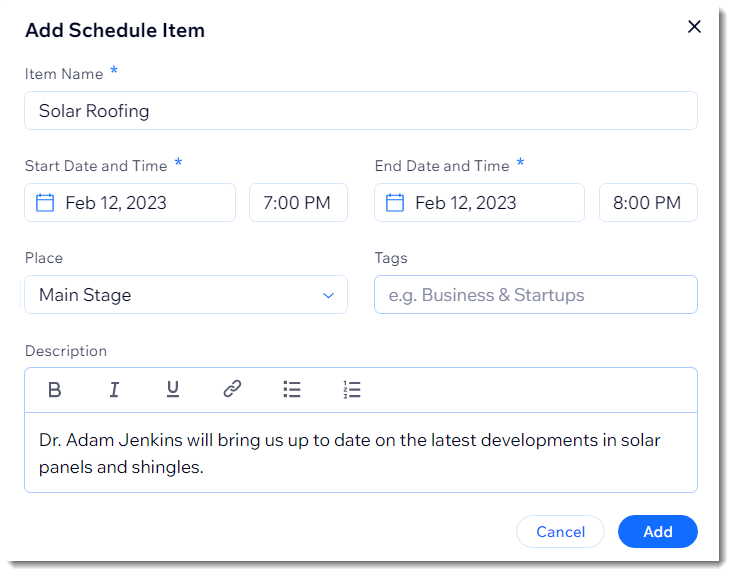
A screenshot of adding the schedule item details to the event.

  1. Repeat steps 5 and 6 to add additional items to the schedule.

  2. (Optional) Click the Enable Personal Agenda toggle enable it.  
    Note: When enabled, guests can mark the events they're interested in and then click View My Agenda to see their selections.
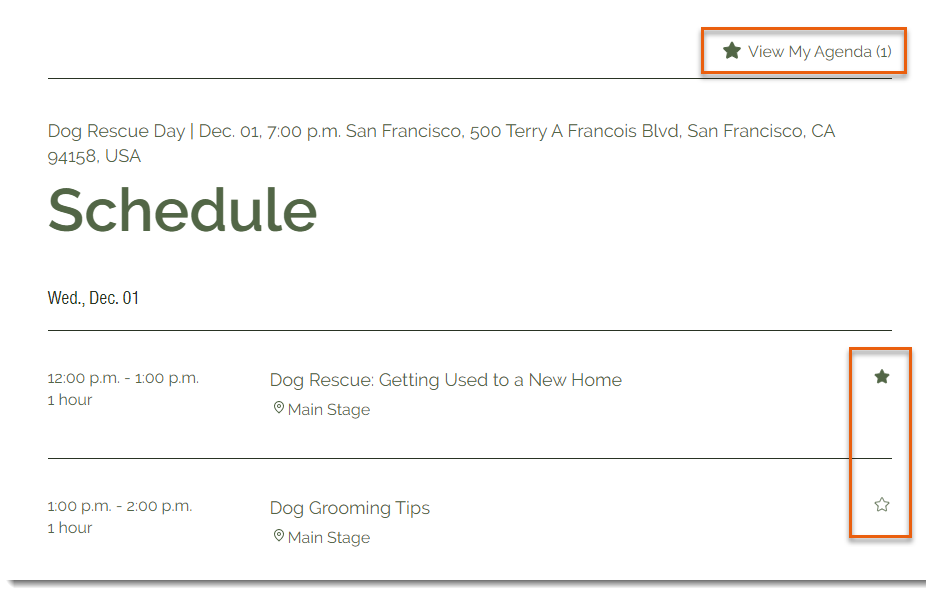
A screenshot of guests being able to mark their favorites items in the event schedule.

Need A Professional Website?
Contact Us 
Today!

Setting Up Tax Groups Using Automatic Tax Calculation

Setting Up Automatic Tax Calculation

About Automatic Tax Collection

Setting Up Tax Groups Using Manual Tax Calculation

Setting Up Tax Calculation Using the Manual Method

Tax Collection: An Overview

Connecting Flow as a Payment Provider

Connecting Tranzzo as a Payment Provider

Syncing SKU IQ with Square and Wix

Connecting iCredit as a Payment Provider

Connecting Cal powered by PayMe as a Payment Provider

Connecting Pagopar as a Payment Provider

Connecting POLi as a Payment Provider

Connecting PaidBy Bank as a Payment Provider

Connecting PostFinance as a Payment Provider

Connecting Nimbbl as a Payment Provider

Connecting airpay as a Payment Provider

Connecting Easebuzz as a Payment Provider

Connecting MakeCommerce as a Payment Provider

Connecting KG Inicis as a Payment Provider

Connecting seQura as a Payment Provider

About 3D Secure (3DS) Payments with Third-Party Payment Providers

Connecting Ziina as a Payment Provider

Connecting Faster Payment System as a payment method (through Oceanpayment)

Connecting easypay as a Payment Provider

Connecting Exactly as a Payment Provider

Connecting PayItMonthly as a Payment Provider

Troubleshooting Pending PayPal Payments

Connecting Tranzila as a Payment Provider for Card, Google Pay and bit Payments

Connecting Moneris as a Payment Provider

wix experts
Graphic2Traffic web design
©
bottom of page