top of page

Creating your event

Wix Events: Creating a Hybrid Event

Important:

As of March 2024, the option to connect to Wix Live is no longer available. If you’ve already created events with Wix Live, you can continue using it in the meantime.

Hybrid events are events in which some guests attend in person while others join online.

Any event you create in Wix Events can become a hybrid event. While creating the event, simply create a regular in-person event and add video conferencing.

A screenshot of a hybrid event promotion.

Step 1 | Create an event with your physical location

Creating an event draft (or edit an existing draft) and make sure to add the physical location where the event will take place.

To create an event draft with your physical location:

  1. Create an event and save it as a draft or published event. Learn how to create an event.

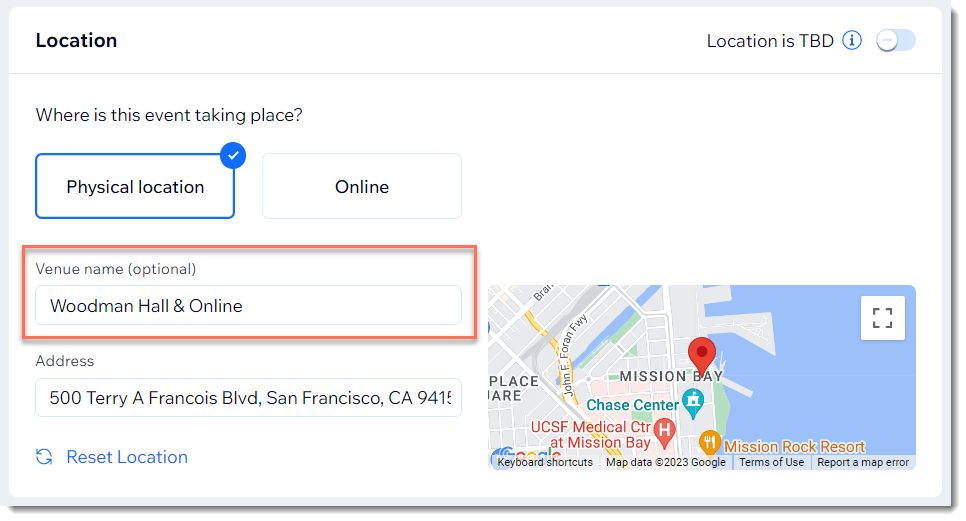
  2. Under Location, select Physical location.

  3. Enter the physical address where the event takes place.

  4. In the Venue name field, enter a message that lets guests know they can join online.

  5. Click Create Event.

A screenshot of the Location panel when setting up an event.

Step 2 | Add video conferencing

After creating your event, you can add and set up video conferencing in addition to the physical location.

To add video conferencing:

  1. Go to the Events in your site's dashboard.

  2. Select the relevant event.

  3. Click Features.

  4. Click Video Conferencing.

  5. Click Setup video Conferencing.

  6. Select and set up a video conferencing option:Add video conferencing with Wix Live Video
    Add video conferencing with Zoom.
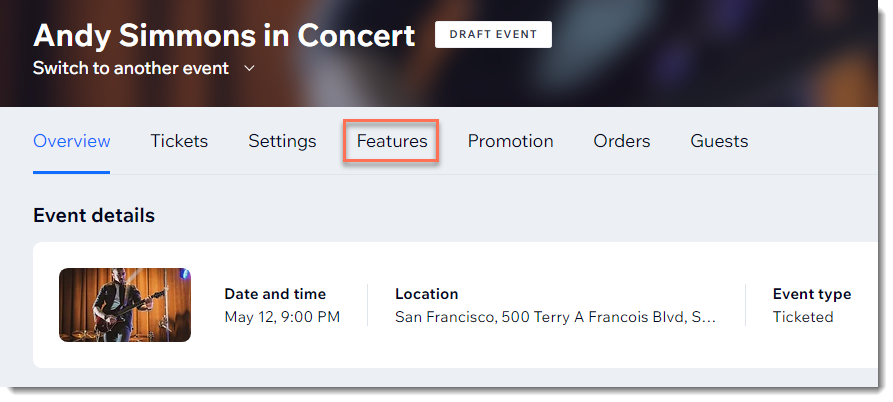
A screenshot of the Features tab for an event in a site's dashboard.

Need A Professional Website?
Contact Us 
Today!

Google Workspace Error Message: "Your subscription has been suspended by your reseller"

Google Workspace Error Message: Service Is Temporarily Suspended until Your Customer Accepts the New Terms of Service

Google Workspace Error Message: "You already have a Google Workspace business email account. You can manage it from the Google Admin Console"

Google Workspace: Data Migration from an External Email to Your Google Workspace

Google Workspace: Revoking Admin Status to Delete a Workspace Account

Google Workspace: Connecting Your Business Email to a Mail Client Using IMAP and SMTP

Google Workspace: Changing the Language of Your Business Email

Google Workspace: Emails Missing from Your Business Email

Google Workspace: Allowing Access for ‘Less Secure Apps’ in Your Business Email

Google Workspace: Adding Google Workspace MX Records to Your Wix Account

Google Workspace: Setting Up a Domain Alias

Google Workspace: Manually Verifying Your Domain with Google

Google Workspace: Connecting a Business Email for a Domain Pointing to Wix

Google Workspace: Setting Up an Email Alias for an Existing Workspace User Email Address

Google Workspace: Resetting a Workspace User's Password

Google Workspace: Renaming a Workspace User

Google Workspace: Accessing Your Additional Workspace Users

Google Workspace: Purchasing Additional Business Emails from Wix

Google Workspace: Setting Up Business Email Users

Gemini for Google Workspace: An Overview

Google Workspace: Upgrading a Workspace Plan

Google Workspace: Choosing a Plan

Google Workspace: Business Email Sending Limits

Google Workspace: Forwarding Emails From Your Business Email to Another Email Address

Google Workspace: Resetting Your Admin Password

Google Workspace: Accessing Your Admin Console

Google Workspace: Identifying Your Admin Workspace User

Google Workspace: Setting Up Your Business Email on Mobile Devices

Google Workspace: Username and Password Guidelines

Google Workspace: Accessing your Business Email Through Your Wix Account

wix experts
Graphic2Traffic web design
©
bottom of page