top of page

Using the Wix app for Wix Events

Wix Events: Checking-In Guests Using the Wix App

Use the Wix app to check guests in as they arrive at your event. For ticketed events, you can use the app to scan the QR code found on event tickets.
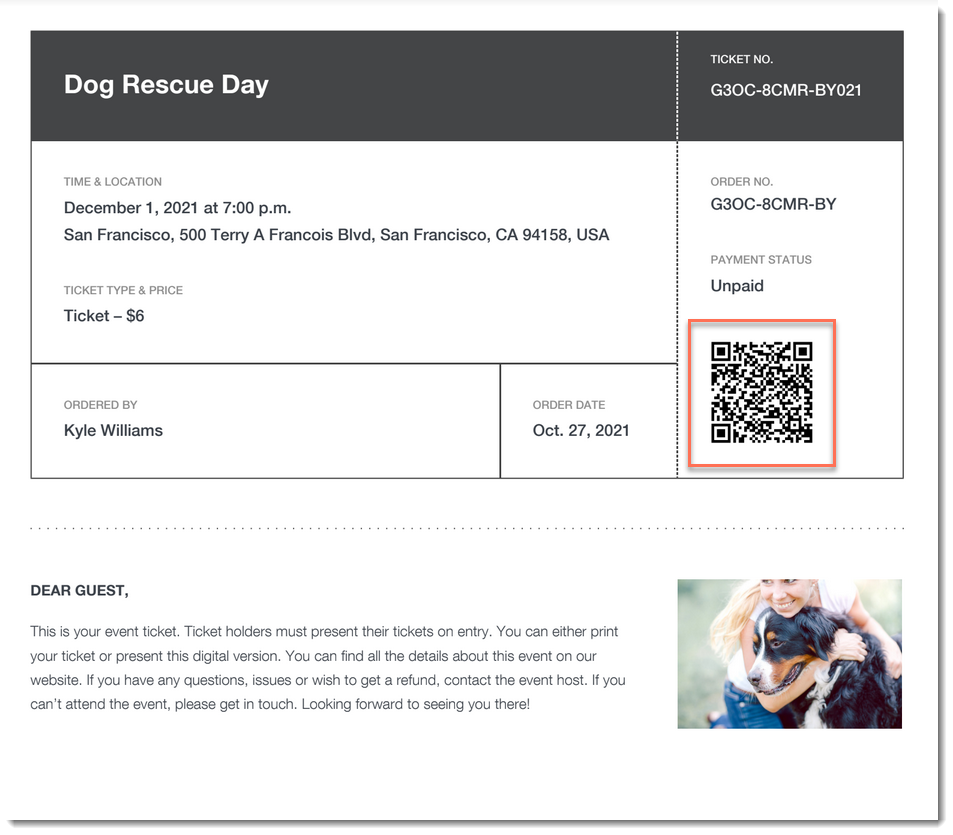
A screenshot of an event ticket PDF highlighting a QR code.

Important:

Go to your guest list in the Wix app shortly before you leave for the event, while you’re connected to the Internet. This ensures that you’ll be able to access the list and check guests in - even if you're offline during the event itself.

To check a guest in to an event:

  1. Go to your site in the Wix app.

  2. Tap Manage  at the bottom.

  3. Tap Events.

  4. Tap Published Events.

  5. Tap the event you want to view.

  6. Choose what you want to do:

Change a guest's status to "Checked In"

  1. Tap Guest List.

  2. (Optional) Filter your guest list:Tap the Filter  icon.

    Do any of the following:Select a status (e.g. Not checked in)
    Select one a payment status (ticketed events only).
    Select one or more a ticket types (ticketed events only).
    Select a sort option.
    Tap Save.

  3. Tap the checkmark next to a guest's name.
    A screenshot of a tapping a checkmark icon next to a guest's name in the Wix Owner app.

Scan a guest's ticket

  1. Tap Guest List.

  2. (Optional) Filter your guest list:Tap the Filter icon.

    Do any of the following:Select a status (e.g. Not checked in)
    Select one a payment status (ticketed events only).
    Select one or more a ticket types (ticketed events only).
    Select a sort option.
    Tap Save.

  3. Tap the QR icon at the top right.
    A screenshot of the QR icon in the Wix Owner app.

  4. Use your mobile device to scan the QR code that appears on the guest's ticket.
    A screenshot of an event ticket highlighting a QR code.

Tip:

You can also check in guests on desktop and on the Check-in by Wix app.

Need A Professional Website?
Contact Us 
Today!

Connecting Authorize.net Powered by Bankful as a Payment Provider

Connecting Klarna as a Payment Provider

Connecting SeerBit as a Payment Provider

Connecting Webpay Plus-Transbank as a Payment Provider

Connecting Atome as a Payment Provider

Connecting Affirm as a Payment Provider

Connecting Pay TR as a Payment Provider

Connecting Sezzle as a Payment Provider

Connecting CXPay as a Payment Provider

Connecting Afterpay as a Payment Provider

Connecting Rapyd Payments as a Payment Provider

Connecting Clearpay as a Payment Provider

Connecting Yoco as a Payment Provider

Connecting Titre Restaurants Conecs as a Payment Method (Through Lyra)

Connecting Multibanco as a Payment Method (Through Lyra Collect)

Connecting Fondy as a Payment Provider

Connecting Xendit as a Payment Provider

Connecting Razorpay as a Payment Provider

Connecting Laybuy as a Payment Provider

Connecting Lyra Collect as a Payment Provider

Connecting UAPay as a Payment Provider

Connecting Paysafecash as a Payment Method (through Skrill)

Connecting Rapid Transfer as a Payment Method (through Skrill)

Connecting Przelewy24 as a Payment Method (through Skrill)

Connecting Skrill Digital Wallet as a Payment Method

Connecting Skrill as a Payment Provider for Credit/Debit Card Transactions

Connecting Mobile Payment as a Payment Method (Through KOMOJU)

Connecting Pay-Easy as a Payment Method (Through KOMOJU)

Connecting WeChat Pay as a Payment Method (Through Oceanpayment)

Connecting AliPay as a Payment Method (Through Oceanpayment)

wix experts
Graphic2Traffic web design
©
bottom of page