top of page

Using the Wix app for Wix Events

Wix Events: Checking-In Guests Using the Wix App

Use the Wix app to check guests in as they arrive at your event. For ticketed events, you can use the app to scan the QR code found on event tickets.
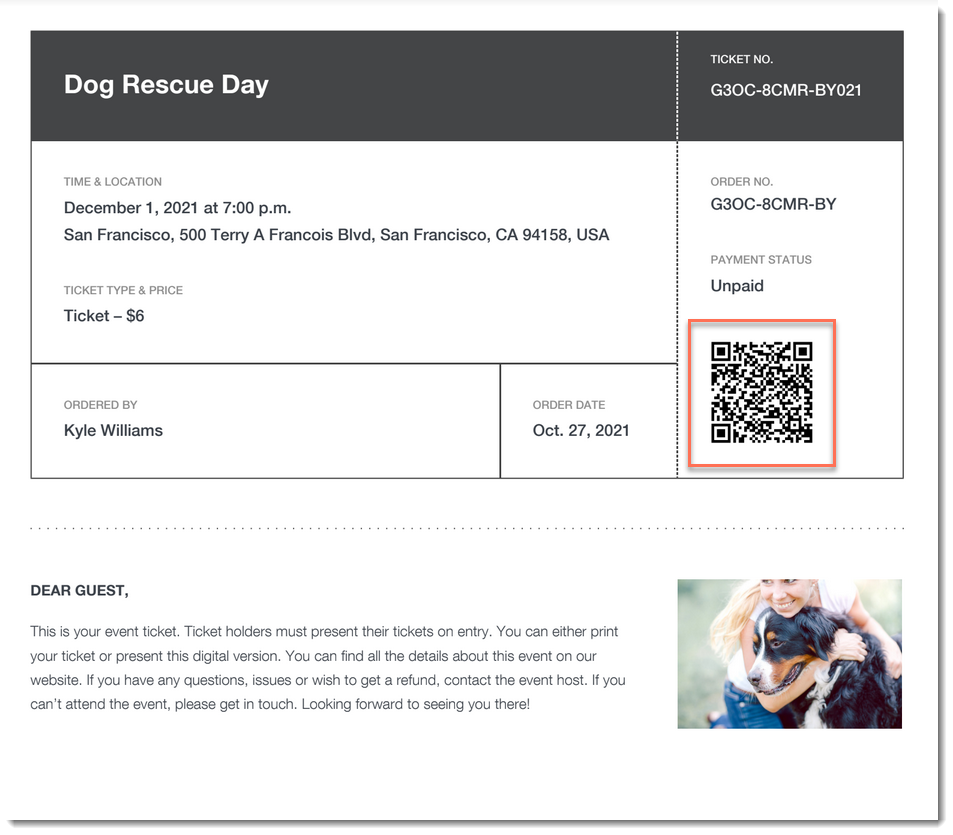
A screenshot of an event ticket PDF highlighting a QR code.

Important:

Go to your guest list in the Wix app shortly before you leave for the event, while you’re connected to the Internet. This ensures that you’ll be able to access the list and check guests in - even if you're offline during the event itself.

To check a guest in to an event:

  1. Go to your site in the Wix app.

  2. Tap Manage  at the bottom.

  3. Tap Events.

  4. Tap Published Events.

  5. Tap the event you want to view.

  6. Choose what you want to do:

Change a guest's status to "Checked In"

  1. Tap Guest List.

  2. (Optional) Filter your guest list:Tap the Filter  icon.

    Do any of the following:Select a status (e.g. Not checked in)
    Select one a payment status (ticketed events only).
    Select one or more a ticket types (ticketed events only).
    Select a sort option.
    Tap Save.

  3. Tap the checkmark next to a guest's name.
    A screenshot of a tapping a checkmark icon next to a guest's name in the Wix Owner app.

Scan a guest's ticket

  1. Tap Guest List.

  2. (Optional) Filter your guest list:Tap the Filter icon.

    Do any of the following:Select a status (e.g. Not checked in)
    Select one a payment status (ticketed events only).
    Select one or more a ticket types (ticketed events only).
    Select a sort option.
    Tap Save.

  3. Tap the QR icon at the top right.
    A screenshot of the QR icon in the Wix Owner app.

  4. Use your mobile device to scan the QR code that appears on the guest's ticket.
    A screenshot of an event ticket highlighting a QR code.

Tip:

You can also check in guests on desktop and on the Check-in by Wix app.

Need A Professional Website?
Contact Us 
Today!

Connecting FIBONATIX as a Payment Provider

Connecting izipay as a Payment Provider

Connecting FasterPay as a Payment Provider

Connecting Kashier Payment Solutions as a Payment Provider

Disabling 2Checkout's Unfinished Payments Feature to Avoid Failed Transactions

Requiring a Customer Phone Number When Checking Out with PayPal

Disabling PayPal Encryption Messages

Connecting Smartphone Payment as a Payment Method (through KOMOJU)

Connecting Bankful as a Payment Provider for Cryptocurrency, Wallet and Credit Card Payments

Connecting Paymentwall as a Payment Provider

Connecting ACH by Choice as a Payment Provider

Connecting Vipps as a Payment Provider

Connecting Mollie as a Payment Provider

Connecting MONEI as a Payment Provider

Connecting payabl. as a Payment Provider

Connecting PayPlus as a Payment Provider

Connecting Tilopay as a Payment Provider

Connecting SumUp as a Payment Provider

Connecting YooKassa (YooMoney) as a Payment Provider

Connecting Square as a Payment Provider

Connecting Stripe as a Payment Provider

Connecting Online Bank Transfer by Klarna as a Payment Method (Through Stripe)

Connecting PayPal as a Payment Provider

Connecting Pay-Easy or Convenience Stores as a Payment Method (Through GMO)

Connecting PagueloFacil as a Payment Provider

Connecting PagSeguro as a Payment Provider

Connecting Mercado Pago as a Payment Provider

Connecting Max as a Payment Provider

Connecting bit (Provided by Isracard powered by PayMe) as a Payment Method

Connecting Evergreen Payments Northwest as a Payment Provider

wix experts
Graphic2Traffic web design
©
bottom of page