top of page

Wix Chat FAQ

Wix Chat: Viewing and Chatting with Live Site Visitors

See who's currently on your site and initiate chats directly from your site's dashboard. This is a great way to keep your visitors engaged and turn them into meaningful business leads. You can also view live site visitors' activity including where they're browsing from and what site page they're on.

Before you begin:

To view visitor activity and initiate chats, you must first install Wix Chat on your site.

Show me how


To view and chat with your live site visitors:

  1. Go to your site's dashboard.
    Note: This feature is available from any section of your dashboard.

  2. Click the Inbox icon   at the top right corner. All current site visitors are displayed in the pop-up window.

  3. Click a visitor to open a new inbox message.

Note:

If a live site visitor has provided info in the past (e.g. filled out a contact form) their name appears. If they haven't provided any information they appear as "Visitor #".
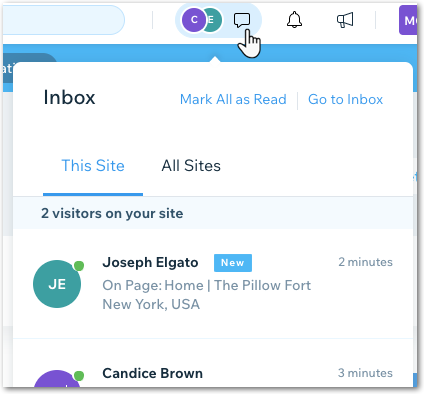
  1. From Wix Inbox, choose what you want to do:

Chat with the visitor

  1. Type your message in the text box.

  2. Click Send at the bottom right.

Note: Make sure your chat status is set to 'online' so the visitor can see you're available to chat. To check your chat status:

  1. Click the Settings drop-down at the top right of your inbox.

  2. Enable the Chat Status toggle.

View the visitor's site activity

At the top of the inbox message you can see all available information about the site visitor including:

  • The site page they're viewing

  • The type of device they're using
    Note: Hover over the site page to view the device type

  • How long they've been on your site

  • The number of times they've visited your site
    Note: Hover over the site time to see visit number

  • Their location

Need A Professional Website?
Contact Us 
Today!

Google Workspace Error Message: "Your subscription has been suspended by your reseller"

Google Workspace Error Message: Service Is Temporarily Suspended until Your Customer Accepts the New Terms of Service

Google Workspace Error Message: "You already have a Google Workspace business email account. You can manage it from the Google Admin Console"

Google Workspace: Data Migration from an External Email to Your Google Workspace

Google Workspace: Revoking Admin Status to Delete a Workspace Account

Google Workspace: Connecting Your Business Email to a Mail Client Using IMAP and SMTP

Google Workspace: Changing the Language of Your Business Email

Google Workspace: Emails Missing from Your Business Email

Google Workspace: Allowing Access for ‘Less Secure Apps’ in Your Business Email

Google Workspace: Adding Google Workspace MX Records to Your Wix Account

Google Workspace: Setting Up a Domain Alias

Google Workspace: Manually Verifying Your Domain with Google

Google Workspace: Connecting a Business Email for a Domain Pointing to Wix

Google Workspace: Setting Up an Email Alias for an Existing Workspace User Email Address

Google Workspace: Resetting a Workspace User's Password

Google Workspace: Renaming a Workspace User

Google Workspace: Accessing Your Additional Workspace Users

Google Workspace: Purchasing Additional Business Emails from Wix

Google Workspace: Setting Up Business Email Users

Gemini for Google Workspace: An Overview

Google Workspace: Upgrading a Workspace Plan

Google Workspace: Choosing a Plan

Google Workspace: Business Email Sending Limits

Google Workspace: Forwarding Emails From Your Business Email to Another Email Address

Google Workspace: Resetting Your Admin Password

Google Workspace: Accessing Your Admin Console

Google Workspace: Identifying Your Admin Workspace User

Google Workspace: Setting Up Your Business Email on Mobile Devices

Google Workspace: Username and Password Guidelines

Google Workspace: Accessing your Business Email Through Your Wix Account

wix experts
Graphic2Traffic web design
©
bottom of page