


Wix Chat FAQ
Wix Chat: Designing Your Chatbox
Ensure your chatbox reflects your brand's style and voice by customizing its colors and text. Consider its placement on your site and which pages it'll be displayed on. Make it easy to find and use to encourage visitors to get in touch. From your Editor, you can experiment with the appearance of your chatbox until you find the right fit.
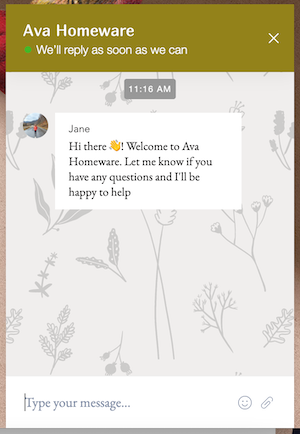
Customizing where and how your chatbox is displayed
Choose which pages you'd like to display your chatbox on, where on those pages it will appear, and how new messages appear to visitors. Make your chatbox easy to spot to make your business more accessible.
To customize your chatbox display:
Click the chatbox in the bottom corner of the Editor.
Click Settings.
Click the Display tab.
Choose what you want to customize:
Position on Page
Decide whether you want your chatbox to appear in the bottom left or bottom right of your live site.
New Message Display
Choose how new messages appear to site visitors. Have the full chatbox open automatically when site visitors receive a new message, or show a smaller bubble notification that prompts them to open the chatbox to view a new message.

Chat Visibility
Choose where across your live site you want your chatbox to appear. Have it visible on every page of your site or have it visible only on the pages you select.
Designing the look and feel of your chatbox
Fully customize your chatbox's design to match your brand. Give site visitors a cohesive experience by choosing colors and fonts that match the rest of your site. You can also add your logo to the chatbox's header and minimized chat for brand consistency.
To design your chatbox:
Click the chatbox in the bottom corner of the Editor.
Click Settings.
Click the Design tab.
Choose what you want to customize:
Business Logo
Click the Update Logo icon  to update the business logo that appears in your chatbox heading when the chatbox is expanded.
Minimized Chat
The minimized chatbox is how Wix Chat appears on your live site when visitors are not interacting with it. Choose your minimized chat layout, background color, text and icon.

Background & Messages
Design your chatbox's background as well as how messages appear. Set your background color and pattern, how your Send icon appears and the font of sent and received messages.

Header Design
Customize your header by choosing whether or not to include your business logo as well as setting your background color and text style.
Border Style
Customize your chatbox's border by setting a corner radius, border width and border color.
Channels
Note: This option will only be available if you've added the WhatsApp channel to your chatbox. Learn more about adding the WhatsApp channel to your chatbox.
Choose the color of the chat message icon  at the bottom your chatbox. The WhatsApp icon is predefined and can't be customized.

Setting the text your chatbox displays
Decide whether you'd like to display default text or your typical response time in your chatbox. Enter the text you'd like to appear when the chatbox is minimized or you're not available to chat. Give your visitors upfront information about getting in touch with your business.
To set your chatbox text:
Click the chatbox in the bottom corner of the Editor.
Click Settings.
Click the Texts tab.
Choose what you want to customize:
When Chat is Open
Edit the text that appears when visitors open the chatbox. Choose the name you'd like to appear in the header when the chatbox is open and set the default text prompting visitors to enter a message (e.g. "Type your message...").

Typical Response Time
Choose whether or not to show your typical response time in the header of your chatbox.
Note: If you choose to show your typical response time, it only appears during your available chat hours.
Minimized Chat Text
Edit the text site visitors see when your chatbox is minimized, both when you appear online and available to chat and when you appear offline and unavailable.
Note: This option is only available if you've selected a minimized chat layout that includes text. Go back to the Design tab to update the layout of your minimized chatbox.

Offline Message
Edit the message site visitors see when they open chat outside your available chat hours.