


Using the Wix app to manage your bookings
Wix Bookings: Sending a Broadcast Message Using the Wix App
From the Wix app, broadcast a message to all participants of a specific session to share any important updates. Send a chat message, email or SMS to everyone booked for your service with one click. Each client receives the message individually, not as a group.
Use broadcast messages to keep clients updated on appointments, class sign-ups, or course updates across various channels. For example, send a broadcast message to all clients who have booked into a Monday online class reminding them of the class date and start time.
Important:
You must have a Business Phone Number to send an SMS message.
Notes:
Sending marketing texts is regulated worldwide and you maybe be subject to 3rd-party regulations. SMS messages that violate our terms of use may be filtered. Learn more about Wix's messaging terms of use.
You must have already invited clients to your booking in order to send a broadcast.
For group bookings, only the member who made the booking can be contacted, not their guests.
To send a broadcast message to the participants of a session:
Go to your site in the Wix app.
Tap Manage
 at the bottom.
Tap Calendar under Booking Calendar.
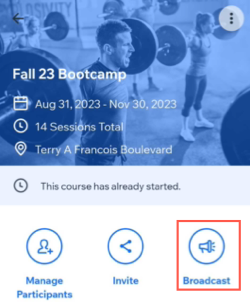
Tap to select the relevant session.
Tap the Broadcast icon
 .
.
If it is the first time, tap Get Started.
Tap the checkbox next to the contacts you want to broadcast a message to. Each contact receives the message individually, not as a group.
Tap Next.
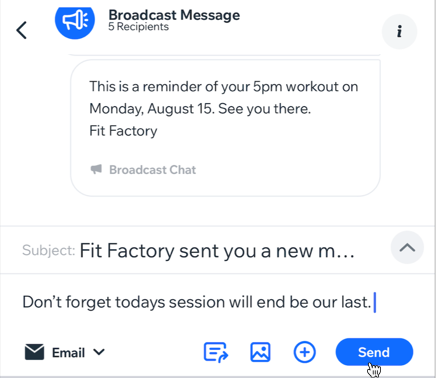
Tap the channel drop-down at the bottom left and select how you want to send your broadcast:Chat: Send a chat message to members. They will see the message in their member app (e.g. Spaces by Wix). To chat with members, make sure you've installed Wix Chat on your site.
Email: Send a broadcast message via email to contacts who have provided an email address that is saved in your contact list.
SMS: Broadcast via SMS to clients if they have provided their contact numbers.
Note: Make sure you've purchased a business phone number.
Compose your broadcast message. You can also attach elements to your message.
Tap Send.