


Managing your calendar & bookings
Wix Bookings: Blocking Off Time for Multiple Staff Members
This app is no longer supported. All the functionality to block time for multiple staff members can be done through your Wix booking calendar.
Block off time for multiple staff members at once using the Time Blocker app. The app works great for recurring or one-time events when you don't want to accept any new appointment bookings. For example, if you have a weekly staff meeting or a retreat that you need staff to attend.
Note:
The Time Blocker app is not available for Studio.
In this article, learn more about:
Before you begin:
You must have Wix Bookings installed on your site to use the Time Blocker app.
Adding the Time Blocker app
From the Wix App Market, you can add the Time Blocker app to your site.
Go to the Time Blocker in the Wix App Market.
Click Add to Site.
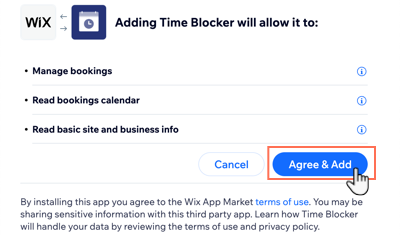
Click Agree & Add to allow the app access to your Bookings information.
Blocking off time using the Time Blocker app
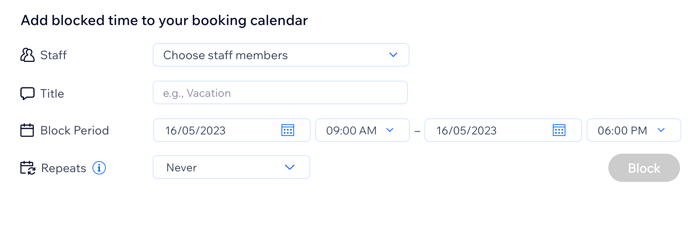
After adding the Time Blocker app, go to your dashboard to block time for multiple staff members. You can choose the relevant people, set the time period and decide whether it repeats or not (e.g. if they're unavailable for appointments at the same time every week).
Note:
Blocked time prevents clients from booking appointments but does not affect existing class or course sessions.
To block off time for multiple staff members:
Go to Staff in your site's dashboard.
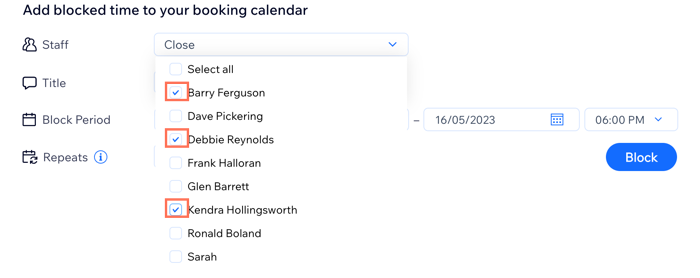
Choose the relevant staff members under Add blocked time to your booking calendar:Click the drop-down next to Staff.
Select the checkbox next to the relevant staff members.
Tip: Select the checkbox next to Select all to block off your entire team's calendars.
Enter a title for the blocked time period, for example, "training".
Set the Block Period start and end dates and times using the drop-downs.
(Optional) Choose how often the blocked time recurs from the Repeats drop-down.
Note: This option is only available for 1-day block periods.Click Block.
Editing or removing blocked time from the Booking Calendar
You can edit or remove blocked time from the Booking Calendar whenever you need. Repeating blocked times appear as recurring events in your Booking Calendar.
If you want to remove repeating blocked time, or change the timing, you need to remove or edit each future session individually.
To edit or remove blocked time from the Booking Calendar:
Go to Booking Calendar in your site's dashboard.
Click the relevant blocked time.
Choose what you want to do:
Edit blocked time
Click Edit.
Edit the Title, the Start Time and date or the End time and date.
(Optional) Click Add note to self to enter an explanation for the change in blocked time.
Click Block.

Remove blocked time
Click Remove.
Click Yes, Remove to confirm.
