


Managing your calendar & bookings
Wix Bookings: Viewing Booking Form Responses
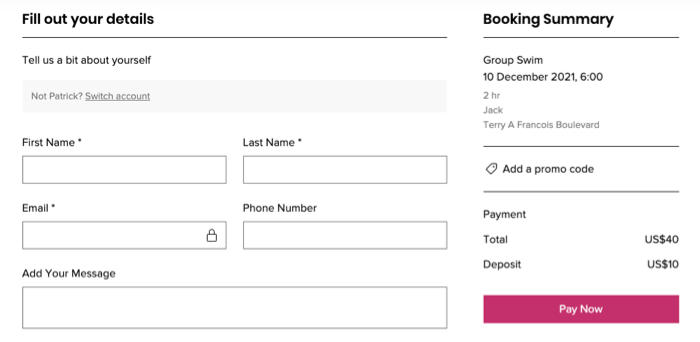
When clients book a service on desktop, they fill out their details in your booking form, like the one below. For your convenience, there are a few different ways to view client responses to your form.
Note:
Clients who book services through a member app on mobile do not fill out the booking form.
In this article, learn more about viewing form responses:
Tip:
You can export a report showing clients who booked during a specific time period (e.g. a list of all clients who attended classes during a particular week).
Viewing responses in emails
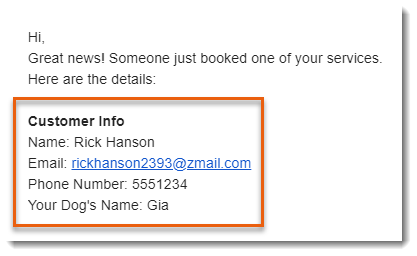
When a client books a service, Wix sends an email to the address you set in the General Info tab in Wix Bookings. This email contains the information your client filled out in the booking form, including responses to custom fields (e.g. dog's name).
Viewing responses in the Booking Calendar
A quick and easy way to see your responses is on your Bookings Calendar. This lets you view all your clients' bookings and choose the one you want to view in more detail.
To view clients responses in the Booking Calendar:
Go to Booking Calendar in your site's dashboard.
Choose what you want to do:
View appointment responses
Click the relevant appointment in your calendar.
View the response details next to the Booking Form icon
 .
.

View class or course responses
Click the relevant class or course in your calendar.
Click Manage next to the participants.

Click the Booking Form icon
 next to the relevant client.
Viewing responses in your contacts' info
Your site's Contact List displays all the site visitors who interacted with your site in any way (e.g. booked a service, contacted you on chat, subscribed to your newsletter, etc.). You can find your contacts' responses from your booking form in each client's contact info.
To view responses on a client's contact info page:
Go to Contact List in your site's dashboard.
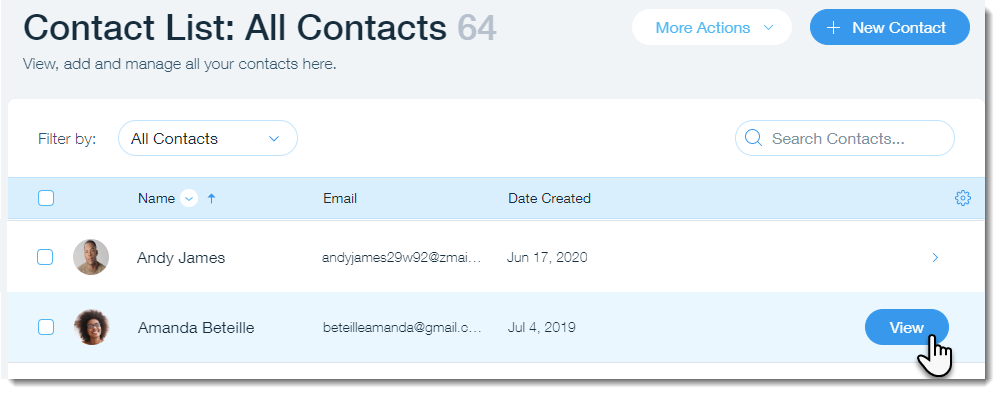
Hover over the relevant contact and click View.
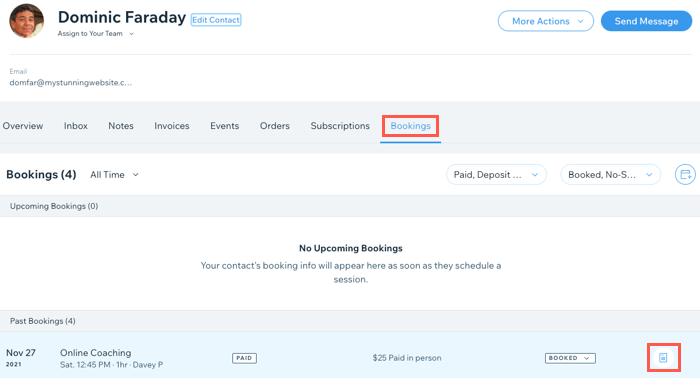
Click the Bookings tab.
Click the Booking Form icon
 next to the relevant booking.
Viewing responses from the Wix app
Clients who book a service using one of the Wix member apps do not fill out a booking form. You can, however, use the Wix app to view responses from clients who booked on desktop.
To view client responses from the Wix app:
Go to your site in the Wix app.
Tap Manage
 at the bottom.
Tap Bookings under Business.
Choose what you want to do:
View appointment responses
Tap the relevant appointment.
Scroll down and view the responses in the More Information section.

View class or course responses
Tap the relevant session.
Tap the Manage Participants button.
Tap a participant's name.
Tap View Form Responses.

Tip:
You can also view form responses by tapping the participants name, then tapping View Booking Details.