


Managing your calendar & bookings
Wix Bookings: Syncing Your Apple Calendar
Sync Wix Bookings with your Apple Calendar (iCal) to view your personal and business appointments in one place. This way, you can keep track of your schedule, avoid double bookings and arrange for cover when needed.
In this article, learn more about:
Syncing Wix Bookings with your Apple calendar
Sync your Apple calendar with Wix Bookings from the Booking calendar in the dashboard. Make sure to follow the on-screen instructions to set up your app-specific password on the Apple website.
Before you begin:
Make sure you upgrade to a Premium plan to sync your personal calendar with Wix Bookings.
To sync Wix Bookings with your Apple calendar:
Go to the Booking Calendar in your site's dashboard.
Click the Manage Calendar drop-down.
Click Sync Personal Calendar.
Select the relevant account you want to sync.
Click Sync beside Import your Apple Calendar Events.
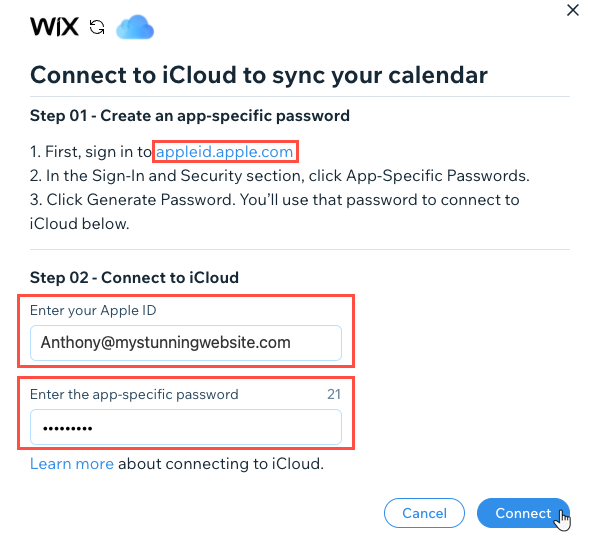
Follow the on-screen instructions and sign in to appleid.apple.com.
Click App-Specific Passwords in the Sign-In and Security section.
Click Generate Password.
Enter your Apple ID.
Enter the app-specific password you created above.
Click Connect.
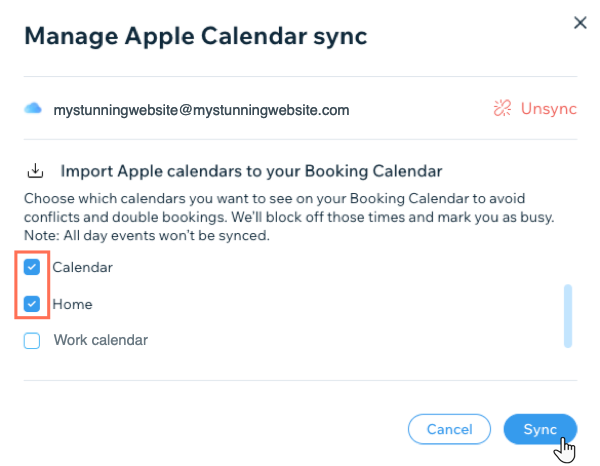
Select the checkboxes beside each Apple Calendar you wish to sync with Wix Bookings.
(Optional) Enable the Export Booking Calendar events toggle to display your bookings sessions on your Apple Calendar.
Click Sync.
After syncing, your personal appointments from your Apple Calendar now block off time in your Bookings calendar. Your Bookings sessions are also visible in your Apple calendar.
FAQs
We are here to help with all your questions. Click a question below to learn more.
How do my staff sync Wix Bookings with their Apple calendars?
All staff members syncing their Apple calendars must create an app-specific password to proceed with the sync (their regular iCloud password won't work). It is not possible to sync calendars without an app-specific password created at appleid.apple.com. Click here to find out more about app specific passwords at the Apple Help Center.
I received an error message saying "sync failed" what do I do?
It can take several minutes to sync your Apple Calendar. It is important to not navigate away or refresh the page while the sync is taking place. When the sync completes, you are asked to manage which calendars you want to sync. If the sync fails, you are asked to try again.
I deleted my iCloud account. How do I connect a different personal calendar with Wix Bookings?
If you or a staff member deletes their iCloud account, you must also disconnect it from the Wix Booking Calendar in order to sync with another personal calendar like Google. At present, it is not possible to sync multiple personal calendars with Wix Bookings. If you would like to see this feature in future, you can vote for it here.
How do I stop syncing calendars?
Go to Staff in your site's dashboard.
Click the More Actions icon
 next to the relevant staff member.
Click Unsync Personal Calendar.
Click Unsync to confirm.

Troubleshooting issues with Apple Calendar syncing
Try the steps below if you are unable to successfully sync your Apple Calendar or if you notice that some events do not appear in your Booking Calendar.
Step 1 | Confirm your app specific password
In order to sync your Apple Calendar with Wix Bookings, you must create an app-specific password. Sign in to appleid.apple.com and follow the on-screen instructions to create your app-specific password.
Step 2 | Confirm the iCal account
To check the email address of the synced iCal account, hover over the "info" icon next to the relevant staff member in the Staff tab in the dashboard.

Step 3 | Check that the selected calendars are correct
Make sure the correct calendars within Apple Calendar are selected for syncing with Wix Bookings.

Step 4 | Make sure the event isn't an all-day event
If your event is marked as All-Day or Free on Apple Calendar, it won't appear in your Booking Calendar.
Step 5 | Check any third party apps you use
Only events you originally create in iCal will show in Wix. If you're using a third party app, such as Square Calendar or Calendly, you will need to add these events manually in iCal in order for them to sync with Wix Bookings.