


Managing your calendar & bookings
Wix Bookings: Syncing Bookings and Google Calendars
View your business appointments and personal events all in one place by syncing your Wix Bookings calendar with your personal Google calendar.
Invite your staff members to sync their calendars and help them avoid double-bookings between work and personal appointments.
Important:
Before syncing calendars, we recommend reading this important information on how it works.
In this article, learn more about:
Syncing your Wix Bookings and Google calendars
When you sync your Wix Booking and Google calendars, all class and course sessions appear in both calendars. In addition, personal appointments from your Google calendar block off time in your Bookings calendar to avoid any overlap.
Before you begin:
To sync your personal calendar with Wix Bookings, be sure to upgrade your site.
To sync your Wix Bookings and Google calendars:
Go to Booking Calendar in your site's dashboard.
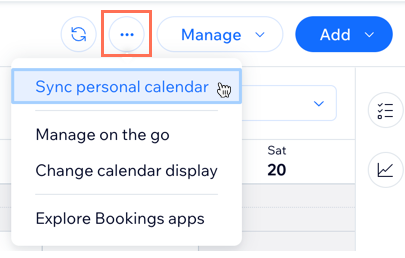
Click the More Actions icon
at the top.
Click Sync personal calendar.
Click Sync next to Google Calendar.
(If necessary) Select the Google account you want to connect to Wix Bookings.
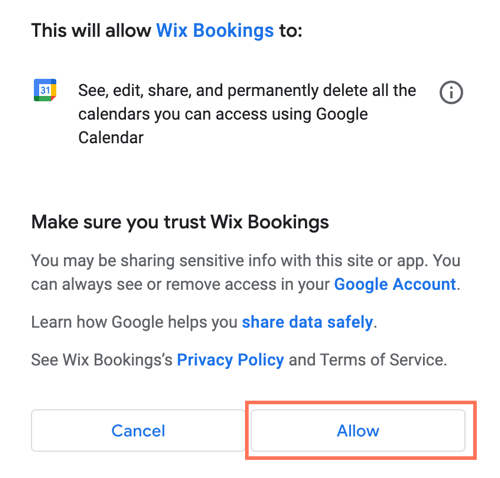
Click Allow to sync your calendars.
Inviting your staff to sync their calendars
Invite your staff to sync their calendars to avoid scheduling conflicts. Only registered staff members can sync their calendar. Make sure to give your staff the necessary permissions. Your staff member then receives an invite email where they click to sync their calendars. In the Staff tab, their card updates to show they've synced their Google Calendar.
Your staff member's private appointments will not be visible in Wix Bookings. Instead, the time appears as "busy" in the Wix Bookings calendar.
Before you begin:
Make sure you've upgraded your site so you can sync your staff members' personal calendars with Wix Bookings.
To invite your staff to sync their calendars:
Go to Staff in your site's dashboard.
Click the relevant staff member.
Click Invite to Sync Calendar.
Note: Only registered staff members can sync their calendar. Make sure to give your staff the necessary permissions.(Optional) Edit the message you will send to your staff member.
Click Email Invite to email your staff members instructions on syncing their calendars. Once your staff member clicks the invite link in their email, their calendars will sync.
FAQs
We are here to help with all your questions. Click a question below to learn more.
Which Google calendar can I sync with Wix Bookings?
Wix Bookings syncs only to the primary Google calendar.

Whay happens once the calendars are synced?
After syncing your Google calendar with Wix Bookings, sessions booked through your site appear on your staff member's Google calendar.
In addition, your personal appointments in Google Calendar block off time in your Wix Bookings calendar to avoid any overlaps.
Do 'All day' Google events appear in my Wix Bookings calendar?
When you add an event to your Google calendar, the time between the event’s start and end time is blocked off in your Wix Bookings calendar. This way you appear as unavailable to prevent double bookings.
The "All Day" function in the Google calendar does not block off time in your Wix Bookings calendar. Make sure to set a start and end time manually in your Wix Bookings calendar to prevent double booking.

How do personal calendar appointments show up in Wix?
Any time booked in your personal calendar or set as "out-of-office" appears as "Busy" in your Wix Bookings calendar. Customers cannot book appointments at these times.
Note that any event details you add in your personal calendar (e.g. location, guest list) do not appear in your Wix calendar.
Troubleshooting issues with Google Calendar syncing
If the events from your Google calendar aren't appearing in Wix, or vice versa, please follow these steps below:
Step1 | Confirm the Google account.
Check the email address of the Google account synced to the Booking Calendar, and make sure you're logged in to the correct Google account. You can hover over the "info" icon next to the relevant profile in the Staff tab in the dashboard.

Step 2 | Check which of your Google calendars the event appears
Currently, only the primary Google calendar can sync with Wix Bookings. Make sure the event is on your primary calendar. Your primary calendar in Google appears at the top of the list of your calendars.

Step 3 | Check any third party apps you use
Only events you originally created in the Google Calendar will show in Wix. If you're using a third party app, such as Square Calendar or Calendly, these events will need to be re-added manually to Google to sync properly with Wix.
Step 4 | Make sure the event isn't an all-day event
If your event is marked as All Day or Free on Google, it won't appear in your Booking Calendar.
