


Emails, SMS, and promotions
Wix Bookings: Sending SMS Notifications to Clients
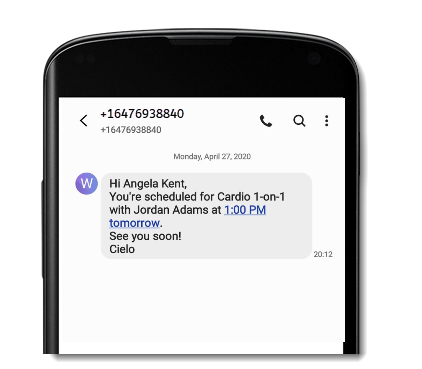
With Wix Bookings, you can choose which SMS notifications (Short Message Service mobile text messages) to send to clients, such as confirmations, session reminders, and updates. You can enable these notifications in the business settings of your site's dashboard. SMS notifications are a great way to enhance customer service and ensure your clients never miss a session.
Important:
You need to upgrade your site to a plan that supports booking platform features in order to send SMS notifications
SMS notifications must comply with the Wix SMS terms of use.
To send more advanced SMS notifications, with custom text and timing, you can add the Omnisend app to your Wix Bookings site.
In this article, learn more about:
Types of SMS notifications
Wix Bookings offers pre-installed SMS notifications to keep your clients up to date about their bookings. By default, these notifications are deactivated, but you can activate them at any time from your booking settings. Certain SMS notifications are sent automatically when a client opts in, while others you send directly from your booking calendar, and some can be both depending on the situation. Learn more about Wix pre-installed automations.
Important:
Clients must provide a valid phone number with a country code to receive SMS notifications.
Here are the notifications you can activate:
Pre-installed notifications
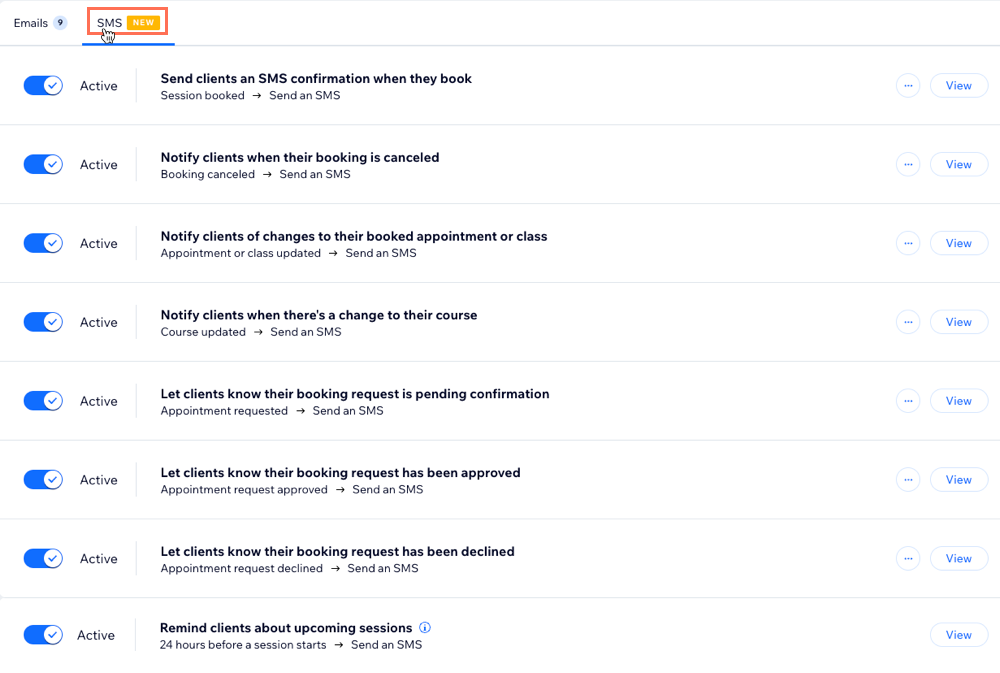
Make sure these toggles are enabled so your clients can automatically receive SMS notifications for these actions:
Send clients an SMS confirmation when they book: Clients receive an SMS confirming their booking.
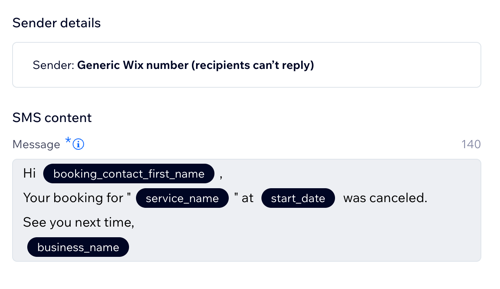
Notify clients when their booking is canceled: Clients receive an SMS when they cancel their booking.
Let clients know their booking request is pending confirmation: When appointments require approval, clients receive an SMS once their request is under review.
Let clients know their booking request has been approved: Clients receive an SMS once you approve their pending booking request.
Let clients know their booking request has been declined: Clients receive an SMS once you decline their pending booking request.
Remind clients about upcoming sessions: Automatically send SMS notifications 24 hours before a session. This is a great way to provide better customer service and make sure clients never miss a session.
Note: Reminders are only sent for bookings made once this automation has been activated.
Pre-installed notifications sent from your booking calendar
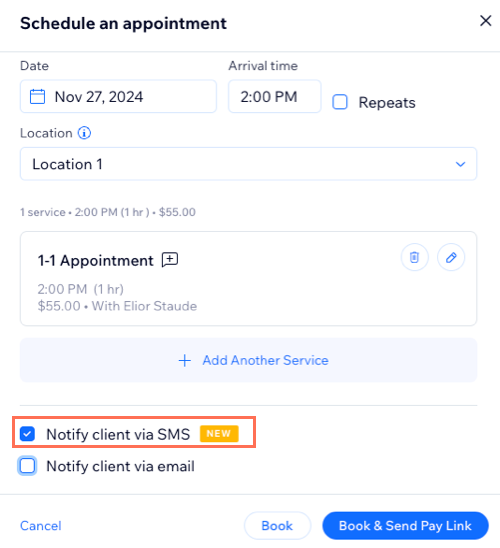
Make sure you enable the relevant toggles, then choose your action on your booking calendar, and select the Notify client via SMS checkbox to send an SMS notification.
Send clients an SMS confirmation when they book: Notify clients with SMS when you book a session from your booking calendar.
Notify clients when their booking is canceled: Notify clients with an SMS when you cancel their booking.
Notify clients of changes to their booked appointment or class: Notify clients with an SMS if you make any changes to their appointment or class.
Notify clients when there's a change to their course: Notify clients with an SMS if you make any changes to their course.
Enabling SMS notifications
Manage your automated SMS notifications in your site's dashboard. This helps keep your clients up-to-date on the status of their bookings. SMS notifications go to the booking contact's phone number.
Important:
Clients must provide a valid phone number with a country code to receive SMS notifications.
SMS notifications must comply with the Wix SMS terms of use.
You cannot customize the SMS text or "sent from" number.
You need enough SMS quota to send notifications.
To enable SMS notifications:
Go to Booking Settings in your site's dashboard.
Click Emails & SMS notifications.
Click the SMS tab.
Enable the toggle next to each SMS notification you want to activate.
(Optional) Click View to preview the message your clients receive.
Sending SMS notifications from your booking calendar
Keep your clients informed about their bookings with SMS notifications. To send them, you need to enable the relevant toggle in your booking settings. Then, in your booking calendar, select when to send an SMS notification after an action is completed. Clients will only receive an SMS if their phone number includes a valid country code and they've opted in to receive SMS notifications.
To send SMS notifications from your booking calendar:
Go to Booking Calendar in your site's dashboard.
Book, cancel, or reschedule a session.
Select the Notify client via SMS checkbox to send your client a text message about the update.
FAQs
Click a question below to learn more about SMS notifications.
Can I require clients to add their phone number?
Yes, you can. In the phone number section of the booking form, select the Make this a required field checkbox.
Note: If at least one SMS notification is turned on, phone numbers become automatically required when clients book a service online.
Why can't I choose the option to notify clients via SMS?
The option to select the Notify client via SMS checkbox might be unavailable for several reasons, including:
If your client has asked in the past to opt out of communication.
If your client doesn't have a valid country code with their phone number.
If you've hit your SMS quota for the month.
If you or your staff, make the booking and don't enter a valid phone number for your client.
If you did not enable the Active toggle for this action in your booking settings.
Tip: Hover over Notify client via SMS to see the reason.

What number will my SMS reminders come from?
The messages are sent to your customers from a generic Wix phone number. This number cannot be changed.
Clients receive the SMS reminder at the phone number they enter in your booking form.
Can I customize my SMS reminders?
You cannot customize the SMS text, timing, and "sent from" number. However, you can create more advanced SMS reminders using the Omnisend app.
Is there a limit to how many SMS notifications I can send?
Yes. Your monthly SMS quota is determined by:
The number of texts included in your site plan.
The number of texts included in any standalone SMS plan you've purchased. Learn more about your SMS notification quota.
When will my SMS quota be renewed?
Your SMS quota renews on the 1st of each month, regardless of when you purchased a site upgrade or an SMS plan.
When your quota is renewed, or "topped up", it will never exceed the total of the quotas in both plans.
For example, Frank purchased a site upgrade that includes 50 texts on February 10th. He then purchased an SMS Starter plan on February 20th, adding 500 texts to his quota (550 in total). On March 1st, his quota will be "topped up" to a maximum of 550 SMS messages. Learn more about your SMS notification quota.
When a quota renews, will any unused messages roll over to the next month?
No, any unused messages will not roll over to the next month. When your quota renews, it will never exceed the total of the quota(s) in your plan(s).
Which language is used for SMS notifications?
SMS notifications are sent in your contact's preferred language. If their preferred language isn't one of your site's languages, the SMS will be sent in your site's main language.
How far in advance are SMS reminders sent, and can their timing be changed?
You can only send SMS reminders 24 hours before a session starts. Currently, you can not customize the timing of SMS notifications.
Can I send SMS notifications to multiple participants in a class or course?
Yes, you can send SMS notifications to multiple participants. For example, if you update a class time, select the Notify clients via SMS checkbox. If some participants haven't provided a phone number or have opted out of receiving communications, you will see a notification letting you know some participants are not able to be notified.
