top of page

Managing your calendar & bookings

Wix Bookings: Scheduling Your Classes

After creating a class, schedule your class sessions at times that suit you, your staff, and most importantly, your clients. For each class, set the start date and time, choose the duration, decide if you want the class to be a one-time or recurring session. This way you offer the most flexible service possible.

For example, you can offer a 90-minute yoga class once a week on Tuesdays. The same yoga class can be scheduled on Mondays and Wednesdays, for only 60 minutes. You can also choose which staff member leads each session.
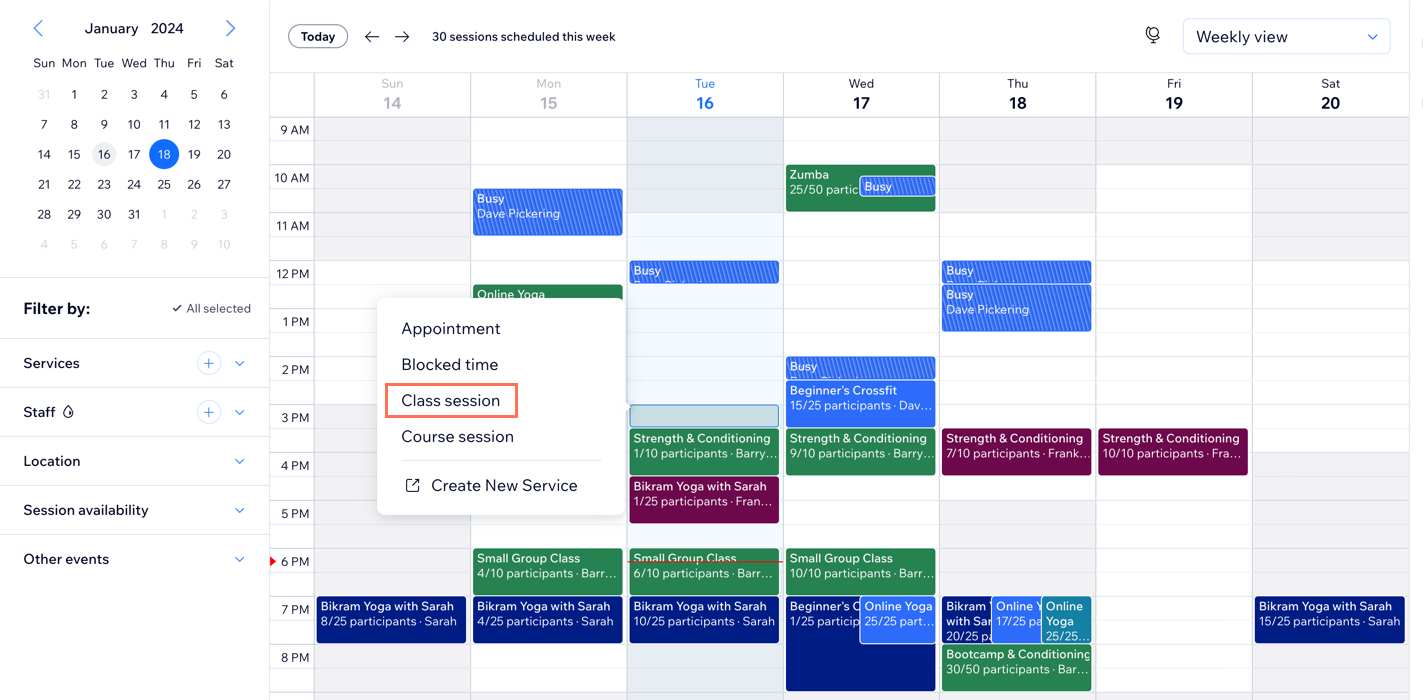
A screenshot showing how to schedule a class session from the booking calendar.

Before you begin:

Create the class service that you want to schedule.

To schedule classes in your Booking Calendar:

  1. Go to Booking Calendar in your site's dashboard.

  2. Click the time slot in which the class meets for the first time.

  3. Select Class Session.

  4. Add the class session details:Class: Select the service you want to schedule.
    Location: (If you have more than 1) Select the location of the class.
    Staff: Select the staff member giving the class.
    Start Time: Edit the date and start time of the class.
    Duration: Select the duration of the class.

    Repeat: Click to select the relevant option from the Repeat drop-down:Doesn't repeat: Choose this option to only offer the class session once.

    Repeats: Choose this option to offer this class session multiple times:Select the relevant option from the drop-down: Weekly, Every 2, 3 or 4 weeks.
    Select the day(s) of the week the class takes place.
    (Optional) Click Set an end date and choose the date of the last class.
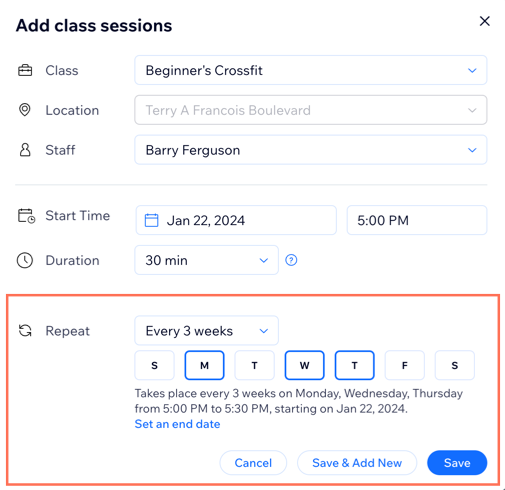
A screenshot showing how to create a recurring class session that repeats every 3 weeks.

  1. Choose a saving option:Save & Add New: Save the session and start scheduling another one.
    Save: Save the session and return to your calendar.

What's next?

  • Go to the Bookings Services tab and click Show Schedule next to the relevant service to view a summary of its schedule.

  • Go to the Booking Calendar and use the Schedule view to check the list of sessions on a selected date. View the time, type, number of participants, staff member in charge and the location. Use the Staff view to check the upcoming sessions for the selected date. The sessions appear in columns based on the staff member in charge. Sessions are automatically color coded by staff members on the calendar.

Need A Professional Website?
Contact Us 
Today!

Google Workspace Error Message: "Your subscription has been suspended by your reseller"

Google Workspace Error Message: Service Is Temporarily Suspended until Your Customer Accepts the New Terms of Service

Google Workspace Error Message: "You already have a Google Workspace business email account. You can manage it from the Google Admin Console"

Google Workspace: Data Migration from an External Email to Your Google Workspace

Google Workspace: Revoking Admin Status to Delete a Workspace Account

Google Workspace: Connecting Your Business Email to a Mail Client Using IMAP and SMTP

Google Workspace: Changing the Language of Your Business Email

Google Workspace: Emails Missing from Your Business Email

Google Workspace: Allowing Access for ‘Less Secure Apps’ in Your Business Email

Google Workspace: Adding Google Workspace MX Records to Your Wix Account

Google Workspace: Setting Up a Domain Alias

Google Workspace: Manually Verifying Your Domain with Google

Google Workspace: Connecting a Business Email for a Domain Pointing to Wix

Google Workspace: Setting Up an Email Alias for an Existing Workspace User Email Address

Google Workspace: Resetting a Workspace User's Password

Google Workspace: Renaming a Workspace User

Google Workspace: Accessing Your Additional Workspace Users

Google Workspace: Purchasing Additional Business Emails from Wix

Google Workspace: Setting Up Business Email Users

Gemini for Google Workspace: An Overview

Google Workspace: Upgrading a Workspace Plan

Google Workspace: Choosing a Plan

Google Workspace: Business Email Sending Limits

Google Workspace: Forwarding Emails From Your Business Email to Another Email Address

Google Workspace: Resetting Your Admin Password

Google Workspace: Accessing Your Admin Console

Google Workspace: Identifying Your Admin Workspace User

Google Workspace: Setting Up Your Business Email on Mobile Devices

Google Workspace: Username and Password Guidelines

Google Workspace: Accessing your Business Email Through Your Wix Account

wix experts
Graphic2Traffic web design
©
bottom of page