Managing your staff
Wix Bookings: Editing Your Staff Members' Working Hours
When setting up your site, you set default work hours that apply to all staff members. You can then customize the default hours for specific staff members, which is useful for part-time staff or staff working shifts. It also helps when you have seasonal work or maternity leave cover.
In this article, learn more about:
Creating custom hours for a staff member
You can change a staff members' working hours from the Staff tab in your site's dashboard, or from the Wix app on your mobile device. This is useful for creating recurring changes to a staff member's hours now, or in the future.
When you create custom hours, it overrides your default hours for that staff member. Any changes you make to your default hours do not affect staff members' custom working hours.
Note:
Changing staff member working hours affects your appointment services' availability.
Desktop
Wix app
Go to Staff in your site's dashboard.
Hover over the relevant staff member and click Edit.
Click Add Working Hours.
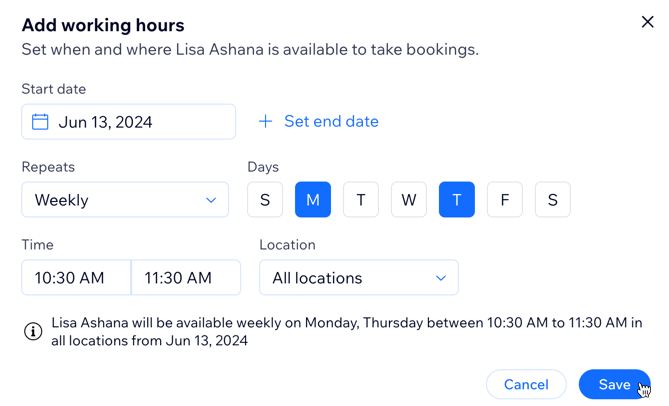
Select a Start Date from the field provided.
(Optional) Click + Set end date to make the custom work hours temporary. This works great for busy holiday periods or maternity leave cover.
Click the Repeats drop-down and choose the relevant option.
Click to select all relevant days of the week that the custom hours apply to.
Enter the start and end times in the fields provided.
Choose the relevant location from the Location drop-down.
Click Save.
Note: A summary of the custom working hours appears as you fill out the details.(Optional) Repeat steps 3-10 to create additional custom work hours for the same staff member.
Tip: This is useful if your staff member is available in different hours / locations on different days, or if they change location during the day.
(Optional) Repeat steps 3-10 to create additional custom work hours for the same staff member.
Tip: This is useful if your staff member is available in different hours / locations on different days, or if they change location during the day.Click Save.
Viewing your work schedule
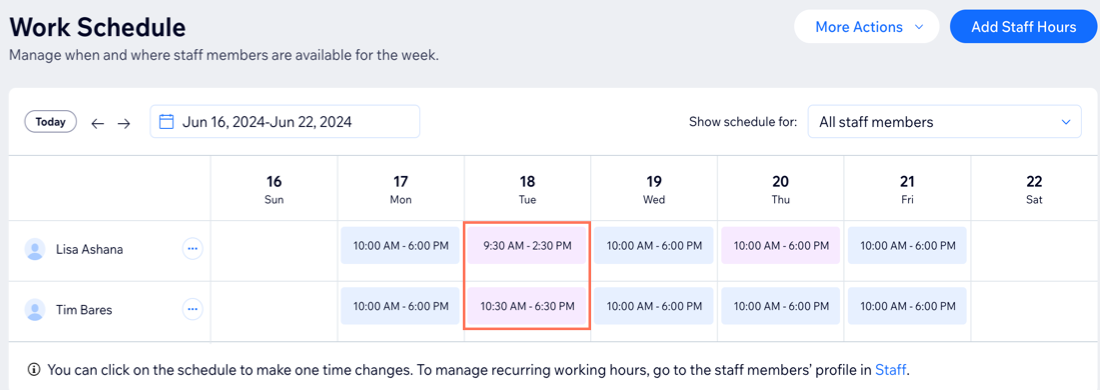
The work schedule shows a weekly view of all of your staff members' hours. You can scan through upcoming shifts, choosing the relevant time period and staff member.
This is useful when someone requests time off, for example, and you need to check which other staff members are available to cover their shifts.
To view and filter your work schedule:
Dashboard
Wix app
Go to Work Schedule in your site's dashboard.
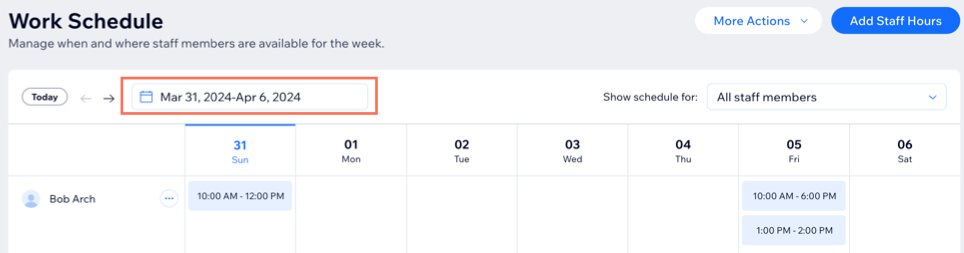
Click the date at the top and choose the week you want to view.
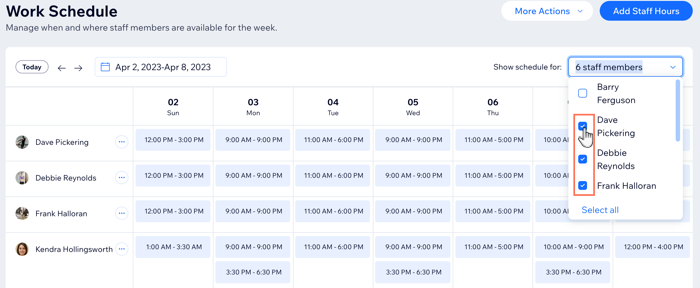
(Optional) Click the Show schedule for drop-down to filter the view by staff member.
Making one-time changes to staff working hours
Click any staff member's hours on a given day in the Work Schedule tab to make updates. This is useful if a staff member has to leave work early, for any reason. It also works great if your staff work irregular shift hours that change from week to week.
Note:
Changing staff member working hours affects your appointment services' availability.
Dashboard
Wix app
Go to Work Schedule in your site's dashboard.
Click the date at the top and choose the relevant week.
(Optional) Click the Show schedule for drop-down and choose a staff member.
Click the time frame you want to change.
Click Edit.
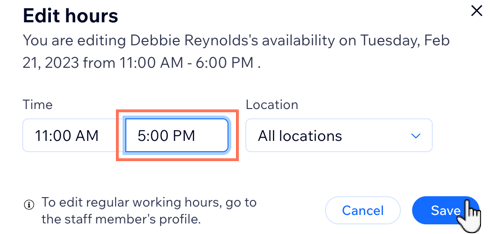
Adjust the Time and Location.
Click Save.
(Optional) Repeat steps 2-7 to create additional one-time custom work hours for the same staff member. This is useful if you have to arrange cover if another staff member is sick for several days.
Tip: Hours you customize are highlighted in a different color to help you remember changes in staff member working hours, and arrange coverage if needed.
Editing or removing a staff member's hours
When editing a staff member's custom working hours, you can choose when you want the changes to take place. This is great for temporary changes, for example, if a staff member needs to finish early on certain days. You can also remove them from a specific time slot if the staff member's hours change.
Dashboard
Wix app
Go to Staff in your site's dashboard.
Hover over the relevant staff member and click Edit.
Choose what you want to do:
Edit staff member's working hours


Remove staff working hours

FAQs
Click a question below to learn more about managing your staff members' working hours.
Can I sync my staff members' calendars with Wix Bookings?
Yes, you can sync your staff members' personal calendars with Wix Bookings to help keep track of their hours and work locations each day.
The availability of my appointment services has changed, but my business hours are the same - what happened?
When you create custom hours for staff (one-time or recurring) this can change your availability to take appointments. You can review your overall staff hours, and appointment availability, in the Work Schedule in your site's dashboard.
How do I edit my staff member's recurring working hours?
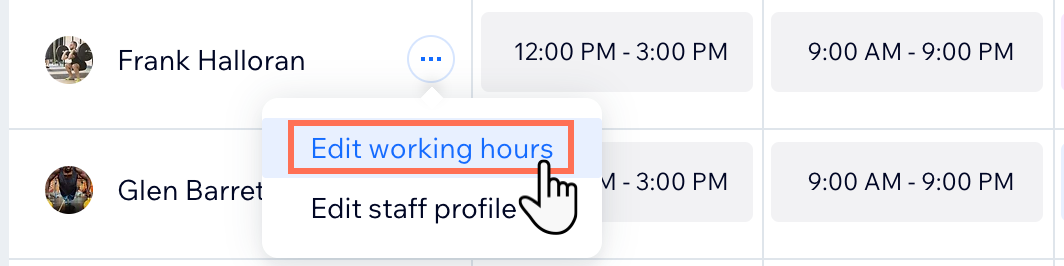
Click the More Actions icon  next to their name and click Edit working hours. You can add staff hours on non-working days, for example, or extra shifts during the holidays.