Customizing Wix Bookings pages
Wix Bookings: Customizing Your Daily Agenda
Design your daily agenda to suit your brand and make it easy for your clients to find the information they need. You can customize elements like the layout, text, and the buttons.
Before you begin:
If you haven't already, add and set up the daily agenda element in your editor.
In this article, learn more about:
Adjusting the layout of the daily agenda
Adjust the layout of your daily agenda to suit your clients' needs. Set the alignment for the main elements in the agenda and adjust the amount of padding between them.
To customize the layout of the daily agenda:
Click the daily agenda element in your editor.
Click Settings.
Click the Layout tab.
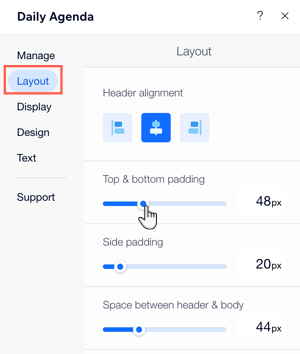
Choose what you want to adjust:Use the available formatting options to adjust the alignment of the header.
Use the sliders to adjust the amount of padding between elements in the daily agenda.
Designing the daily agenda
Make sure the daily agenda is easy to read and fits your brand by customizing its background and design. You can adjust the background color or image, add a border, and more.
To customize the design of your daily agenda:
Click the daily agenda element in your editor.
Click Settings.
Click Design.
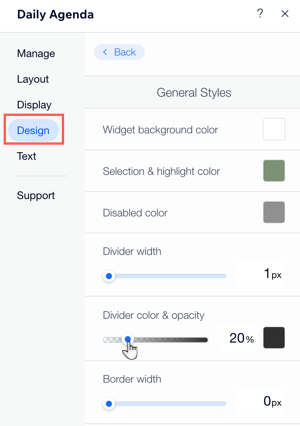
Click Styles and choose from the following options:Widget background color: Click the box to choose a color for the background.
Selection & highlight color: Click the box to choose a color for selected or highlighted buttons.
Disabled color: Click the box to choose the color for classes which clients cannot book.
Tip: Make sure the colors you choose contrast with the color of your daily agenda text so it is clear and easy to read.
Use the sliders to adjust the Dividers' width, opacity & color and corner radius.
Use the sliders to adjust the Table's Slot background color, Border width, and Border opacity & color.
Table Style: Use the sliders to adjust the opacity of each item. Click the color boxes to adjust the Slot background color and the Border opacity & color.
Customizing the design of the daily agenda text
Format any piece of text in the daily agenda to suit the site design. This includes making the text bold, adjusting the size or color, and changing the font.
To adjust the design of the text on the daily agenda:
Click the daily agenda element in your editor.
Click Settings.
Click the Design tab.
Click Text.
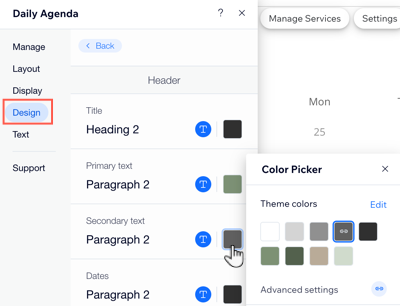
Use the available formatting options to design the text (e.g. color, size, font).
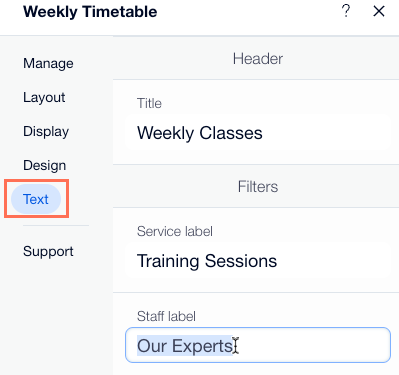
Customizing the daily agenda text content
You can edit the text that appears throughout your daily agenda. This is useful if you have specific ways to describe your services, staff or availability. You can also choose what call-to-action you put on your book and waitlist buttons.
To update the text in the daily agenda:
Click the daily agenda element in your editor.
Click Settings.
Click the Text tab.
Click to edit any of the available options.
Designing the buttons on the daily agenda
Call-to-action buttons allow clients to book or to find out important information about your classes.
To customize the buttons on your daily agenda:
Click the daily agenda element in your editor.
Click Settings.
Click the Design tab.
Click Button.
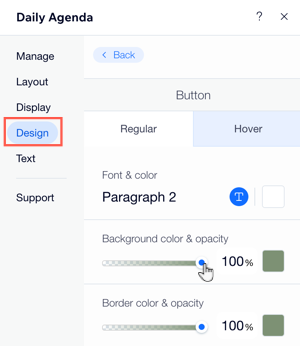
Choose what button state you want to customize:Regular: This is how the buttons look before visitors hover over them. Use the available formatting options to design the text (e.g. color, size, font).
Hover: This is how the buttons look when visitors hover over them. Use the available formatting options to design the text (e.g. color, size, font).