


Managing your calendar & bookings
Wix Bookings: Charging a Cancellation or No-Show Fee
Reduce cancellations and no-shows by adding a cancellation fee to your booking policies. You can customize the fee depending on how close to the session the client cancels.
Adding a cancellation fee requires your clients to enter their credit card details at checkout when they book a service. Make sure to update your policy description to explain the terms of your cancellation fee.
Notes:
Adding a cancellation fee to your booking policies is currently only available on desktop.
Policy descriptions are mandatory when charging cancellation and no-show fees. This will show up as your payment policy when clients are checking out.
If you're using your own native mobile app, make sure to upgrade to the latest version of the app to collect payment details at checkout and enable cancellation fees.
In this article, learn more about:
Adding a cancellation and no-show fee to a booking policy
You can create multiple booking policies and apply them to different services. Make sure to add a cancellation fee to all relevant booking policies, and include your terms in the policy description.
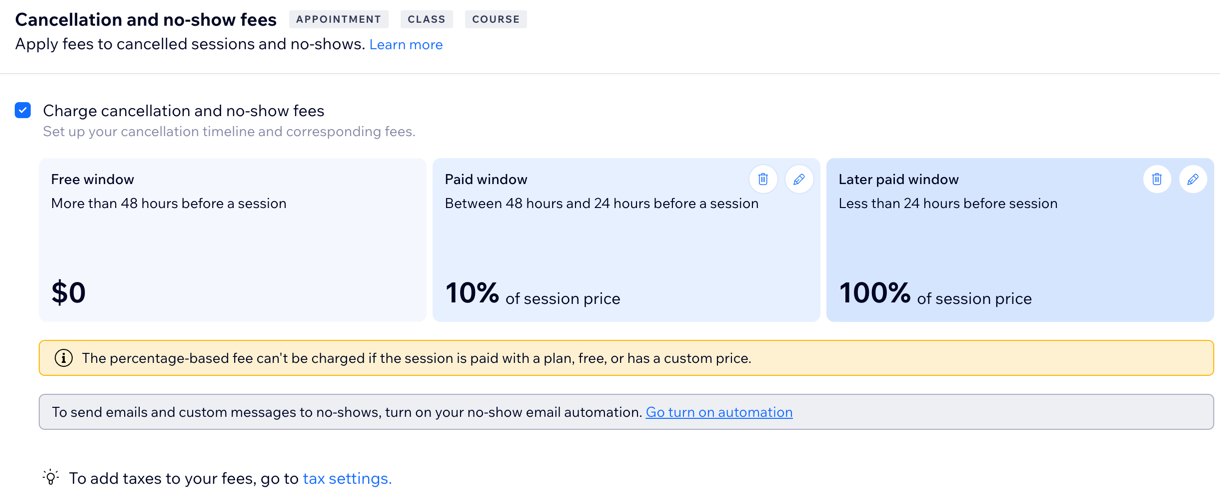
When you apply a cancellation fee to a booking policy, two windows appear automatically: the Free window and the Paid window. You can add a third window to charge a larger fee for last-minute cancellations.
Important:
When you enable cancellation fees, you automatically ask clients to provide their payment details at checkout. Learn more about saving and charging clients' credit cards.
You can charge clients' saved credit cards using the following payment providers: Wix Payments, PayPal, Evergreen Payments Northwest, Isracard or Tranzila.
Note: You cannot charge card variations like wallets (Apple Pay, Google Pay) or Buy Now Pay Later (Klarna, Affirm, Afterpay).
To add a cancellation and no-show fee to a policy:
Go to Booking Policies in your site's dashboard.
Select the relevant policy or click + Add a New policy and add all relevant details.
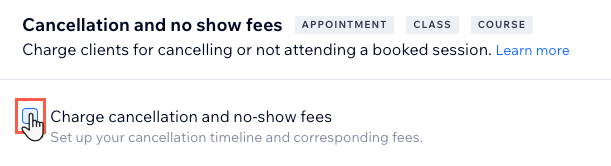
Select the Charge cancellation and no-show fees checkbox.
Click the Edit icon
 next to Paid window.
Select the relevant timeframe from the Cancellations or no-shows drop-down.
Under Fee, enter the fee amount and select the relevant icon to choose whether it is a Fixed amount
 or a Percentage of the session's price
  . Then click the Checkmark icon
  .
.(Optional) Click Add a later window to create an additional paid window and follow steps 4-6 above.
Note:
Make sure to repeat the steps above for each of your booking policies to reduce your cancellations and no-shows.
Frequently asked questions (FAQs)
Click on a question below to learn more:
What service types can I apply cancellation fees to?
Cancellation fees are connected to a specific booking policy and apply to any service types (appointments, classes, courses) that are connected to that policy. Make sure to double-check which cancellation fees you apply to each of your booking policies.
Are there any limitations when charging cancellation fees?
Yes, in certain situations, it is not possible to charge cancellation fees:
You cannot apply cancellation fees to fully or partially refunded orders.
You cannot apply cancellation fees for services paid for with a coupon or gift card.
You cannot apply percentage cancellation fees to free services, services paid for with a pricing plan, or services with a custom fee.
Note: If a cancellation fee can't be charged (e.g., the cases above), create a new, separate order and enter the payment details again.
What do I see when I cancel a session with a cancellation fee for a client? What about no-shows?
When you cancel a session on behalf of a client, or they don't show up for their session, you will have the option to apply the relevant fee. You can charge cancellation and no-show fees from the Booking Calendar for appointments, classes, and courses, and the participants lists of classes and courses.
When canceling a service, you have the option to apply the relevant cancellation fee and notify the client with an SMS or email.

When marking a client as a no-show for a class, you can apply the no-show fee as per your service policy.

The fee you can apply depends on what you included in the booking policy associated with the service. You cannot charge more than the fee stated in the policy.

What do clients see when they cancel a session with a cancellation fee?
When a client cancels a session to which a cancellation applies, they receive a message warning them that they will be charged. This message appears on Wix member apps (Spaces, Fit by Wix, etc.) and on desktop (in the client's member area).

What do clients see when they book a session with a cancellation fee?
Your clients can see your booking policy by clicking 'View Policy' in the booking form and during checkout.

Policy descriptions are mandatory when charging cancellation and no-show fees.

Can I charge partial cancellation fees?
As the site owner, you can edit the cancellation or no-show fee you charge (but not above what you set in the booking policy associated with the service). Your staff do not have permission to edit the cancellation or no-show fees.
Can my staff members charge cancellation and no-show fees?
Yes, your staff can charge cancellation or no-show fees for their sessions. They can't update the fee amount.
What can I do if I want to charge the cancellation fee but refund the order?
In this case, you need to first charge the fees and the order and then issue a refund for the order. Read more about refunding orders.
Do cancellation fees automatically apply for group bookings when one person drops out?
No, a cancellation fee does not apply if there is one cancellation or no-show from a group booking, since it isn't possible to charge a cancellation or no-show fee to part of a group.
Where can I track the status of my canceled bookings?
To track the status of your canceled bookings, go to Booking List in your site's dashboard and filter the Booking status by Canceled.

Can I manually charge cancellation and no-show fees?
Yes, you can. If a cancellation fee isn't automatically charged, collect the fee from the existing order. If a cancellation can't be charged, create a new, separate order and manually charge the fee.
If a member cancels from the members area and the charge does not go through, manually charge the fee from the Booking List in your dashboard.
Can PayPal be used for cancellation and no-show fees?
Yes, PayPal can be used for cancellation and no-show fees. Go to Accept Payments in your site's dashboard and click Enable Advanced Features.
