Wix Bookings
Wix Bookings: Changing Time Slots for Appointments
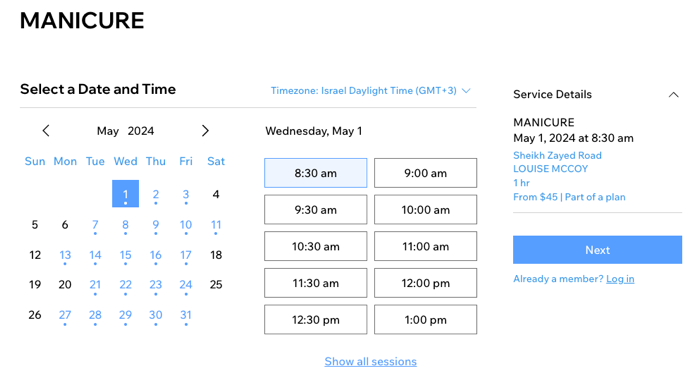
When clients book appointments, they first choose a day and then an available time slot. By default, these times display in half-hour intervals (10:00, 10:30, 11:00 and so on). You can customize the time slot intervals to suit the needs of your business.
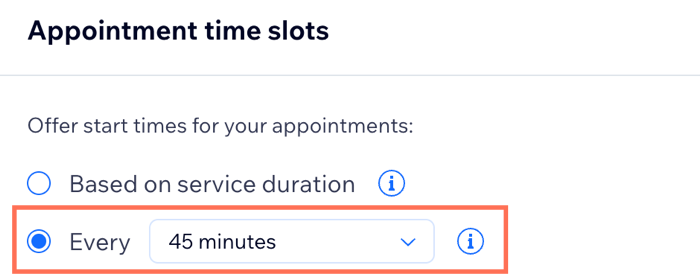
To change the time slots for appointments:
Go to Booking Settings in your site's dashboard.
Click Appointment Time Slots.
Select an option:Based on service duration: Each appointment has its own time interval based on how long the service lasts, plus any time buffer you add to it. For example, if a service lasts 45 minutes and you add a 15-minute time buffer, the calendar displays 1-hour time slot durations.
Every ___ Minutes: Select a time interval display from the drop-down. The interval you choose applies to all appointments.
Show me examples of how time slots work.
You choose how to display your appointment slots to your clients, depending on the service duration or using fixed intervals. You can also add a time buffer between appointments, so your staff have enough time to prepare for the next client.
Offering time slots by service duration maximizes the number of bookings you can take in a day, and rescue gaps in your schedule, but might result in unusual time slots.
Offering time slots based on fixed intervals (for example, every 15 minutes) makes your appointments appear more orderly on the calendar, but might create gaps and reduce the total number of bookings you can take in a day.
Service duration example
You offer a service lasting 30 minutes with a 10-minute buffer starting from 9am, your available slots appear as follows: 09:00, 09:40, 10:20, etc.
Fixed interval example
You offer a service lasting 30 minutes with a 10-minute buffer, but clients can only book every 30 minutes, as follows: 10:00, 10:30, 11:00, etc. In this case, if a client books the available slot at 10:30, the slots at 10:00 and 11:00 won't be bookable with the same staff member, because of the session duration and buffer time.