top of page

Additional Wix Apps

Wix Apps: Design Guides

The Wix Design Guides add-on lets you create rows, columns or cells in your Studio Editor to help structure and design your site in a more organized manner.

The guide appears on your Editor as a colored grid, it does not appear on your live site. The purpose of this is to guide you as you place your elements on your site and make sure everything is aligned correctly.

Wix Design Guides is only available in the Wix Studio Editor.

A screenshot showing the Design Guides panels.

In this article, learn more about:

Adding Wix Design Guides to your site

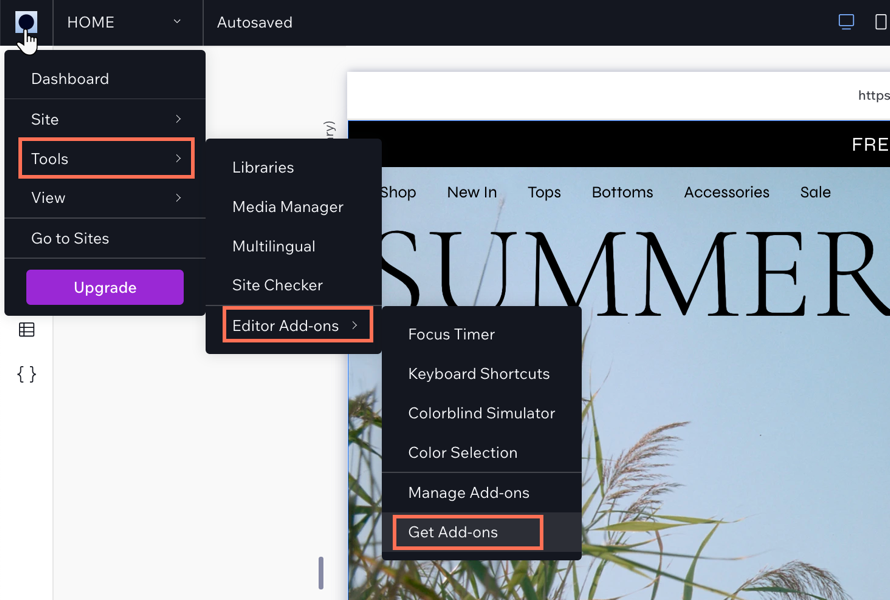
Add the Wix Design Guides add-on from the tools in your Studio Editor.

To add Wix Design Guides:

  1. Click the Wix Studio icon  at the top left.

  2. Click Tools.

  3. Click Editor Add-ons.

  4. Click Get Add-ons.

  5. Click Design Guides.

A screenshot showing the Wix Studio icon and the options to add Editor Add-ons to your site.

Customizing your Design Guide settings

Customize your grid to get the exact layout you want. You can make changes to the number of columns or rows in a grid, and change their size and spacing etc. The settings change depending on the grid type you choose.

To customize the settings:

  1. Click the Wix Studio icon  at the top left.

  2. Click Tools.

  3. Click Editor Add-ons.

  4. Click Design Guides.

  5. Click the drop-down icon  next to columns to display the settings.

  6. Choose what you want to customize:Type of guide: Click the drop-down icon  and choose a guide.
    Alignment: Set the alignment, stretch, left, right, or center.
    Columns: Enter the amount of columns you need for your guide.
    Margin width: Set the width of the margin.
    Gutter width: Set the gutter width. This is the space between the columns.
    Column width: Depending on your alignment, the column width maybe set to Auto.
    Opacity and Color: Set a color for your columns and the adjust the opacity.

  7. (Optional): Click Add Guide to add a new guide to your site.
    Note: This layers the guides on top of each other so the pink lines are more visible as you edit.
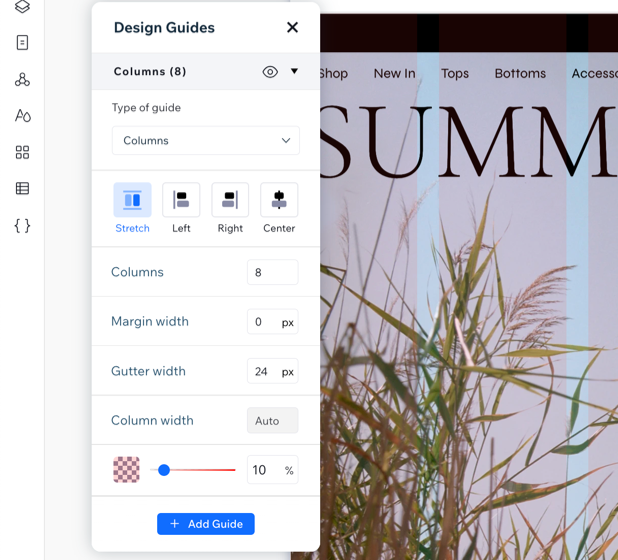
A screenshot showing the design settings for the Design Guides Add-on.

Need A Professional Website?
Contact Us 
Today!

Wix Restaurants: Adding a Members Area

Wix Restaurants: Troubleshooting Printing Orders from the Wix App

Wix Restaurants: Managing Your Phone Orders

Wix Restaurants: Managing Orders

Wix Restaurants: Requesting Additional POS Integrations

Wix Restaurants: Tracking Your Inventory with Square POS

Wix Restaurants: Adding a Service Fee to Online Orders

Wix Restaurants: Connecting Your Wix Restaurant to Square POS (Point of Sale)

Wix Restaurants: Allowing Customers to Add a Tip to an Order

Wix Restaurants: Changing the Availability of a Dish in the Wix App

Wix Restaurants: Setting up Contactless Dine-In

Wix Restaurants: Delivering Orders with DoorDash Drive

Wix Restaurants: Adding and Setting Up DoorDash Drive

Wix Restaurants: Using Pinpointing for Customer Addresses in Online Ordering

Wix Restaurants: Setting Up Delivery Areas for Orders

Wix Restaurants: Setting Up Additional Restaurant Locations

Wix Restaurants: Customizing Your Order Settings in the Wix App

Wix Restaurants: Changing the Pickup Hours for Orders

Wix Restaurants: Offering Pickup for Orders

Wix Restaurants: Rejecting Orders in the Wix App

Wix Restaurants: Updating Your Business Hours

Wix Restaurants: Accepting Orders in the Wix App

Wix Restaurants: Choosing Which Menus, Sections, and Dishes to Display for Online Ordering

Wix Restaurants: Setting Up Online Ordering for Your Restaurant

Wix Restaurants: Setting Up Payment Methods for Orders

Wix Restaurants: Adding Tax to a Dish

Wix Restaurants: Deleting the Menus by Wix Restaurants App

Wix Restaurants: Archiving and Restoring Menus, Sections, and Dishes

Wix Restaurants: Designing and Printing Your Menu

Wix Restaurants: Displaying Multiple Restaurant Menus on Your Site

wix experts
Graphic2Traffic web design
©
bottom of page