


Wix AI Site-Chat FAQ
Training Your AI Site-Chat
Note:
Wix AI Site-Chat is currently available for Wix Editor only.
By training the Wix AI Site-Chat, you can use the knowledge of your business to enrich its responses. The AI Site-Chat will learn this information and use it to provide more accurate and informed responses. You can also restrict the AI Site-Chat from providing information on certain topics.
Along with the public information on your site, you have a lot of personal knowledge which can be vital when providing the best possible service to your site visitors. Usually this information is about products for sale, services your business provides, or support for your customers.
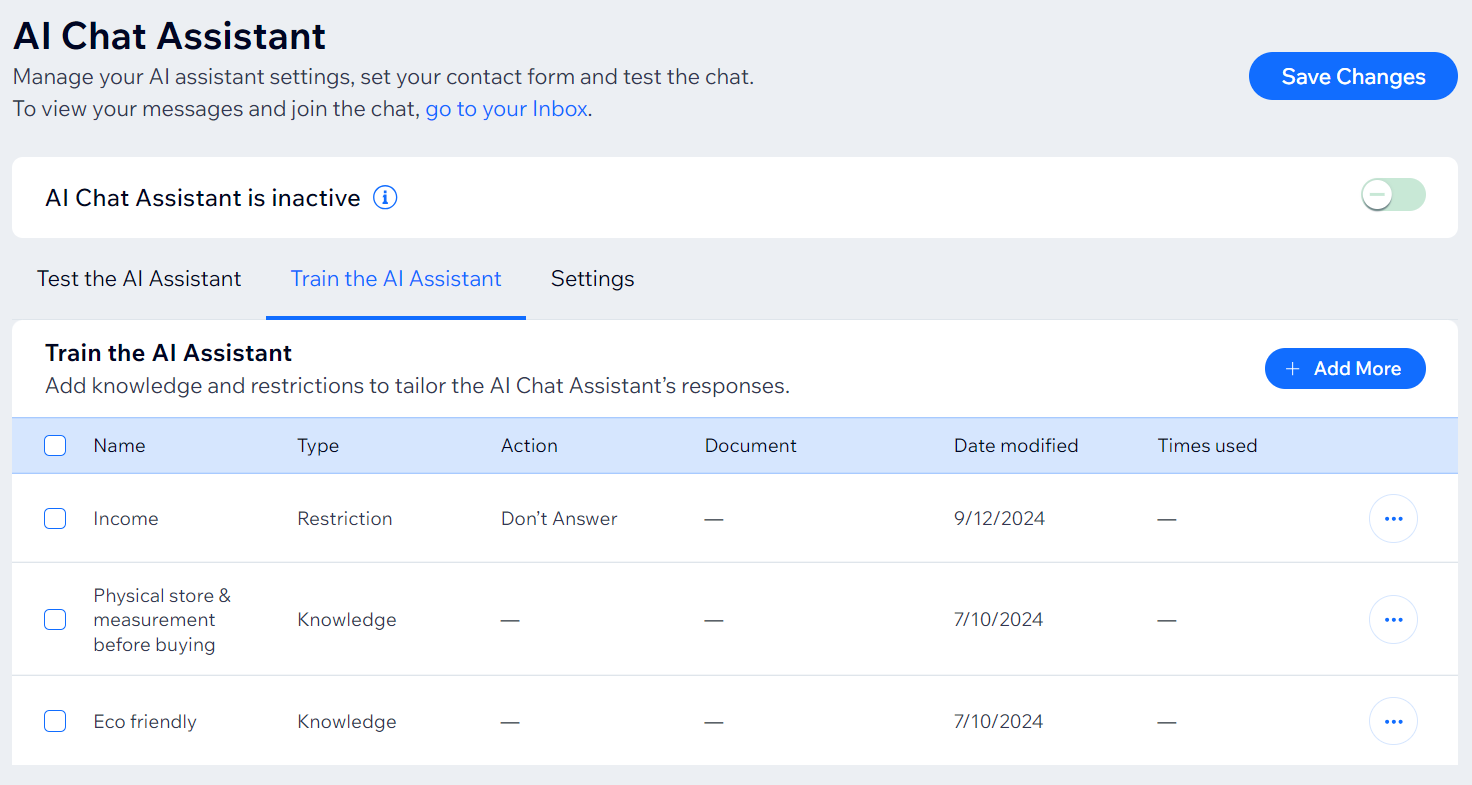
Adding knowledge enhancements
Adding enhancements to your AI Site-Chat enables it to give your site visitors accurate and satisfactory answers. The more enhancements you add, the faster and more reliable its responses will be.
To add an enhancement:
Go to Manage AI Site-Chat in your site's dashboard.
Click the Train Chat tab.
Click +Add.
Click Next on the Enhance knowledge option.
Give the enhancement a clear name that you'll recognize later.
Choose an option:Enhancement Description: Enter your description in the text field.
Upload PDF/DOCX file: Upload a file from your computer containing the description. Click Add a File.
Click Save.
Tip:
If you add enhancements with information for time-sensitive events, such as business hours during holidays, remember to delete those enhancements afterwards.
Click to view an example from an online clothing store
You own an online clothing store and receive a message from a customer who wants to try on a dress before buying. Your store doesn't have a physical location, but you have a return policy in place where customers can return an item within 14 days of purchase.
Knowledge enhancement: We do not have a physical store, but you can purchase the dress, measure it when the shipment reaches you. If it doesn't suit you, you can return it to us within 14 days and get a full refund. For more information, you can read about our return policy.

Click to view an example from an eco-friendly business
You run an eco-friendly business and want the AI Site-Chat to mention this every time a customer asks a product-related question.
Knowledge enhancement: Our business is eco-friendly, we sell products that do not harm the environment, this is an essential and important part of our store. Mention this when a customer asks a question about a product we sell.

Editing or removing knowledge enhancements
You can edit or remove any information you enter in an enhancement.
To edit/remove an enhancement:
Go to Manage AI Site-Chat in your site's dashboard.
Click the Train Chat tab.
Hover over the enhancement you want to edit/remove.
Choose an option:
Edit
Click Edit.
Edit the text as needed.
Click Save.

Remove
Click the More Actions icon
 .
.Click Remove.

Note:
Enhancements added by uploading a PDF/DOCX file cannot be edited. They need to be removed and re-added with an updated file.
Adding restrictions
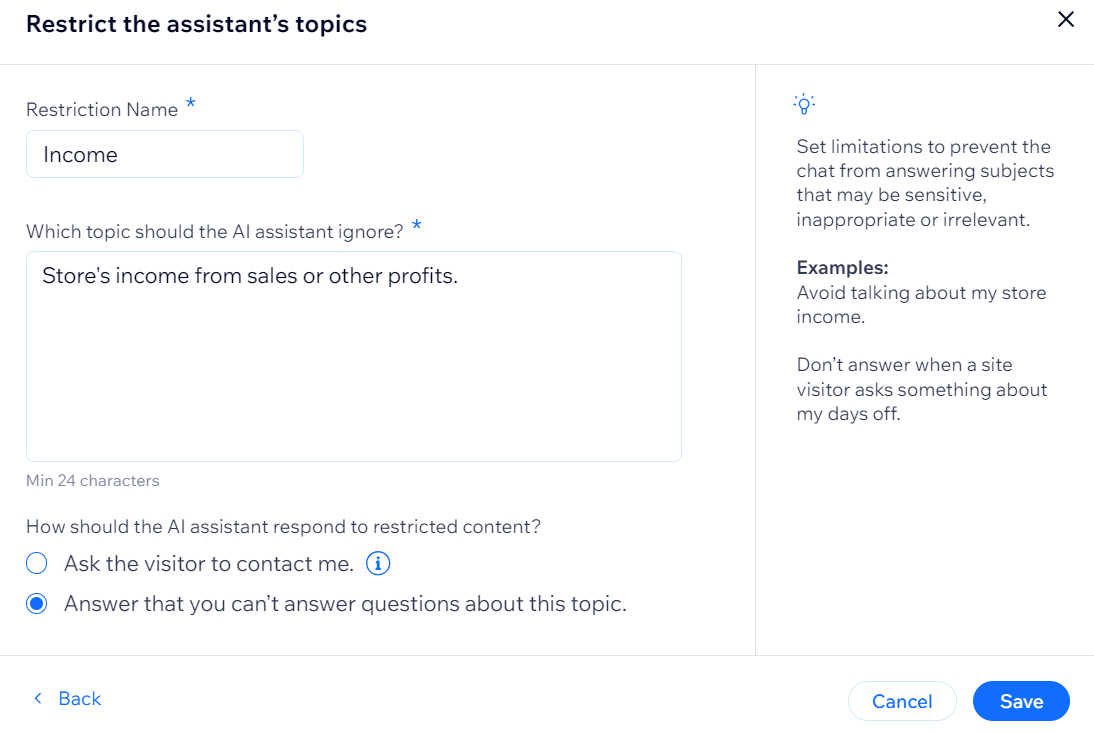
Restricting the AI Site-Chat from providing visitors with information on topics gives you more control over the way it communicates. By adding topics that it shouldn't answer questions about such as income or your days off, you can definite the boundaries of your business.
To add a restriction:
Go to Manage AI Site-Chat in your site's dashboard.
Click the Train Chat tab.
Click +Add.
Click Next on the Restrict topics option.
Give the restriction a clear name that you'll recognize later.
Enter your description in the text field.
Choose an option:Ask the visitor to contact me: The visitor's message about this topic will be forwarded to your Inbox.
Answer that you can't answer questions about this topic: The AI Site-Chat will send an automatic message saying it can't answer the visitor's question on that topic.
Click Save.
Editing or removing restrictions
You can edit or remove any information you enter in a restriction.
To edit/remove a restriction:
Go to Manage AI Site-Chat in your site's dashboard.
Click the Train Chat tab.
Hover over the restriction you want to edit/remove.
Choose an option:
Edit
Click Edit.
Edit the text as needed.
Click Save.

Remove
Click the More Actions icon
.Click Remove.

FAQs
Click a question below to learn more about enhancing the AI Site-Chat.
Will the AI Site-Chat function without adding knowledge enhancements or restrictions?
Yes, the AI Site-Chat will still read the information publicly available on your site to provide responses to your customers.
However, we recommend adding knowledge enhancements and restrictions to increase the AI Site-Chat's accuracy and reliability, allowing it to give an even better level of service. This also lessens the need for you to intervene in chats with customers or answer follow-up questions the AI Site-Chat is unable to answer.
Can knowledge enhancements and restrictions be added in languages other than English?
Enhancements can be added in English only. In the future, we plan to support more languages.
Can I include images in the file I upload when adding a knowledge enhancement?
The AI Site-Chat will only refer to text in your uploaded file.
Is there a limit to the number of knowledge enhancements or restrictions I can add?
Yes, there is a limit of 100 knowledge enhancements or restrictions you can add at the moment.
Can I keep track of how many times a knowledge enhancement or restriction has been used in a chat with a customer?
You can keep track of how many times a knowledge enhancement or restriction was used by the AI Site-Chat in the Times used column located in the Enhancements tab.