


Managing purchased plans
Pricing Plans: Updating the Payment Method on a Customer Subscription
You and your customers can update their payment method at any time. This is useful when clients' cards expire, they switch banks, or they no longer want to pay in cash and want to pay with credit card, for example.
Customers who are members of your site can update their payment methods themselves, using the My Subscriptions section of your site.
For non-site members, you can update the payment method your customer uses from Subscriptions in the dashboard.
In this article, learn more about:
Clients updating their payment method
Clients can update the payment method they use on their active recurring subscriptions. This is useful to avoid having their payments fail, their subscriptions canceled, or going into a grace period. This can happen when an existing payment method, such as a card, is due to expire soon.
If payment fails, and the subscription is canceled, your clients will have to purchase a new subscription using a valid payment method. You can advise your clients on how to update their payment method using the steps below.
To update your payment method:
Log in to the relevant Wix site.
Go to the My Subscriptions section of the Members Area.
Click the relevant plan.
Click Update Payment Method.
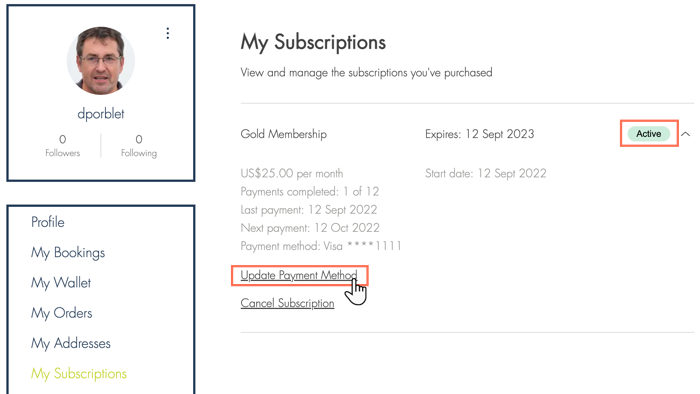
Click Credit/Debit Cards to add a new credit/debit card or select a previously saved credit card from the drop-down.
Enter the relevant details for the new credit/debit card.
Note: The current credit/debit card details appear at the top to avoid confusion.Click Submit.
Notes:
This option is only available for active, online recurring subscriptions.
Clients cannot update their payment method using the Wix Member apps, including the Spaces by Wix app or Wix Branded app.
Clients can only update their payment method to a credit card, not PayPal.
Clients need to update the payment method on each subscription separately (changes to one subscription do not affect all subscriptions).
Adding a new payment method through “My wallet” does not update the payment method on the customers’ active subscription.
Updating an existing online payment method for a customer
You can update existing online payment methods on your customers' behalf. This is great for when your customers' old cards expire or when they switch banks.
Important:
Learn more about which payment providers allow you to update the online payment method for customers.
To update an existing online payment method for a customer:
Go to Subscriptions in your site's dashboard.
Click the relevant plan.
Click Manage Subscription at the top.
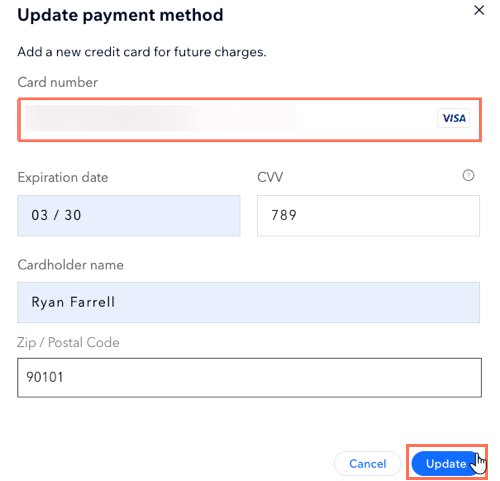
Click Update payment method.
Enter the customer's new card details.
Click Update.
Switching offline payment method to online for a customer
You can switch customers' payment method from offline to online from Subscriptions in the dashboard. Online payment methods are more reliable and easier to track. They also make renewal payments automatic, which helps retain your customers for longer.
Notes:
When you switch a client's payment method from offline to online, you cannot change it back to offline.
This feature is only available using Wix Payments or Isracard as your payment providers.
This feature is only available for subscriptions that support accepting payments by manual card entry. Examples include:One-time payments where a customer's card details are typed into the Wix Dashboard, Wix app, or POS at the time of purchase.
One-time payments using a saved card on file.
The 1st subscription payment where card details are entered manually.
Note: For Wix Payments, subsequent payments in that subscription are not considered to be manual card entry and are processed at regular card processing rates.
To switch a customer's offline payments to online payments:
Go to Subscriptions in your site's dashboard.
Click the relevant offline subscription.
Click Manage Subscription at the top.
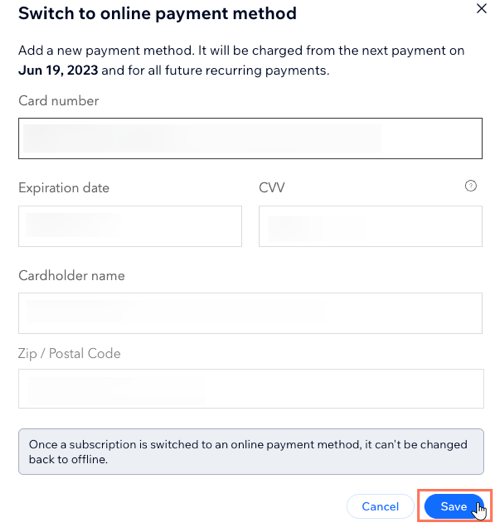
Click Switch to online payment.
Enter the customer's details.
Click Save.
FAQs
Click a question below to learn more about updating a customer's payment method.
What happens when I switch a customer's payment method?
When you change a customer's payment method, they receive an automated email informing them of the change.

You can review and edit the content of these emails from Automations in your site's dashboard.

The new payment method takes effect from the customer's next payment date.
My customer wants to change their payment method back to offline, can I do this?
You cannot switch a payment method from online back to offline.
Which online payment methods can I update to?
You can currently only update a customer’s payment method to online using a credit/debit card.
Do my customers lose access to their subscriptions when I update their payment method?
No, your customers continue to enjoy the benefits of their subscriptions uninterrupted.
I don't see the option to switch a customer's payment method from offline to online payment?
The ability to switch a customer's payment method from offline to online is only available to people using Wix Payments or Isracard as your payment providers.
Switching from offline to online is also limited to certain types of subscription payments. Examples include:
One-time payments where a customer's card details are typed into the Wix Dashboard, Wix app, or POS at the time of purchase.
One-time payments using a saved card on file.
The 1st subscription payment where card details are entered manually.
Note: For Wix Payments, subsequent payments in that subscription are not considered to be manual card entry and are processed at regular card processing rates.