


Setting up Online Programs
Online Programs: General Troubleshooting
See our solutions below to resolve common issues with Online Programs, whether they're on your live site or in the Wix app.
In this article, learn how to troubleshoot:
Troubleshooting live site issues with Online Programs
Click an issue below to find out how to resolve it.
People can't see my program on the live site
Check your program's visibility. Secret programs are only visible to participants you invite. Public and private programs are visible to everyone.
To change your program's visibility:
Go to Online Programs in your site's dashboard.
Click the More Actions icon
 next to the relevant program.
Click Edit Settings.
Click Visibility and Pricing.
Make sure the Visibility setting is Public or Private.
The program isn't loading on my site
This is probably related to a local issue (e.g your device and/or internet connection) and can be resolved at home.
To fix local issues:
Disconnect and reconnect to your internet.
Open your site in a different browser.
Tip: You can check if the issue you are encountering is cookie or cache related by opening your browser in incognito / private mode and see if the problem persists.
Members are unable to make a payment for a program
Upgrade to a business and e-commerce Premium Plan to create paid programs and start accepting payments. Only Premium sites are eligible to accept payments.
New participants are unable to join my program
Check your participant limit to make sure you did not exceed it.
To check your group's participant limit:
Go to Online Programs in your site's dashboard.
Click the More Actions icon
next to the relevant program.Click Edit Settings.
Click Visibility and Pricing.
Scroll down to Number of Participants. If your program is set to Limited, edit the maximum number, or change the setting to Unlimited.
I want to restore an archived program
Archived programs cannot be restored. However, you can duplicate the archived program and publish the new draft.
To duplicate an archived program:
Go to Online Programs in your site's dashboard.
Click the Archived tab.
Click the More Actions icon
next to the relevant program.Click Duplicate.
Tip: The new duplicate program is in your Drafts tab.Click the Drafts tab.
Click the More Actions icon
next to the duplicate program.Choose to do one of the following:Publish: Click Publish to set your program live.
Edit Settings: Update or change your program settings.
Troubleshooting issues in the Wix app
If you are experiencing issues with Online Programs in the Wix app, try the following troubleshooting steps.
Check that you're using a supported device
The Wix app is supported on:
iPhone: iOS 11 and up
Android: 6.0 and above
Check that your app is up to date
Make sure you are using the most current version of the Wix app.
To check for an update:
Go to the Apple App Store (iPhone) or Google Play (Android).
Search for 'Wix app'.
Click Update (if available).
Note: If no update is available, it means you already have the most up-to-date version.
Log out of the app and log back in again
Try logging out of the Wix app before signing back in with your Wix credentials and restarting your device.
To log out of the app and log back in:
Open the Wix app.
Tap your profile icon at the top.
Tap Log Out.
Log back in using your Wix account credentials.
Restart your mobile device.
Reopen the Wix app.
Still need help?
If you still need assistance, contact us with the information below:
For issues with Online Programs on your live site:
The name or URL of your Wix site.
Include what happened and what you've already tried.
Prepare a screenshot or a video of the issue.
If you have an issue with the Wix app, provide the version number and the device you are using.
For Online Programs in the Wix app:
The version of the Wix app you're using. To find this:Open the Wix app.
Tap your profile icon at the top.
Tap About the App under Help & Feedback.
Scroll down to the bottom of the screen and copy the number next to Version.
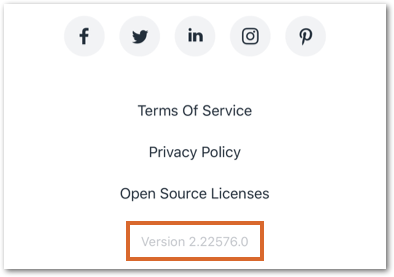
2. The manufacturer, model, and operating system of your mobile device (e.g. Apple iPhone 6s, Samsung Galaxy S4).