top of page

Using the Wix app for Online Programs

Online Programs: Connecting a Group to Your Program in the Wix App

Connect a group to your program using the Wix app. This gives participants a place to discuss their progress and share updates to motivate each other to complete the program. You can connect an existing group or create a new one straight from the app.

To connect a group to your program in the Wix app:

  1. Go to your site in the Wix app.

  2. Tap Manage  at the bottom.

  3. Tap Online Programs.

  4. Tap the More Actions icon  next to the relevant program.

  5. Tap the Edit.

  6. Scroll down to Group and tap Connect a Group.

  7. Choose what you want to do:Connect an existing group to the program: Select a group from the list and tap Done.
    Note: Once a group is linked to the program, anyone who joins your program automatically joins the group.

    Create a new group for the program:Tap Create New Group.
    Enter the group details including the name, cover image, and privacy setting. Learn more about creating a group using the Wix app.
    Tap Done.

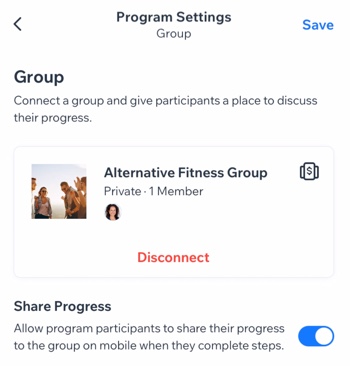
  8. (Optional) Enable the Share Progress toggle to allow participants to share their progress to the group when they complete steps.

  9. Tap Save.

A screenshot of the Program Settings panel with a connected group.

Want to disconnect the group?

If the group is no longer relevant to your program (e.g. the program has ended or you want to add different one), you can remove the group from your program. Tap Disconnect under the group.

Need A Professional Website?
Contact Us 
Today!

Wix Restaurants: Adding a Members Area

Wix Restaurants: Troubleshooting Printing Orders from the Wix App

Wix Restaurants: Managing Your Phone Orders

Wix Restaurants: Managing Orders

Wix Restaurants: Requesting Additional POS Integrations

Wix Restaurants: Tracking Your Inventory with Square POS

Wix Restaurants: Adding a Service Fee to Online Orders

Wix Restaurants: Connecting Your Wix Restaurant to Square POS (Point of Sale)

Wix Restaurants: Allowing Customers to Add a Tip to an Order

Wix Restaurants: Changing the Availability of a Dish in the Wix App

Wix Restaurants: Setting up Contactless Dine-In

Wix Restaurants: Delivering Orders with DoorDash Drive

Wix Restaurants: Adding and Setting Up DoorDash Drive

Wix Restaurants: Using Pinpointing for Customer Addresses in Online Ordering

Wix Restaurants: Setting Up Delivery Areas for Orders

Wix Restaurants: Setting Up Additional Restaurant Locations

Wix Restaurants: Customizing Your Order Settings in the Wix App

Wix Restaurants: Changing the Pickup Hours for Orders

Wix Restaurants: Offering Pickup for Orders

Wix Restaurants: Rejecting Orders in the Wix App

Wix Restaurants: Updating Your Business Hours

Wix Restaurants: Accepting Orders in the Wix App

Wix Restaurants: Choosing Which Menus, Sections, and Dishes to Display for Online Ordering

Wix Restaurants: Setting Up Online Ordering for Your Restaurant

Wix Restaurants: Setting Up Payment Methods for Orders

Wix Restaurants: Adding Tax to a Dish

Wix Restaurants: Deleting the Menus by Wix Restaurants App

Wix Restaurants: Archiving and Restoring Menus, Sections, and Dishes

Wix Restaurants: Designing and Printing Your Menu

Wix Restaurants: Displaying Multiple Restaurant Menus on Your Site

wix experts
Graphic2Traffic web design
©
bottom of page