Dayful by Wix
Dayful by Wix: Customizing Your Booking Page
After setting up your services on Dayful by Wix, customize the page your clients use to book them. This is what they see when you share a link to the service or embed the widget on your website, so make sure it fits your brand.
Important:
To customize the design of your Booking Page, upgrade your Dayful plan.
Need help with Dayful?
Send a message to our Experts and they will get back to you as soon as possible.
To customize your Booking page:
Go to the Channels tab in your Dayful dashboard.
Click Booking Page.
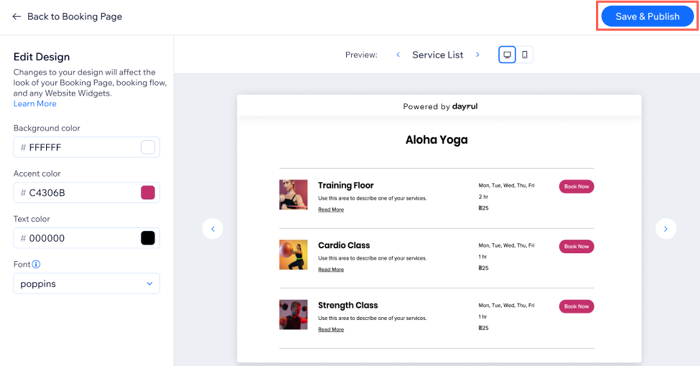
Click Edit Design.
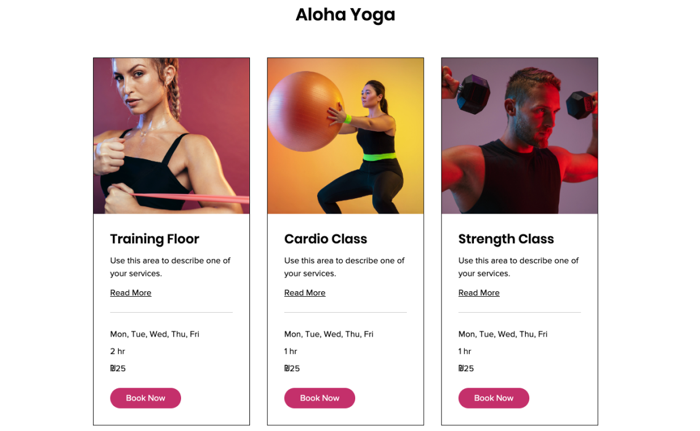
Choose what version of your Booking Page to edit, using the arrows next to Preview:Service List: What your clients see when you display your service page. This can include any of your services.
Calendar: Show clients the full weekly timetable for specific appointments or classes.
Memberships and packages: Show clients your pricing plans or membership packages.
Set the colors of your Booking Page on the left:Background color: Choose an appropriate background for your services.
Accent color: Choose the color for your Booking Page buttons.
Text color: Choose the color for your font, make sure it stands out from the background color and easy to read.
Font: Choose the font for the text on your Booking Page.
Click Save & Publish.
Note:
The design settings you choose for the Booking Page apply to all links you share and all website widgets you embed.
Tip:
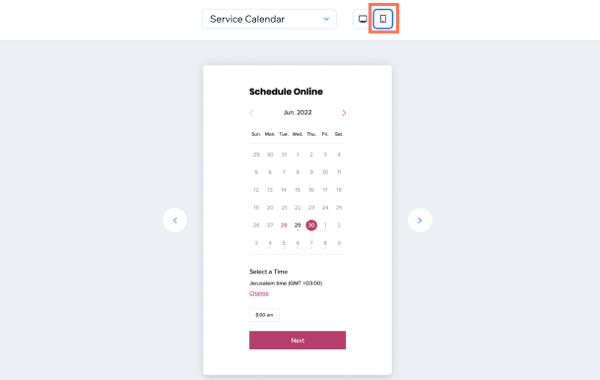
Click the Mobile Preview button to make sure your Booking Page design is optimized for mobile as well.