


Dayful by Wix
Dayful by Wix: Creating Your Services
When using Dayful by Wix, you can offer three types of booking services: Appointments, classes and courses. Use our templates to get your services up and running quickly, or create your own services from scratch.
You can then share these services online using links or by embedding widgets on your website.
Important:
Connect a payment method and upgrade your plan to accept payments through your site. With a free plan, you can add one staff member and create one service.
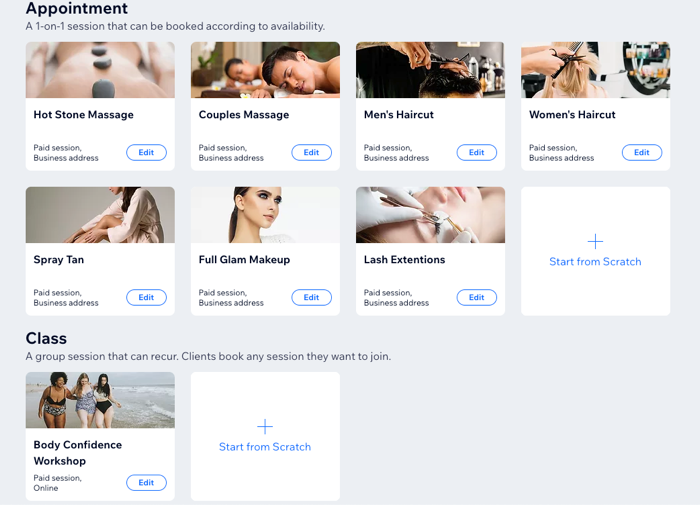
To create your first service:
Go to the Services tab in your Dayful dashboard.
Select a template or click + Start from Scratch under the relevant service type:Appointment: A 1-on-1 session that clients book depending on availability.
Class: A group session that clients book to join at any time.
Course: A multi-session service that starts and ends on specific dates.
Enter the Service Name.
(Optional) Add more information about the service:Click Add Image to showcase the service.
Enter a Tagline to provide more information about the service.
Enter a Description to provide more details about the service so clients know what to expect.
Choose the relevant place for your service under Location:Business address: Choose this option for services where clients come to you.
Client's place: Choose this option for services where you meet clients at their home.
Custom location: Choose this option for services with varying locations.
Click Price type the drop-down and choose from the following options:Fixed price: Set a standard price for the service.
Varied Prices:Set a default amount.
Click Manage Price Options.
Price options label: Enter the pricing criteria, for example "Participant age" or "Service type"
Enter the different pricing options in the fields provided.
(Optional) Click + Add New Price Option to add more options.
Click Save.
No fee: You don't display a price on your site. This is useful for services where you negotiate with the client based on their needs.
Custom Price: Enter a description of how you charge for services with varying prices, in the Price Description field. For example, "Starting from $50." Clients cannot pay online when they book custom price services.
Choose when clients pay for the service under Payment Preferences from the following options:Entire amount online: Choose this option if you have a Dayful premium plan and want clients to pay online.
Entire amount in person: Choose this option if you have a free Dayful plan.
Entire amount either online or in person: Choose this option if you have a Dayful premium plan and want to offer your clients flexible payment options.
Online deposit and the rest in person: Choose this option if you have a Dayful premium plan and want to reduce no-shows for your services.
Click Save.