


Designing your store
Wix Stores: Customizing the Quick View in the Product Gallery
Quick view allows customers to view product details in a popup, without leaving your shop page. You can customize the quick view colors and fonts, as well as the "Quick View" and "Add to Cart" buttons.

In this article, learn more about:
Enable or disable Quick View
You can add Quick View to any product gallery or to the Category page.
Important:
If the Add to Cart button is enabled and placed on top of the product image, the Quick View button won't be displayed. To customize the Add to Cart button placement, go to the Layout tab.
To enable or disable Quick View:
Click the relevant Product Gallery or the Category Page in your editor.
Click the Settings icon
 .
.Click the Display tab.
Click the checkbox next to Quick View button to enable or disable it.
Customize the Quick View button
When Quick View is enabled and a customer on desktop hovers with their mouse over a product, the Quick View button appears. You can customize the button's colors, opacity, and font.
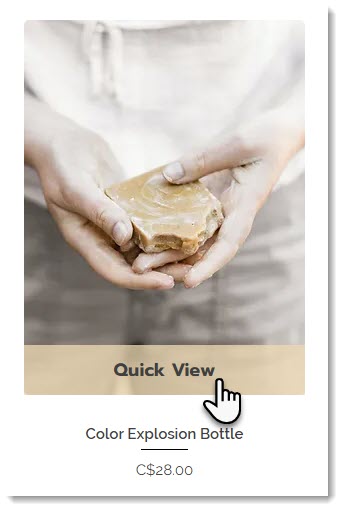
To customize the Quick View button:
Click the relevant Product Gallery or the Category Page in your editor.
Click the Settings icon
.Click the Design tab.
Select Quick View button.
Customize the button using the available options.
Customizing the Quick View window
After a customer clicks the Quick View button, the Quick View window opens. You can customize the design of this window, so it matches your store's look and feel.
To customize the quick view:
Click the relevant Product Gallery or the Category Page in your editor.
Click the Settings icon
.Click the Quick View tab.
Customize the Quick View using the available options.