Taking online orders
Wix Restaurants: Troubleshooting Printing Orders from the Wix App
Important:
This article is about the original Restaurants Orders app.
We've released a new online ordering app. Learn how to add and set up the new Wix Restaurants Orders (New) app.
If you're having trouble printing Wix Restaurant orders from the Wix app, try the troubleshooting steps below.
Before you begin:
Check that you are using a compatible printer. To print orders from the app, you must have a network/WiFi printer or Star Micronics TSP143 / Star Micronics TSP654II bluetooth receipt printers.
Make sure the bluetooth status indicator light is on
Check that the printer is turned on as well as the bluetooth indicator light signifying a good connection.
Pair the bluetooth printer to your mobile device/iPad
Once your bluetooth printer is turned on and ready for pairing, connect the printer to your mobile device.
Go to your site in the Wix app.
Tap Manage
 at the bottom.
Click Orders in your apps.
Tap the Settings icon
 at the top right.
Tap Print Settings.
Tap the Default Printer drop-down and select a printer.

Reset the bluetooth settings on your printer
Unpair your mobile device and printer and then turn your device off:Turn off the printer.
In your mobile device's settings, tap Bluetooth to see your paired bluetooth devices.
Tap the 'i' symbol to the right of the printer name.
Tap Forget this device to remove the printer from your Bluetooth devices list.
Turn the printer on.
Find the reset button located on the back of the printer and press and hold down the button.
While holding down the reset button, turn on the printer. Continue holding the reset button for 10 seconds after turning on the printer, and then release the reset button.
The lights on the front of the printer will begin to flash. Wait until the power light is a solid green and the error light is off.
Test the printer.Turn off the printer.
Hold down the FEED button.
While holding down the FEED button, turn on the printer.
When the printer starts printing, release the FEED button.
Make sure the second page contains the printer's bluetooth information.
Turn on your mobile device and pair it with the receipt printer (following the steps above).
Troubleshooting the Star Micronics TSP654II
Check that printer paper is correctly installed and that the status indicator light is a solid green color.
Unpair your mobile device and receipt printer.Turn off the printer.
In your mobile device's settings, tap Bluetooth to see your paired bluetooth devices.
Tap the 'i' symbol to the right of the printer name.
Tap Forget this device to remove the printer from your Bluetooth devices list.
Return your receipt printer to its factory settings.Turn the printer off.
Find the reset button located on the back of the printer and press and hold down the button.
While holding down the reset button, turn on the printer. When the ERROR light flashes, you can release the button.
Wait until the ERROR light stops flashing. To complete the reset, turn off the printer a second time, wait 5 seconds, and then turn on the printer again.
Re-pair your mobile device with the receipt printer.
Restart the printer.
Go to your mobile device's bluetooth settings, and confirm that the Star Micronics printer shows Not connected.
Tap the printer to connect to it.
When the printer shows as Connected, restart it again. When the printer turns on, it should show briefly as Not Connected, and then as Connected.
Test the printer by printing a test receipt.
Still need help?
If the problem persists, contact us with the following information:
The name or URL of your Wix site.
The manufacturer, model and operating system of your mobile device (e.g. Apple iPhone 6s, Samsung Galaxy S4).
The manufacturer and model of your printer.
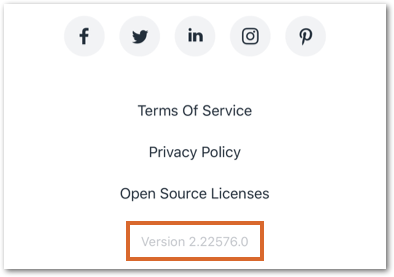
The version of the Wix app you're using. To find this:Open the Wix app.
Tap the Profile icon at the top left.
Tap About the App under Help & Feedback.
Scroll down to the bottom of the screen and copy the number next to Version.