Wix Bookings
Wix Bookings: Allowing Clients to Become Site Members
Make it easier for clients to book services by allowing them to become site members. Members can re-book, view their booking history, and reschedule, without entering their details each time.
With Wix Bookings, there are 2 ways for clients to log in and connect with you. In this article, we will describe both methods and explain how to enable them.
In this article, learn more about:
Inviting clients to join your site on the Wix member apps
As a business owner, you can invite clients to join your site using one of the Wix member apps, such as the Spaces app, Fit app, Dine app, or your branded app. When clients accept the invitation, they can download the relevant app to book, reschedule, or cancel services directly from their mobile devices. You can send invites via social media, email, text message, or through a direct link.
Once your clients download the relevant member app and join, they can book, reschedule, or cancel appointments from the app.
Before you begin:
To download the Wix app, search for Wix in the App Store or Google Play, or use the links below:
To invite clients to join your site on the Wix member apps:
Go to your site in the Wix app.
Tap Manage
 at the bottom.
Tap Mobile App.
(If needed) Switch to editing a different mobile app:Tap the mobile app name at the top.
Tap Spaces by Wix app or tap the relevant mobile app (e.g. Fit by Wix app).
Tip: Go to your site's dashboard on desktop to choose your preferred member app
Tap Invite new members.
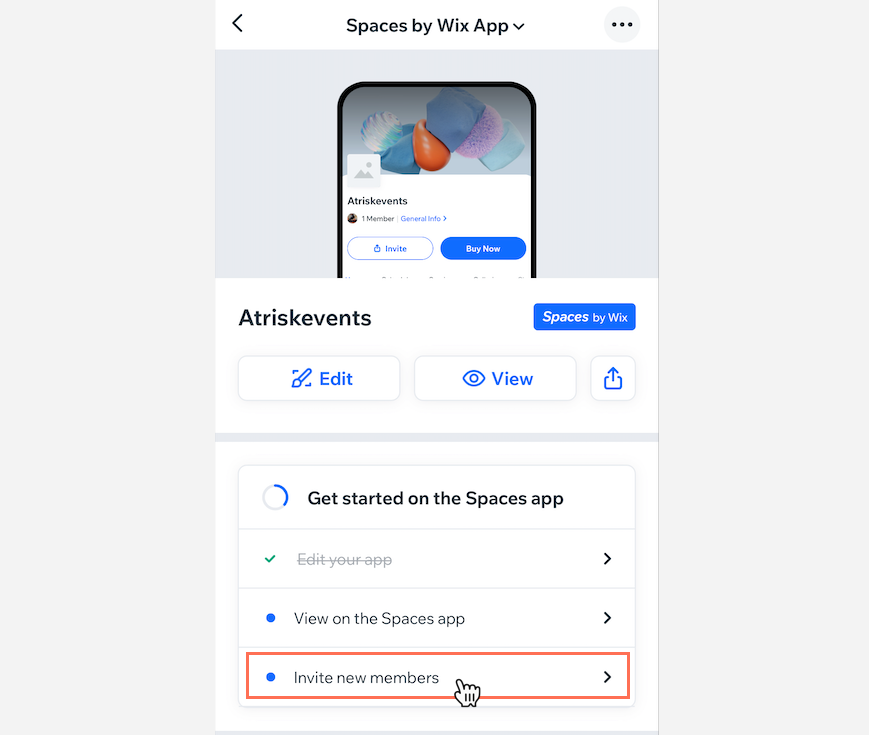
Choose to invite people using the following methods:
Send an SMS
Send the link and invite code to people by SMS (text message).
Tap Send an SMS.
Add the contacts you want to invite and send the invite message, which contains an invite link for your contacts to click to join.

Share via Social & More
Share the link and invitation code to any social network connected to your phone.
Tap Share via Social & More.
Choose how you want to send your invite (e.g. Facebook, WhatsApp, Gmail).
Copy Link
Copy the link and paste it into a new message in any application.
Tap Copy Link.
Paste the link into a new message using the application of your choice.
Adding a Members Area to your Wix Bookings site
Wix Bookings integrates with the Wix Members Area to provide your clients with a seamless booking experience. When clients visit your site, they have the option of logging in.
When you add certain Wix Apps such as Wix Bookings, Wix Stores, and Wix Blog, a Members Area appears on your site automatically.

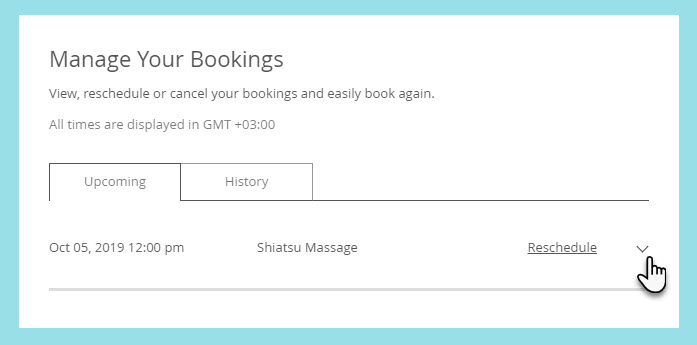
Then, in their personal My Bookings page, they can see all upcoming bookings and cancel or reschedule, if needed. They can also view past bookings to see which services they tried before.